Control Panel
13
1
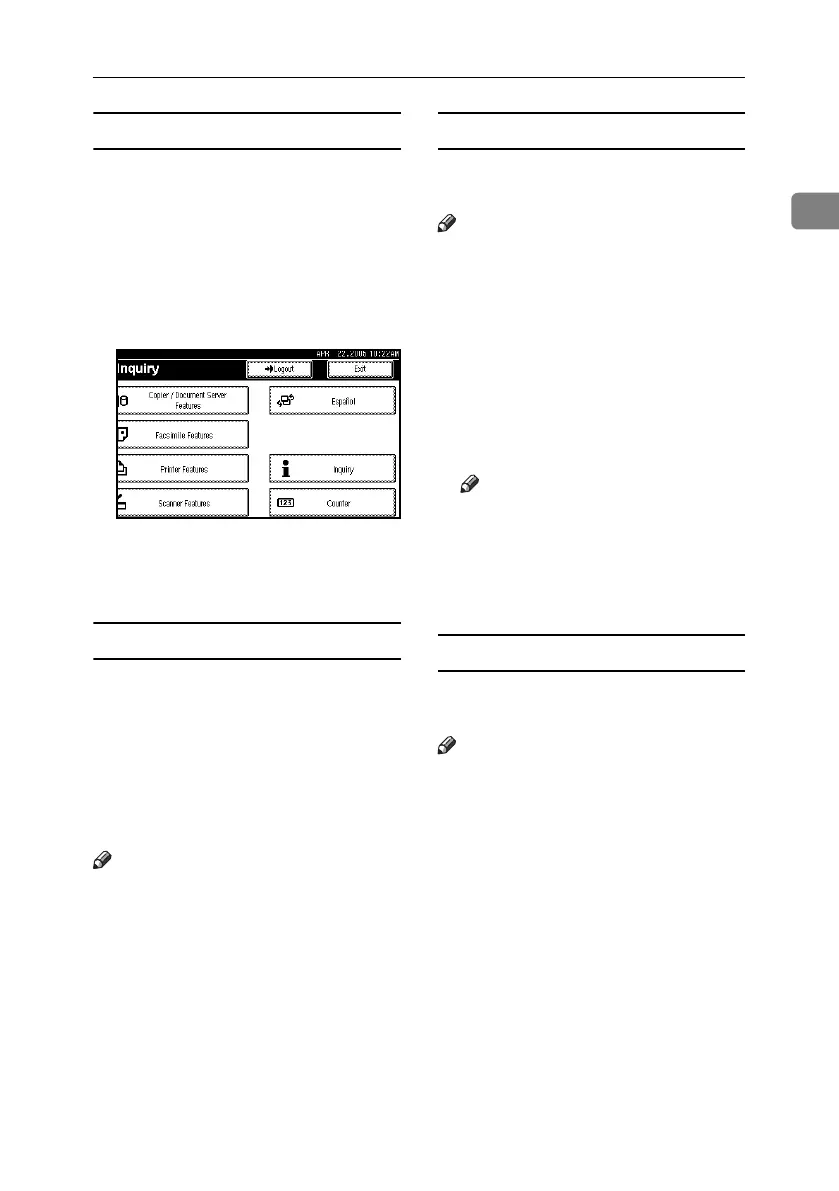
Log off (using the control panel)
Use the following procedure to log off
when Basic Authentication, Windows
Authentication, LDAP Authentica-
tion, or Integration Server Authenti-
cation is set.
A Press the {User Tools/Counter} key.
B Press [Logout].
C Press [Yes].
D Press the {User Tools/Counter} key.
Login (using a printer driver)
If Basic Authentication, Windows
Authentication, LDAP Authentica-
tion, or Integration Server Authenti-
cation is set, make encryption settings
in the printer properties of a printer
driver, and then specify a login user
name and password. For details, see
the printer driver Help.
Note
❒ When logged on using a printer
driver, logging off is not required.
Login (using a Web browser)
Use the following procedure to log on
when user authentication is set.
Note
❒ It is recommended that you use a
Web Image Monitor running un-
der the same network environ-
ment as this machine. Otherwise,
the Web browser may not open
and an error may occur.
A Click [Login].
B Enter a login user name and pass-
word, and then click [OK].
Note
❒ For user code authentication, enter
a user code in [User Name], and
then click [OK].
❒ The procedure may differ depend-
ing on the Web browser used.
Log off (using a Web browser)
Click [Logout] to log off when user au-
thentication is set.
Note
❒ It is recommended that you use a
Web Image Monitor running un-
der the same network environ-
ment as this machine. Otherwise,
the Web browser may not open
and an error may occur.
RussianC4-EN_Combine-F_FM.book Page 13 Wednesday, April 27, 2005 2:01 PM



 To Next Page