View management. Select a record in history image, click this icon to enter
the image view management.
History image. Click this icon to enter the check patient list interface.
Case report. Enter the report editing page and output the complete radiological
diagnosis report after editing, as detailed in the case report section.
Print: access film print window (see section Film Printing for detailed
introduction)
System management. Click this icon, then a drop-down menu is shown. The
operator can do system management, check management, user management and
password changes and other settings
6.4.2 Toolbar
You can register patient, change information, delete records and start checking
queries here.
Register patient. Click this button to enter the patient registration interface. The
patient information can be registered here.
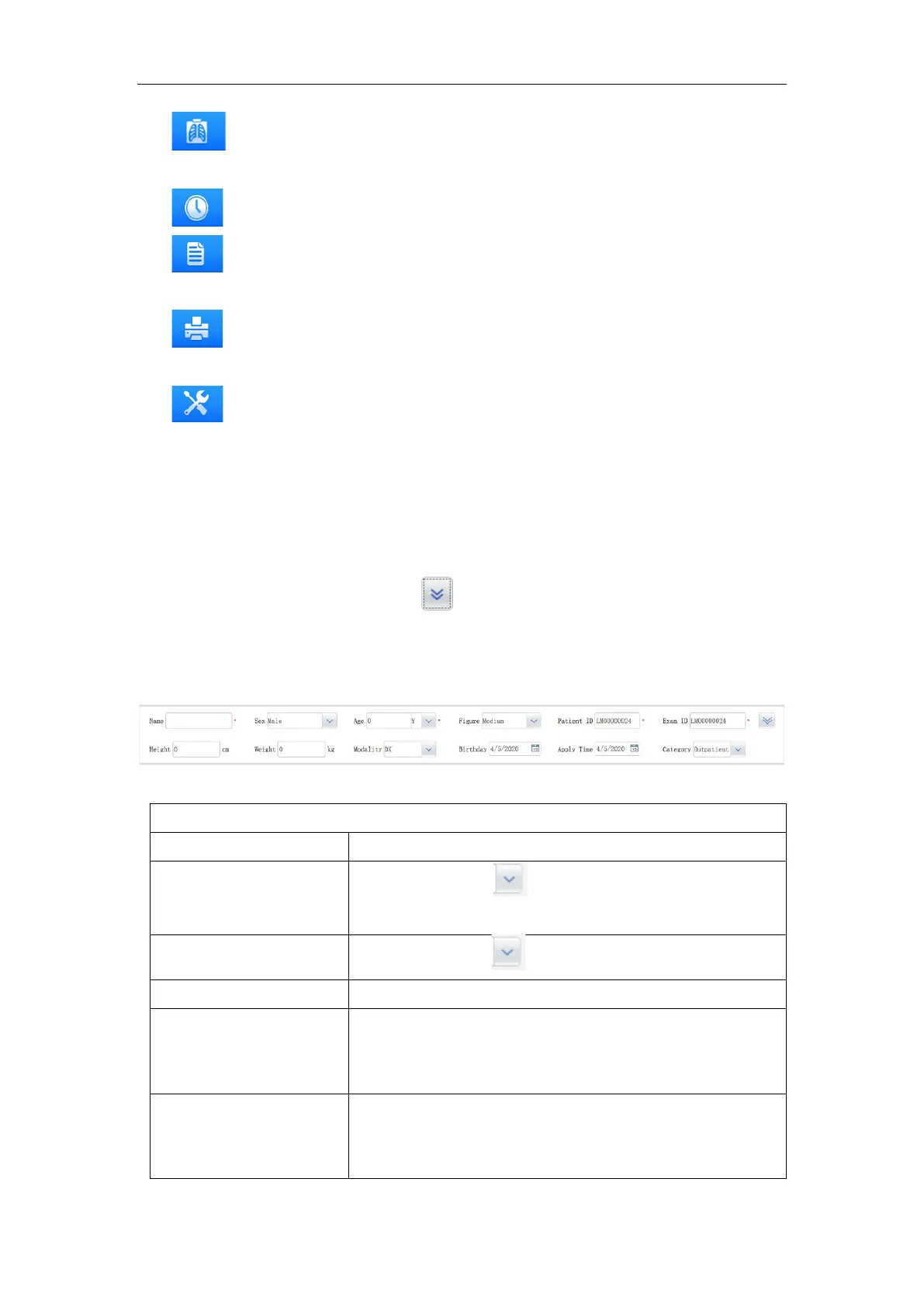
Patient registration interface consists of patient information area. This screen is shown
as the following figure:
Figure 6-5
Patient sex. Click button to select, male, female or
others. The default is male;
The Serial number of X-ray check patient;
Do not edit this part,input other information, click “OK”
button to generate a new patient record.
The number of patient registering in the hospital;
Do not edit this part,click “OK” button to generate a new
patient record.



 To Next Page