Youwillalsoneedtoinstallapplicationsoftware,whichisprovidedintheC:\SWTOOLS\APPSdirectory
onyourharddiskdrive.Todothis,refertotheinstructionsin“Reinstallingpreinstalledapplicationsand
devicedrivers”onpage86.
Note:IfyoucannotndtheSupplementles,devicedrivers,andapplicationsoftwareyouneedonyour
harddiskdrive,orifyouwanttoreceiveupdatesandthelatestinformationaboutthem,refertotheThinkPad
Website:
http://www.lenovo.com/support/site.wss/document.do?sitestyle=lenovo&lndocid=tpad-matrix
BIOSSetupUtility
Yourcomputerprovidesaprogram,calledBIOSSetupUtility,thatenablesyoutoselectvarioussetup
parameters.
TostartBIOSSetupUtility,doasfollows:
1.Toprotectyourselfagainstaccidentallossofdata,backupyourcomputerregistry.See“Performing
backupandrecoveryoperations”onpage83.
2.Ifthediskettedriveisconnectedtothecomputer,removeanydiskettefromthediskettedrive,and
thenturnoffthecomputer.
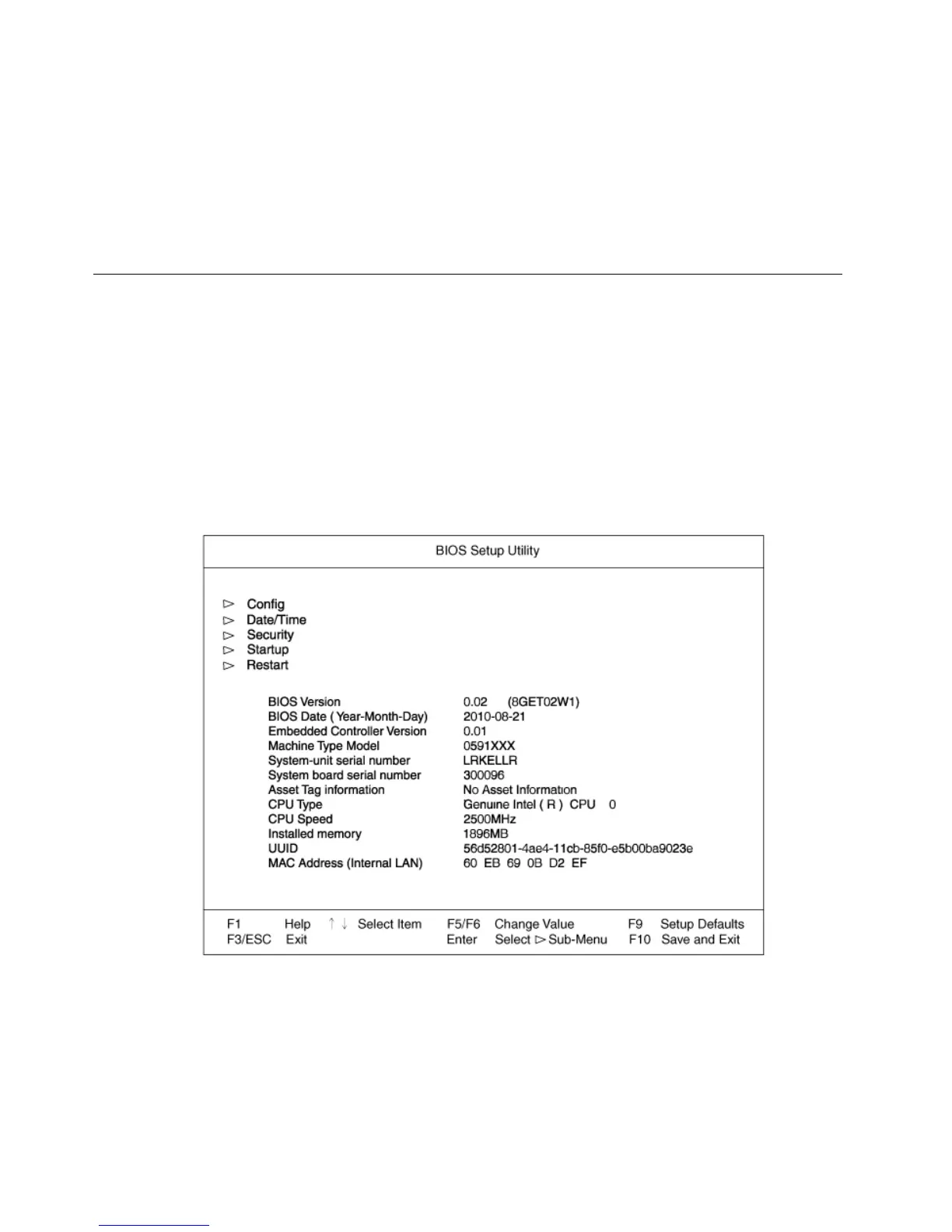
3.Turnonthecomputer.Whenthelogoscreenisdisplayed,presstheF1key.TheBIOSSetupUtility
opens.Awindowsuchasthefollowingappears:
Ifyouhavesetasupervisorpassword,theBIOSSetupUtilitymenuappearsafteryouenterthe
password.YoucanstarttheutilitybypressingEnterinsteadofenteringthesupervisorpassword;
however,youcannotchangetheparametersthatareprotectedbythesupervisorpassword.Formore
information,referto“Usingpasswords”onpage67.
4.Usingthecursorkeys,movetoanitemyouwanttochange.Whentheitemyouwantishighlighted,
pressEnter.Asubmenuisdisplayed.
5.Changetheitemsyouwishtochange.Tochangethevalueofanitem,usetheF5orF6key.Iftheitem
hasasubmenu,youcandisplayitbypressingEnter.
138UserGuide










 To Next Page