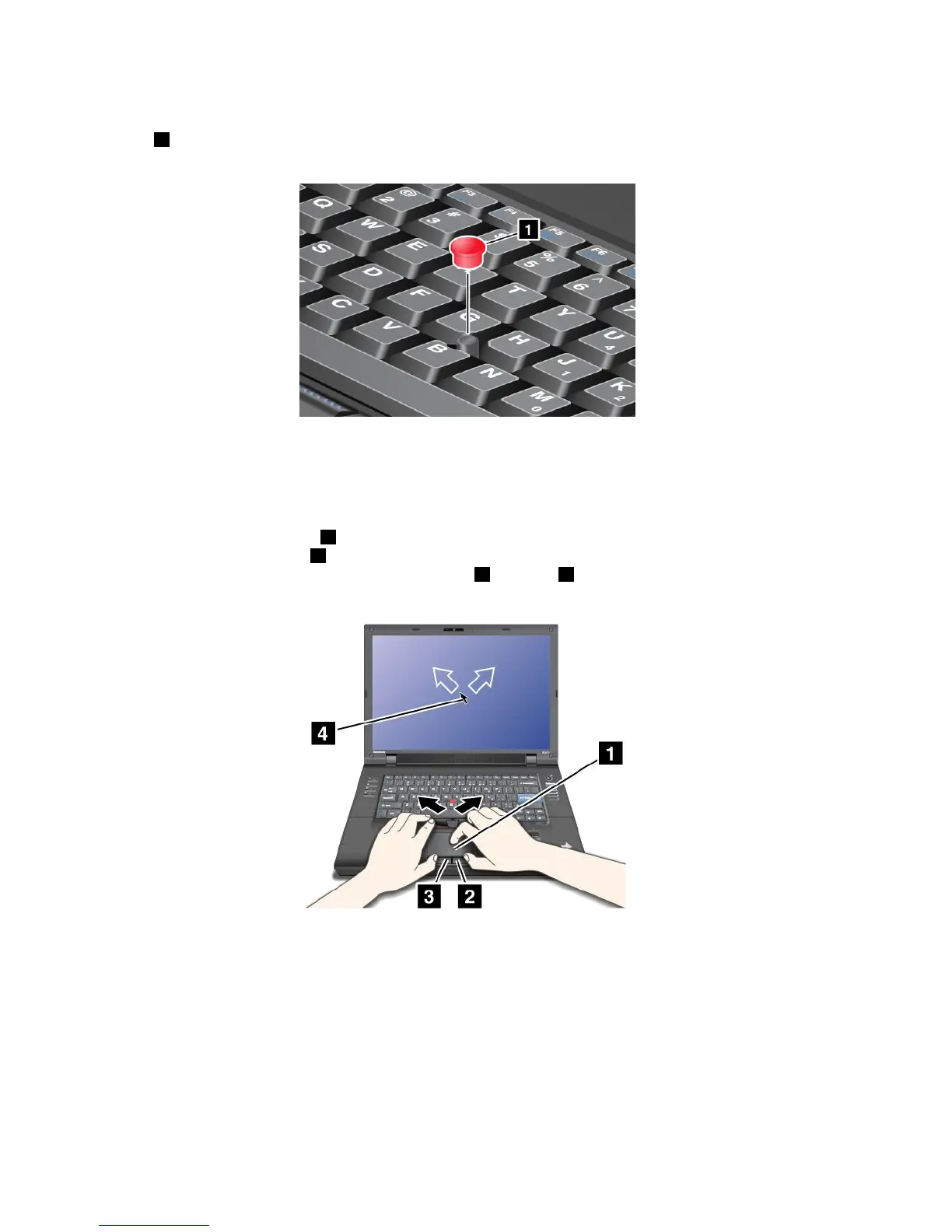
Changingthecap
Thecap1ontheendoftheTrackPointpointingstickisremovable.Youcanreplaceitasshownin
thedrawing.
Note:Ifyoureplacethekeyboard,anewkeyboardisshippedwiththedefaultcap.Ifyouwish,youcan
keepthecapfromyouroldkeyboardanduseitonthenewone.
Usingthetouchpad
Thetouchpadconsistsofapad1andtwoclickbuttonsbelowtheTrackPointbuttonsatthebottomofthe
keyboard.Tomovethepointer4onthescreen,slideyourngertipoverthepadinthedirectioninwhich
youwantthepointertomove.Thefunctionsoftheleft3andright2clickbuttonscorrespondtothoseof
theleftandrightmousebuttonsonaconventionalmouse.
Usingthemulti-touchtouchpad
Thetouchpadofyourcomputersupportsmulti-touchwithwhichyoucanzoomin,zoomout,scrollorrotate
onthescreenwhilebrowsingtheInternetorreadingoreditingadocument.
Fordetails,refertotheHelpintheUltraNav.
Customizingthetouchpad
Tocustomizethetouchpad,doasfollows:
1.PressFn+F8.ApanelforUltraNavDeviceSettingspopsup.
34UserGuide






 To Next Page