UsingtheTrackPointpointingdevice
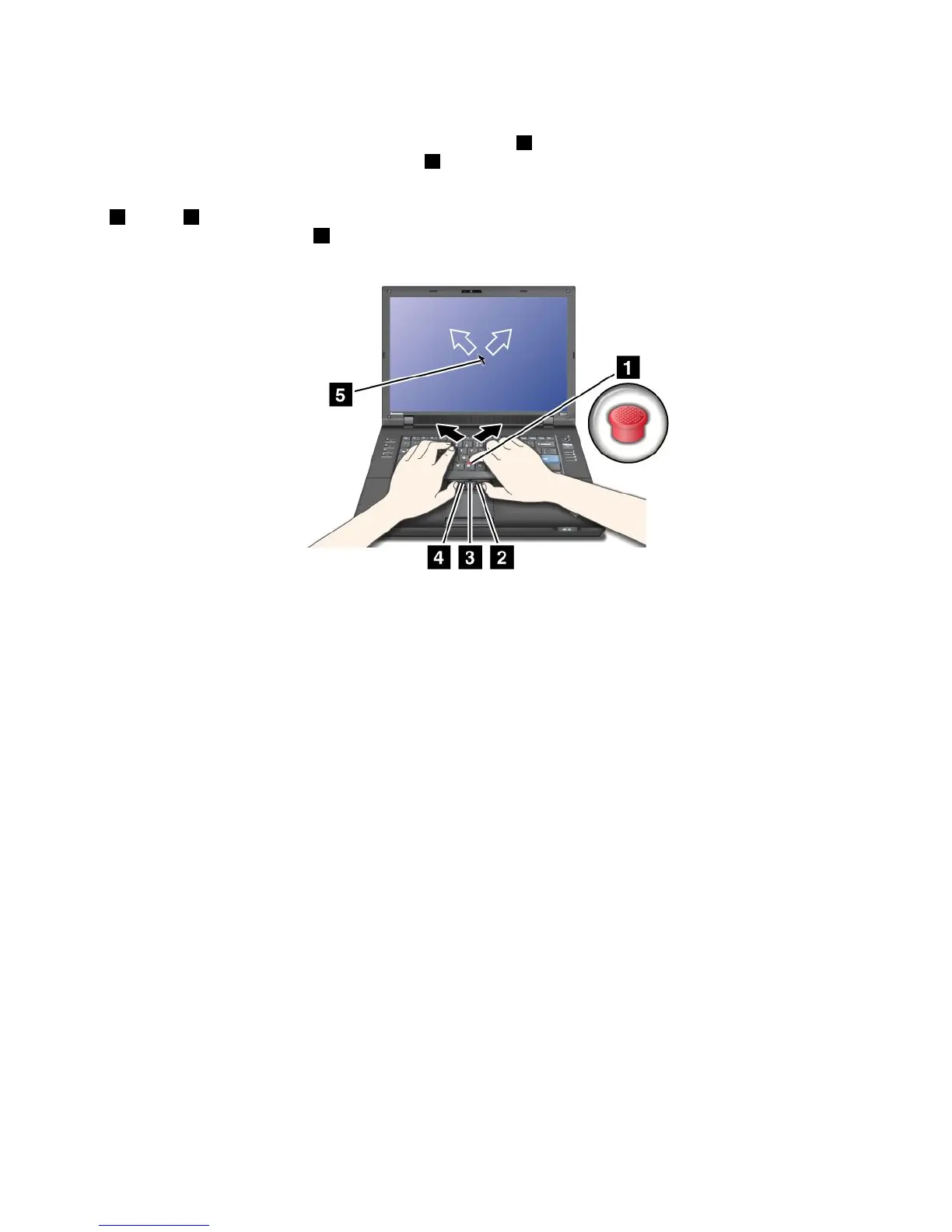
TheTrackPointpointingdeviceconsistsofapointingstick1onthekeyboardandthreeclickbuttonsatthe
bottomofthekeyboard.Tomovethepointer5onthescreen,youapplypressuretothenonslipcaponthe
pointingstickinanydirectionparalleltothekeyboard;thepointingstickitselfdoesnotmove.Thespeedat
whichthepointermovesdependsonthepressureyouapplytothepointingstick.Thefunctionsoftheright
2andleft4clickbuttonscorrespondtothoseoftheleftandrightmousebuttonsonaconventionalmouse.
TheTrackPointcenterbutton3,calledthescrollbar,enablesyoutoscrollWebpagesordocumentsinany
directionwithnoneedtousethegraphicscrollbarsonthesideofthewindow.
IfyouarenotfamiliarwiththeTrackPoint,readtheinstructionsthatwillhelpyougetstarted.
1.Placeyourhandsinthetypingposition,andpressgentlywitheitherindexngeronthepointingstickin
thedirectioninwhichyouwantthepointertomove.
Tomovethepointer,pressthepointingstickawayfromyoutomoveitup,towardyoutomoveit
down,toonesideortheothertomoveitsideways.
Note:Thepointermightdrift.Thisisnotadefect.StopusingtheTrackPointforafewseconds,the
pointerwillstopmoving.
2.Toselectanddragasrequiredbyyoursoftware,presstheleftorrightclickbuttonwitheitherthumb
andmovetheTrackPointpointingstick.
CustomizingtheTrackPoint
YoucancustomizetheTrackPointpointingdeviceanditsbuttonsasfollows:
•Switchthefunctionsoftheleftandrightbuttons.
•ChangethesensitivityoftheTrackPoint.
•EnabletheMagnifyingGlass.
•EnabletheTrackPointscrollingfunction.
•EnabletheTrackPointScrollingTips.
TocustomizetheTrackPoint,doasfollows:
•PressFn+F8.ApanelforUltraNavDeviceSettingspopsup.
•ClickManageSettingstoopentheMousepropertieswindow.
•ClicktheUltraNavtab.UnderTrackPoint,proceedtochangingthesettings.
Fordetails,refertotheHelpintheUtility.
Chapter2.Usingyourcomputer33





 To Next Page