•Youcanalsogetaccesstothedesktopvolumecontrolbyusingthevolumeiconinthetaskbaratthe
lowerrightofthescreen.ToopentheVolumeControlwindow,clickthevolumeicon.Tocontrolthe
volume,movethevolumecontrolsliderupordown.Toturnoffthesound,selectMutespeakers(in
WindowsVistaandWindowsXP ,Mute).
•Thenamesofwindowsoreldsareslightlydifferentdependingontheoperatingsystemyouuse.
•Fordetailsaboutcontrollingvolume,refertoyourWindowsonlinehelp.
SettingthemicrophonemutebuttoninWindows7andWindowsVista
Whenyoupressthemicrophonemutebutton,alloftherecordingdevicesaresetonmuteorunmute;
thisisthedefaultsetting.
Tochangethesetting,dothefollowing:
1.PressFn+F6.TheCommunicationssettingswindowopens.
2.ClicktheManageSettingsbutton.TheCommunicationsUtilitywindowopens.
3.OntheVoIPCallSettingstab,clickMicrophonemutebuttonsettings.TheSettingforMicrophone
Mutewindowopens.
4.SelectOnlytherecordingdeviceselectedbelow:.Thenselecttherecordingdevicefromthe
drop-downlistbox.
5.ClickOK.
WindowskeyandApplicationkey
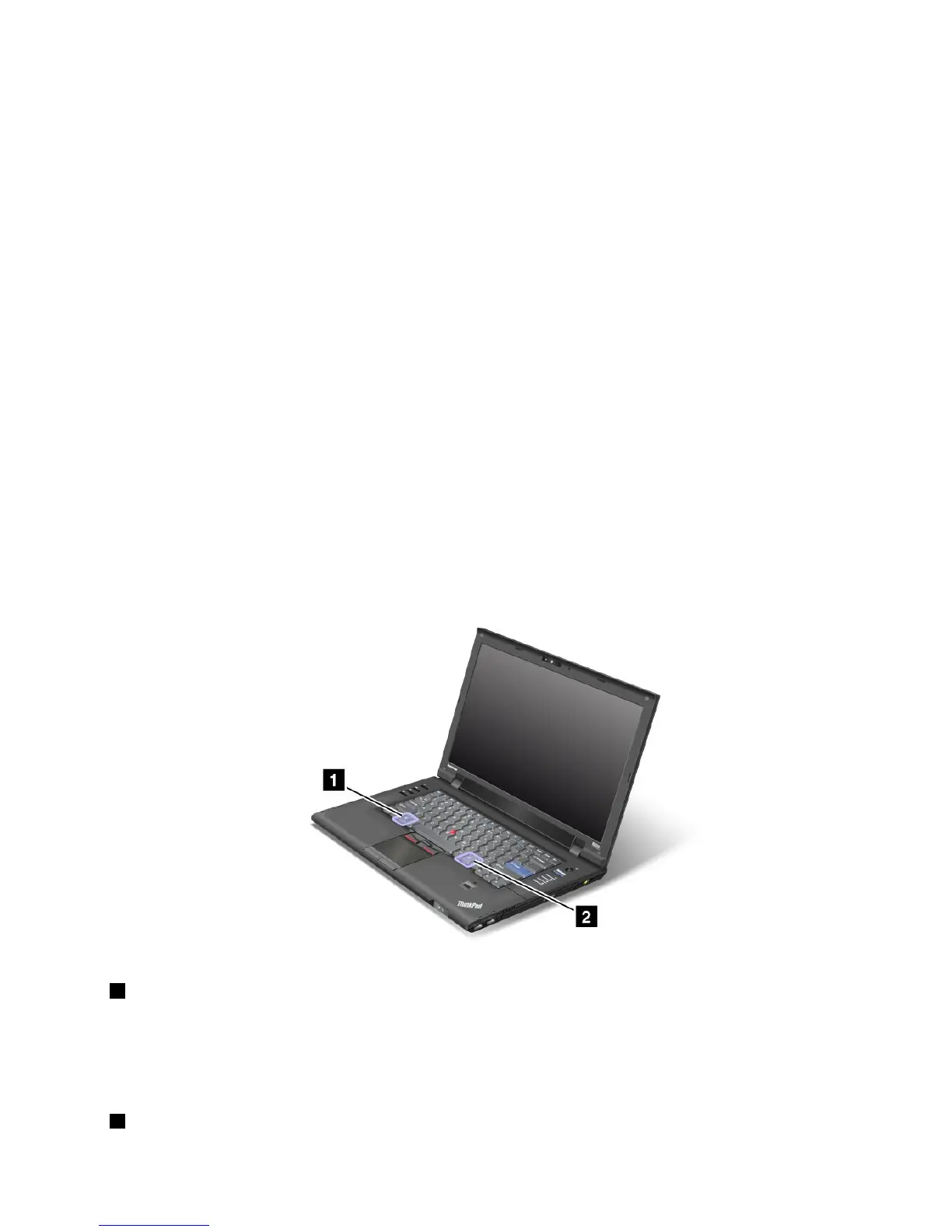
Thefollowingtwokeysareonyourcomputerkeyboard:
1Windowskey
Ifyoupressthiskey,theStartmenuofWindowsisdisplayedorhidden.
Ifyoupressthiskeyandanotherkeyatthesametime,theSystemPropertieswindowortheComputer(in
WindowsXP,MyComputer)windowisdisplayed.Fordetails,refertotheHelpinWindowsoperatingsystem.
2Applicationkey
Chapter2.Usingyourcomputer31











 To Next Page