28
4.7 FTP Data Access Settings
NAS system supports File Transfer Protocol (FTP) that allows users to transfer files via the Internet.
By properly configuring the FTP settings, you can effectively control how users access the content in
your NAS server via FTP.
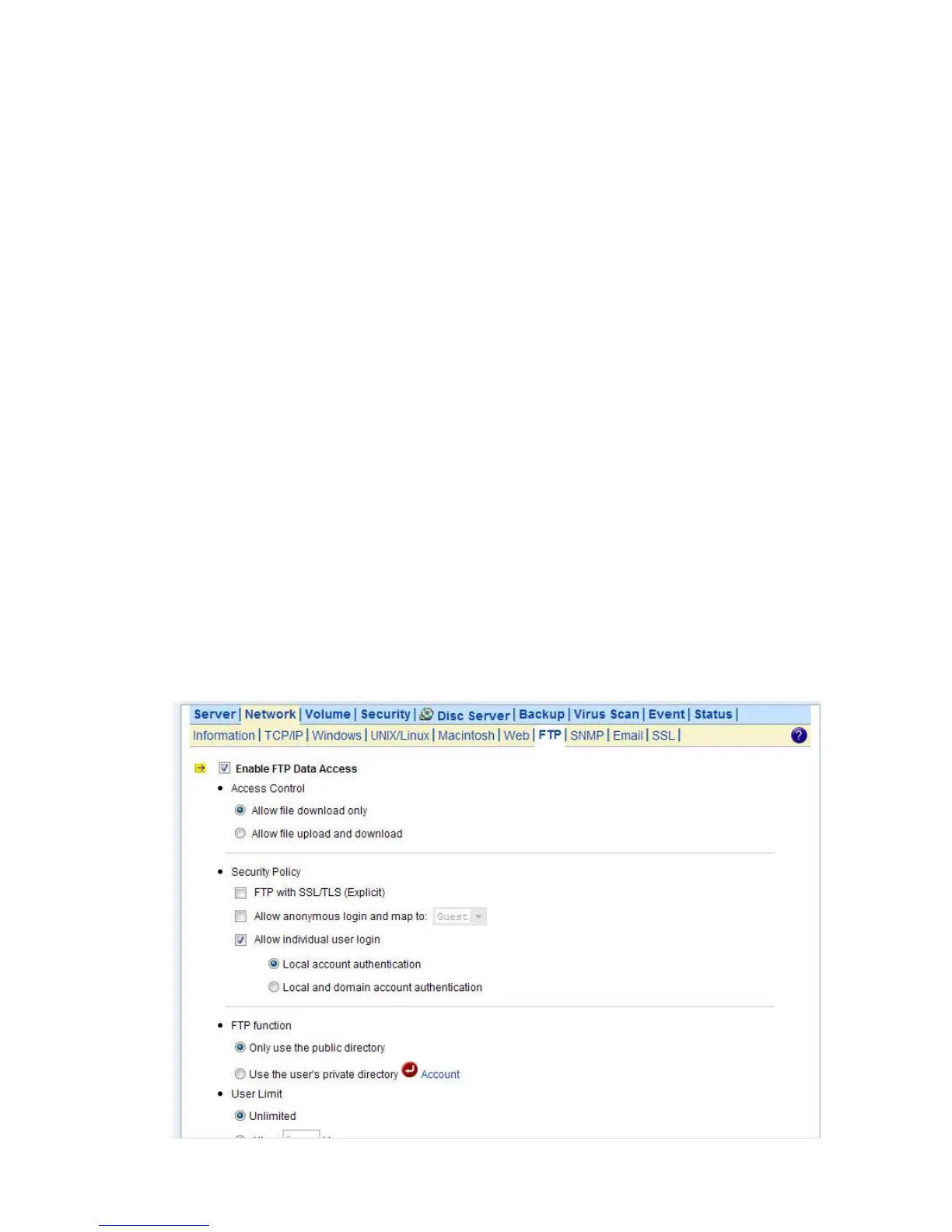
Configuring FTP Data Access
1. Click the Enable FTP Data Access checkbox to enable FTP data accessing.
2. Select the Access Control type. Click the Allow file download only or Allow file upload and
download radio button.
3. Select the appropriate Security Policy. Check the Allow anonymous login and map to:
check-box, and select a local user from the pull down menu. User using the anonymous login will
then possess the same security privilege as the selected local user.
4. Or, click Allow individual user login. Select Local account authentication to authenticate user
using the local user database or click the Local and domain account authentication radio button to
use both local account and Microsoft domain security authentication.
5. Select the User Limit. Click the Unlimited radio button or specify the maximum number of users
allowed to access the content in your NAS server via FTP.
6. Specify the Home Directory when user connects to the NAS server via FTP. Note that you must
select a volume to create a FTP home directory.
7. Specify the permission of the home directory by clicking the Set icon.
8. Click Apply to save the setting.



 To Next Page