66
When it is writing to disc, you can see the progress by clicking the hyperlink in the Status column of
the Device List. A separate browser window will pop up. The progress is indicated by the progress
bar, the Processed Folders item, the Processed Files item and the Size Processed item. You can
also check the Task Phase to see what the CD/DVD writer is doing.
If it requires more than one disc to burn the source data, it will prompt for a new disc after the first disc
is burned ok. In this case, the Task % progress bar indicates the total task progress, which means the
percentage of the source data which have been burned to discs. The Disc % progress bar indicates
the CD/DVD writing percentage of the current disc.
9.2 Tape Backup and Restore
The NAS server builds in backup software for data protection. The backup software features full or
incremental backup, scheduled tasks and multi-volume backup. The administrator is able to define
backup policy by incorporating one or more backup tasks. It can also utilize the hardware
compression capability. It is simple, yet powerful enough to fulfill most backup demands.
The backup software requires the system folder to operate. To specify the system folder, please open
the Administration Page and go to the Server→Maintenance page. Then specify a volume to
contain the system folder. If there exists no system folder in the specified volume, it will create one
automatically.
Adding Backup Tasks
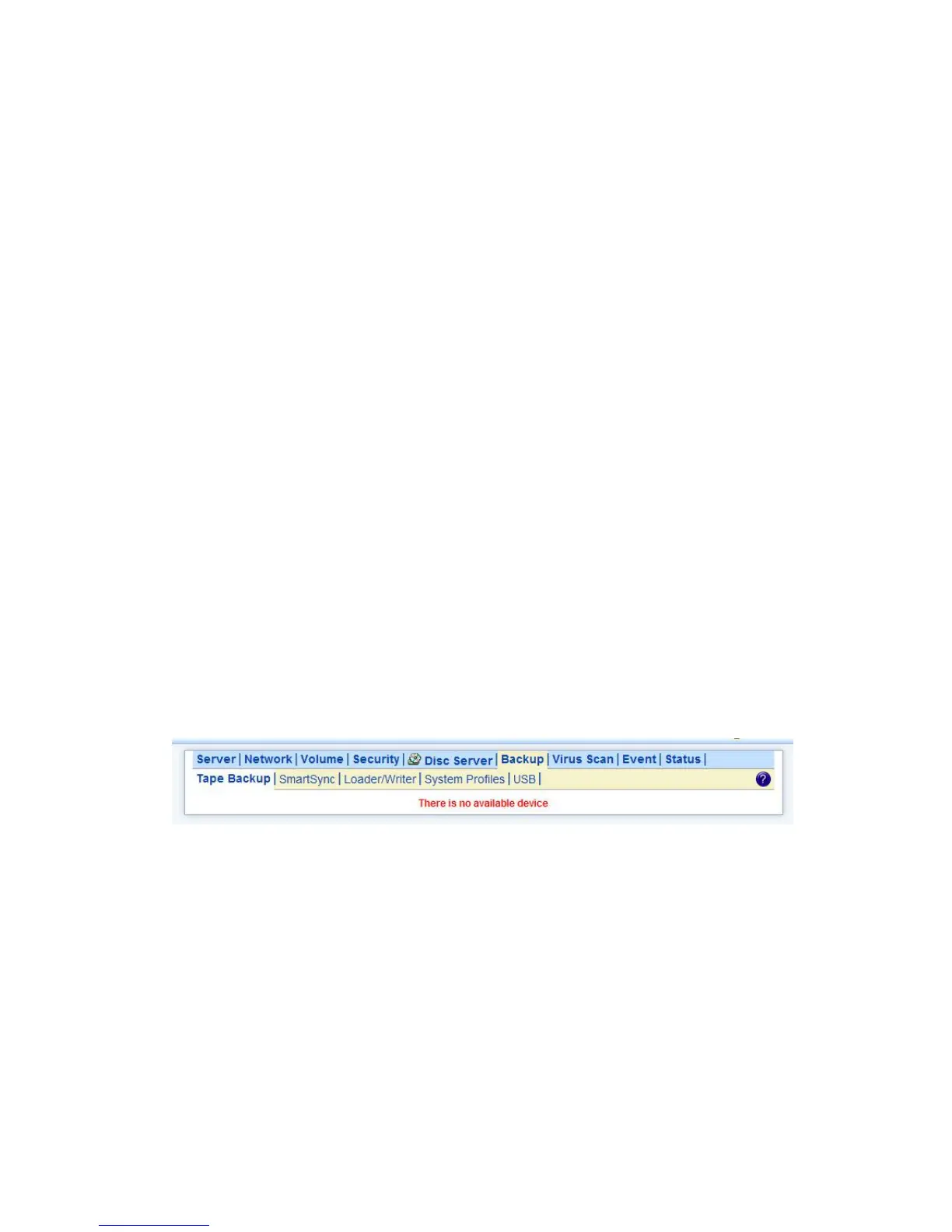
To arrange backup schedules, please open the Administration Page and go to Backup→Tape
Backup page. Click the Backup tab. You will see a list of scheduled tasks on that page.
To add a task, click the Add Task button. Then follow the steps below.
1. Select a tape drive for backup.
2. Input the tape label for identifying tapes. It will append backup start date/time to the tape label
when running a backup task.
3. Specify whether it will be a full or incremental backup task. A full backup task copies all selected
folders and files into tapes. An incremental backup task only copies modified or newly created files
since last backup. It checks archive bits and only back up those with archive bits set.
4. Choose which folders to back up. Click the Select Folders hyperlink and select what to back up.
Your selection will be copied to the lower list-box, which indicates the folders to back up.
5. Specify backup schedule. You can start the backup immediately or arrange a schedule. The



 To Next Page