65
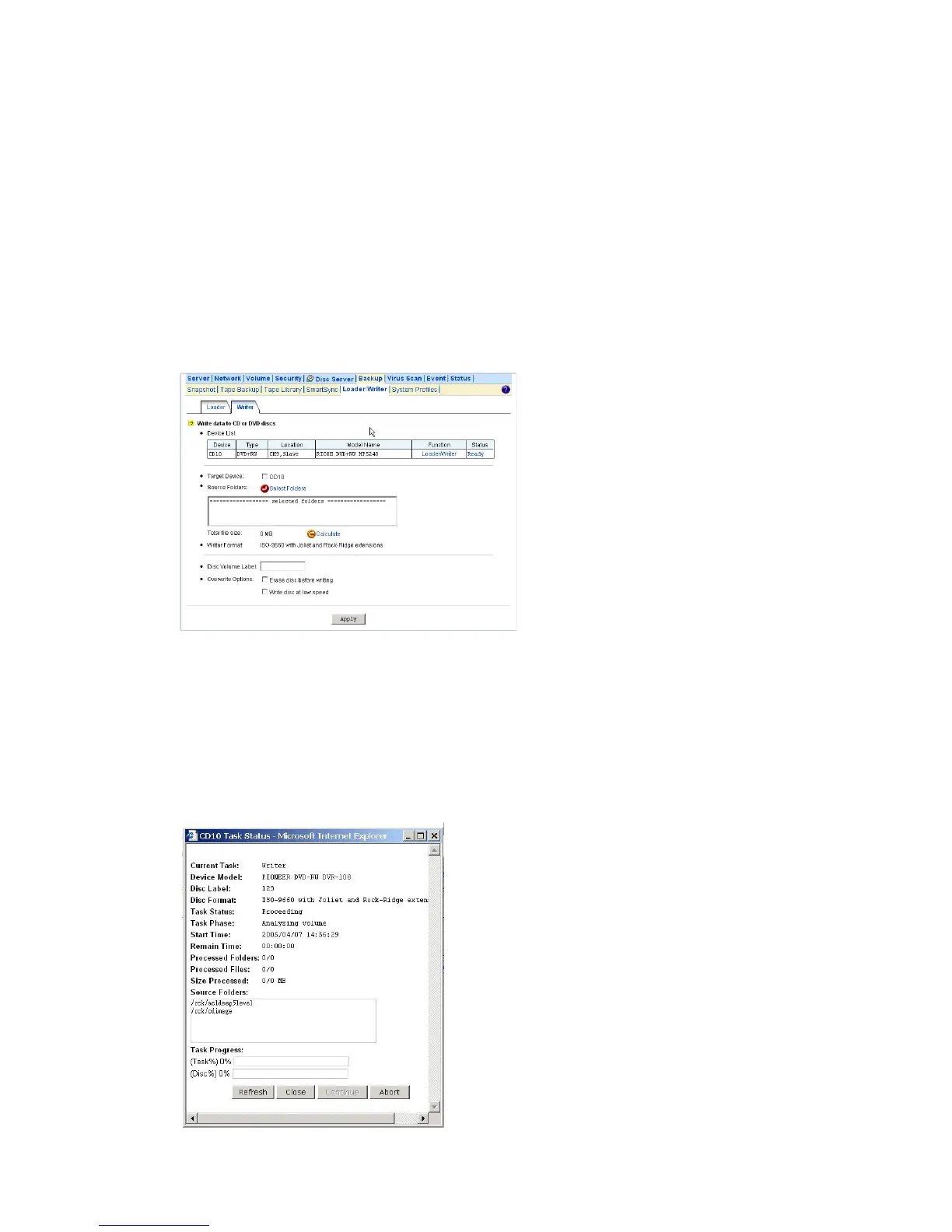
When it is copying disc, you can see the progress by clicking the hyperlink in the Status column of
the Device List. A separate browser window will pop up. The progress is indicated by the progress
bar, the Processed Folders item, the Processed Files item and the Size Processed item.
Writing CD/DVD Discs
The NAS server supports CD or DVD burning. It can use ISO-9660 CD format to write data to CD or
DVD discs. Supported devices are CD-RW, DVD-RW and DVD+RW writers and Blu-ray Disc.
Dual-layer DVD writing is also supported.
To write data to CD/DVD discs, please insert a blank disc into the CD/DVD writer first. Next, open the
Administration Page and enter the Backup→Loader/Writer page. Then follow the steps below.
1. Click the Writer tab in Backup→Loader/Writer menu
2. Select the Target Device where you want to burn the blank CD/DVD disc(s). Above the Target
Device item you will see a device list for your reference.
3. Specify the source folders. Please click Select Folders and specify which folders to burn.
4. Specify the volume label of the CD or DVD disc.
5. Check the overwrite option if you want erase a rewriteable disc first before burning.
6. Click Apply to start burning CD or DVD discs.



 To Next Page