49
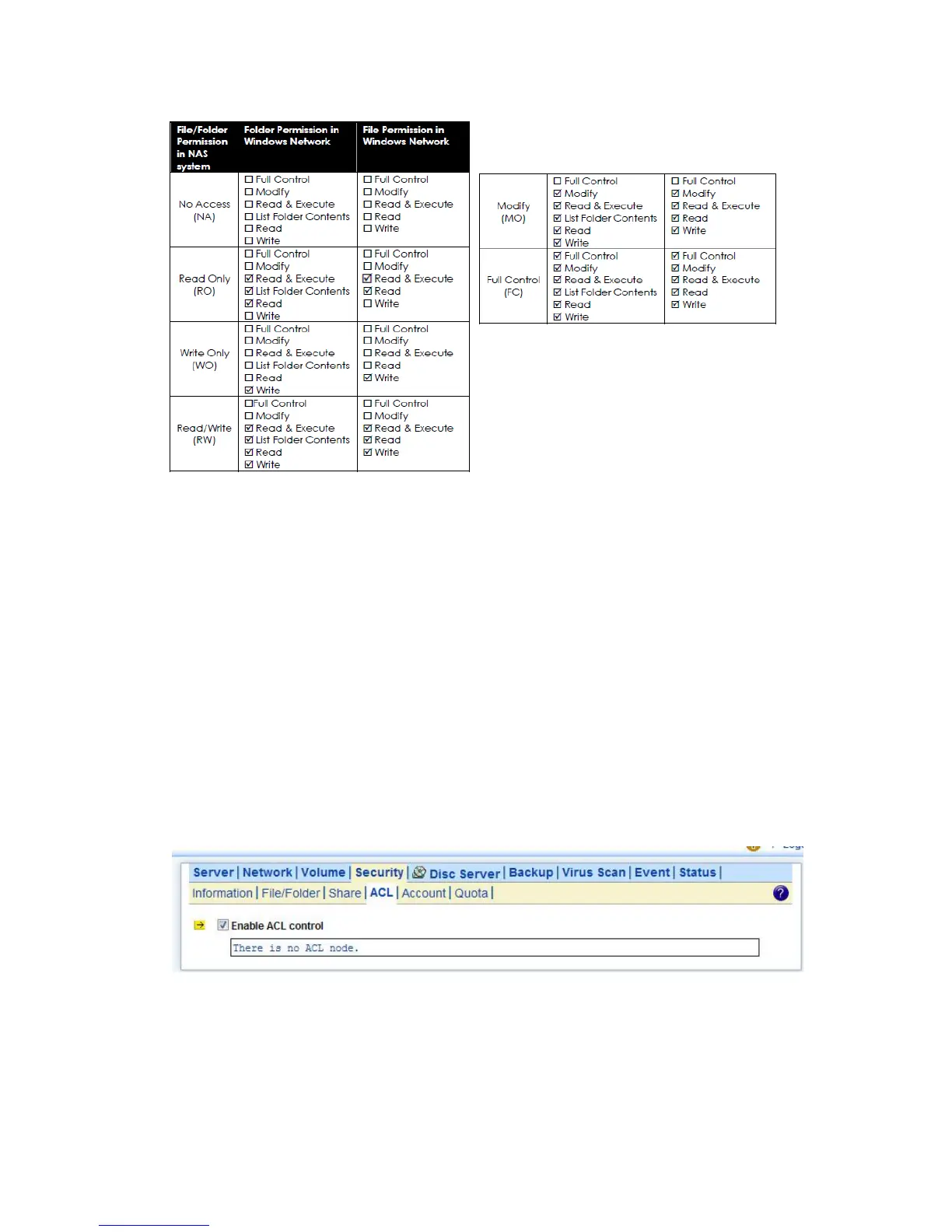
To set, view, change or remove file/folder permission in Windows Network:
1. Locate the file or folder you want to set permission
2. Right-click the file or folder, click Properties → Security
3. Change permission from an existing groups or users, click the Allow or Deny checkbox
4. Or, remove the groups or users by clicking the Remove button.
To change owner of a file or folder
1. Go to Security→File/Folder menu.
2. If you want to change the owner’s name of the corresponding file and folder, click the owner’s
name hyperlink. Select a new owner from the user list.
3. Check the checkbox beside Apply to all sub folders and files if you want to propagate the
ownership to all sub folders and files.
4. Click Apply to save the setting.
6.7 Managing Quotas
Configuring user quota:
NAS server supports two types of quotas: user quota and folder quota. User quota monitors the disk
space usage of each user. It is based on file ownership, and is independent to which volume that the



 To Next Page