61
8.4 Accessing from MacOS
After setting the NAS server to operate in the workgroup mode or the domain mode, follow the steps
below to configure for MacOS user access.
1. Enable the Macintosh Network support (the AFP protocol).
Open the administration page and enter the Network→Macintosh menu. Check the Enable
Macintosh Network check-box and specify the security policy and the AppleTalk zone. Then click
Apply. In the workgroup mode you can only select Local account authentication as the security
policy. In the domain mode, you can select either one.
2. Create local user accounts or retrieve domain accounts from the domain controller, depending on
whether the NAS server is in the workgroup mode or the domain mode.
3. Share the volume to network users.
Go to the Security→File/Folder menu. Find the volume01 entry and click Create in the Sharing
column (or click Modify if the volume has been shared). On the Property page, check the
Macintosh Network (AFP) check-box and click Apply.
4. Set the share permissions.
After sharing the volume, specify the access rights of local users/groups and domain users/groups.
After the configuration is done, MacOS 8 or OS 9 users can use the MacOS Chooser or Network
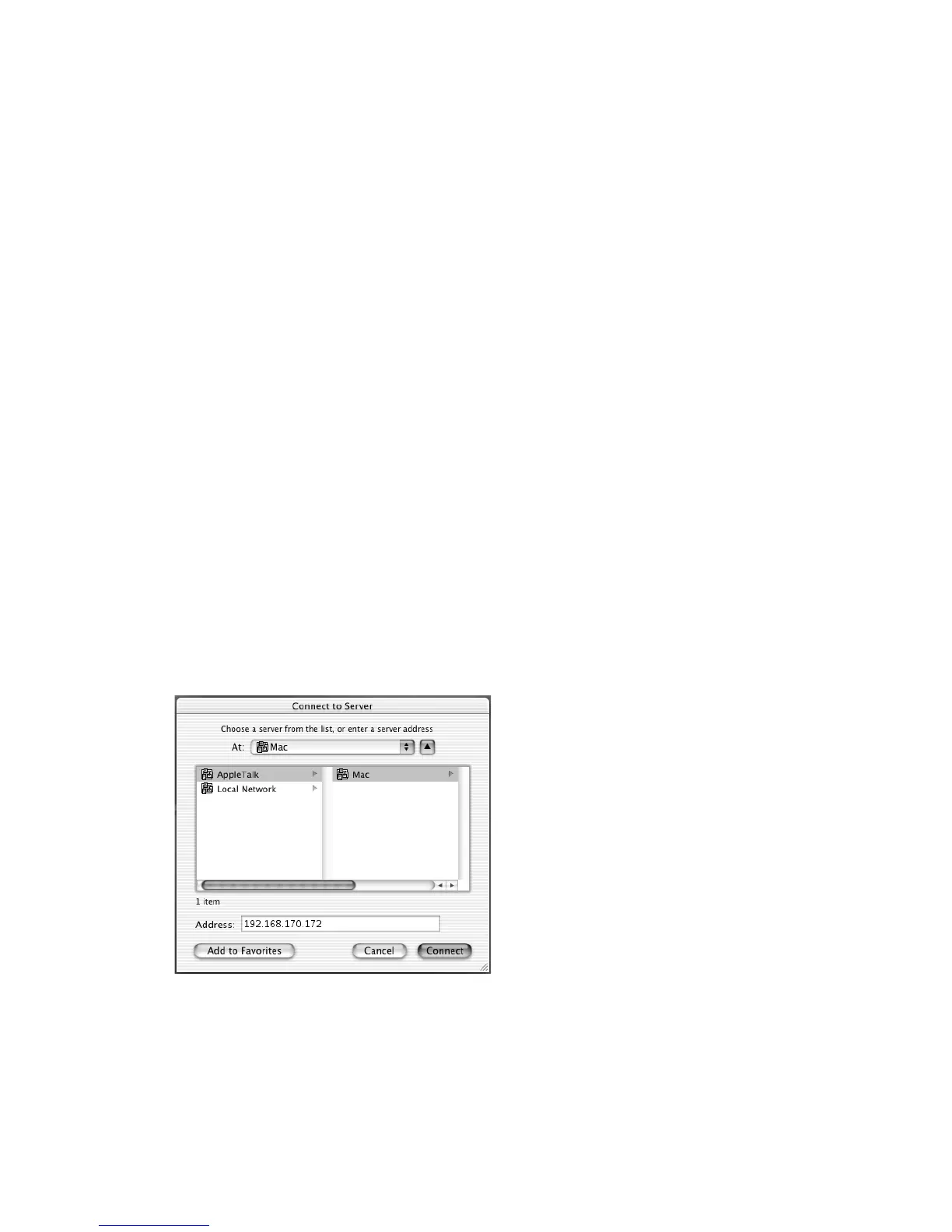
Browser to access the NAS server. Mac OS X users can use the Connect to Server function to open
the NAS server.
For example, open the Connect to Server window in Finder.
You can either type the IP address of NAS Server in the Address field. And click Connect to put it on
Desktop. Or you can click AppleTalk in the middle left window pane to find the zone and the server.
Once you find the server, click Connect to put it on Desktop.



 To Next Page