60
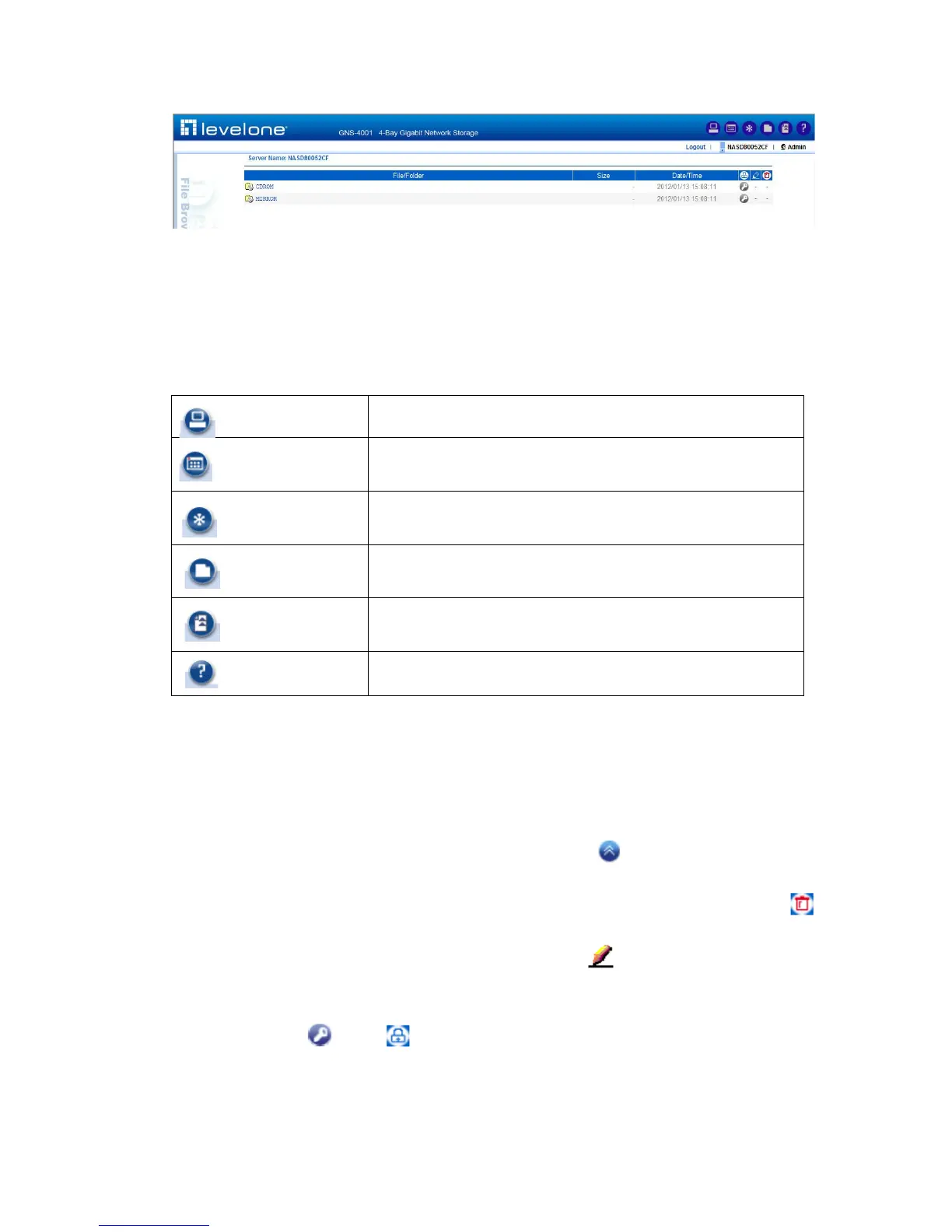
In the top right corner of the user page are the tool-bar icons, which provide access to various
functions like creating folder or uploading files. Below the tool-bar are the server name and the login
user. Lower on the page is a file browsing area.
Tool-bar icons
Admin Page: switches to the administration home page.
Change View Mode: changes the views of the file browsing area
between Detail, Large Icons and Small Icons.
Change Password: modifies the password of the login user. It
allows a local user to change the password.
Create Folder: creates a new folder in the current path if the
login user has the access right.
Upload File: uploads files to the current path if the login user has
the access right.
Help: opens a new browser window with help information
File Browsing
When the user page is opened, the file-browsing window shows all the shares in the server. All the
folders and files are presented as hyperlinks. If a folder is clicked, it will show its content in the same
window. When a file is clicked, it will either open the file in another browser window or pop up a dialog
box for download. To move to the upper level of directory, click the Up Directory icon.
To delete files or folders, check the checkboxes in the Delete column. And click the Delete icon
to delete them. To rename a file or folder, click the Rename icon , input the name and press the
Enter key. If a user has the Full Control access right for a file or folder, he can modify its ACL by
clicking the ACL icon in the Permission column.



 To Next Page