36
5.4 Expanding a RAID-5 Volume
RAID-5 volume expansion makes it possible to enlarge volume capacity without rebooting the NAS
server. Volume capacity grows on the fly. Moreover, you do not have to change any share
permissions, security controls and quota settings after volume expansion. Storage management
becomes much easier.
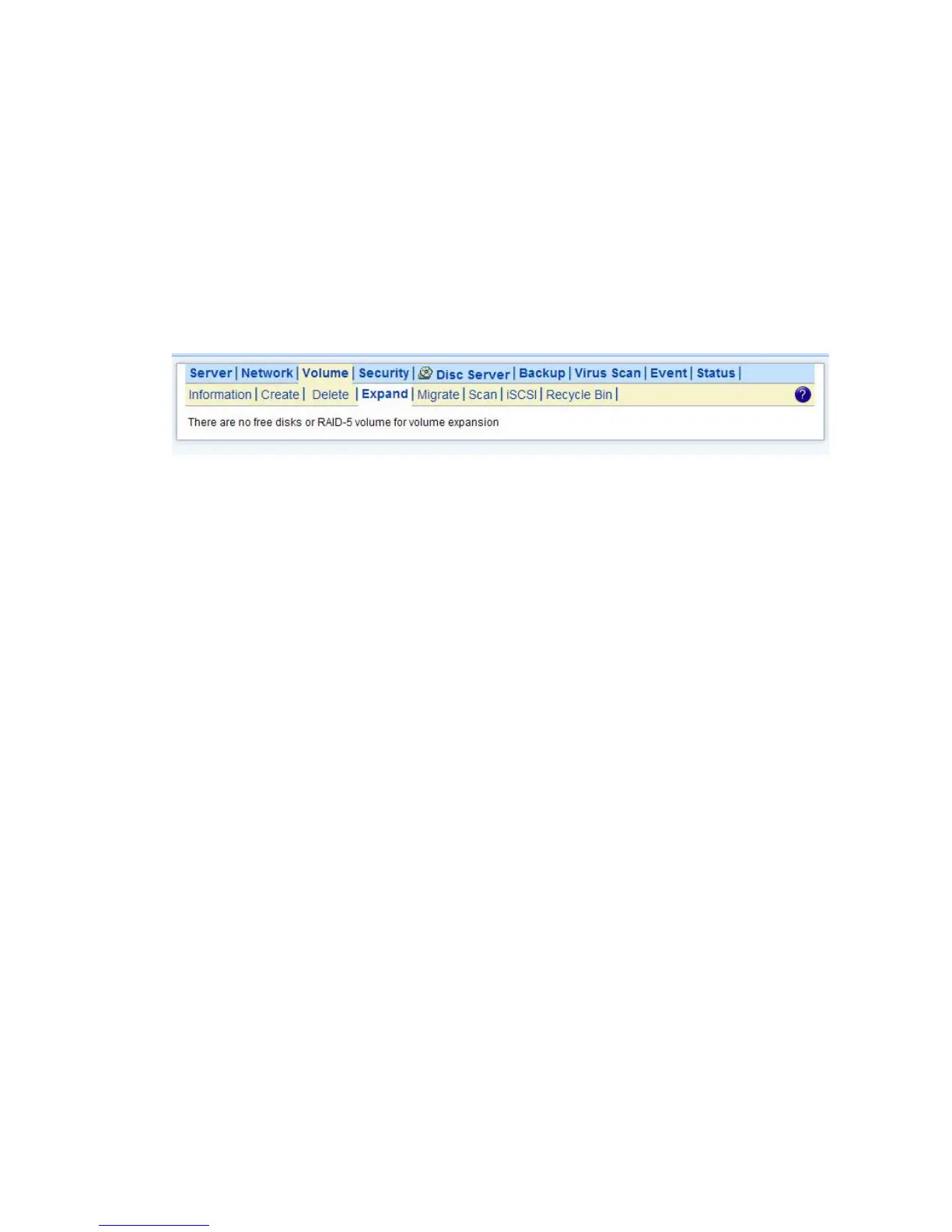
To expand a RAID-5 volume, please go to the Volume→Expand page. Select a RAID-5 volume to be
expanded. Then choose the free disks as new members. Click Apply to submit changes. The
progress of RAID expansion is shown on the Volume→Information page.
5.5 Volume/Disk Scan
Volume/Disk scan is especially useful for disk diagnostics and repairs lost or cross linked clusters in
Volume/Disk. All readable data will be placed in new clusters and defective cluster will mark as bad in
the file system. All the newly added devices will be scanned before usage to ensure the data integrity
in the NAS Server.
Select the volumes or disks you want to scan, click Scan Now button to start scanning. Or, click
Schedule to set the time for NAS Server to perform scanning at the scheduled time.
Disk Auto-scanning
To make sure that the hard disks contain no bad sectors before putting into use, it is suggested to
perform disk-scanning before taking such actions as creating a volume, expanding a volume,
migrating data or assigning a hot-spare disks. If disk autoscanning is enabled, the NAS server can
scan disks automatically when you perform these actions. If the hard disks have ever been scanned
in the last 30 days, the auto-scanning will be skipped so that the auto-scanning will not be activated
too often.
To enable the feature, please click the Configure hyperlink on the Volume→Scan page. Set the
Disk Auto-scanning item to Enabled.



 To Next Page