107
Browsing & Administering Servers
Browsing Servers
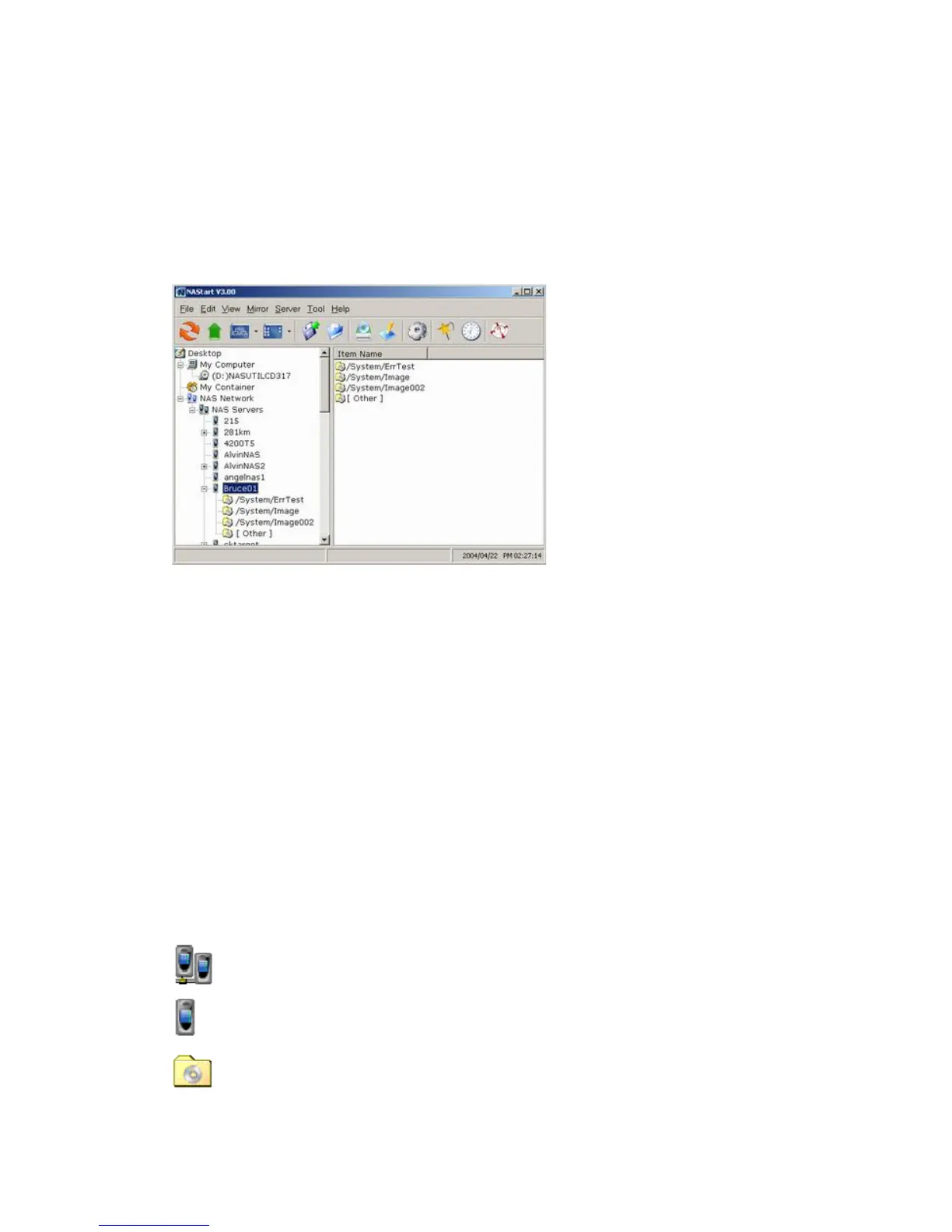
Below is the main window of NAStool. Upon execution, NAStool brings up Windows Explorer for you
to drag & drop files into My Container for later image building. You can disable this option by choosing
Tool-> NAStool Options and un-checking the option - "Open Windows Explorer when NAStool
starts".
The main window consists of a file menu, a tool bar, a tree view pane on the left, a list view pane on
the right and a status bar on the bottom.
On the tree view pane are listed all the NAS Servers found by the NAStool on the network. Also
included is My Computer as the one in Windows Explorer. My Container keeps information of the
files/folders that can be built as a CD image in a NAS Server using the "Build Image" function. If you
click on any item on the tree view pane, its content will be displayed in the list view pane.
The status bar indicates NAStool status & information. The left of the status bar shows function hint or
item properties. To the right it displays the PC date and time.
You can browse the Domain Name, IP Addresses of each NAS Server just by mouse over it.
Note:
If a NAS Server is protected by the admin password, you have to enter the password to set up or
write to the server.
The following are some icon representations:
NAS Network: display all the NAS Servers found on the LAN.
NAS Server: represents a NAS Server
Disc Image Folder: contains disc images of the NAS Server. You can double click to view its content.



 To Next Page