67
schedule can specified at any weekday or a day of a month.
6. Specify whether to overwrite the tape. If yes, the backup task will rewind the tape to the beginning
and overwrite it with backup files. If not, it will append the backup to the tape, not overwriting any
existing data on tape.
7. Specify whether to enable hardware compression capability when the tape drive has the feature.
8. Click the Apply button.
Restoring Files from Tape
To restore data from tape, please open the administration page and go to Backup→Tape Backup
page. Click the Restore tab and follow the steps below.
1. Specify the Tape Drive for restoring.
2. Specify a backup set to restore by selecting a backup index. The backup indexes are required to
restore data from tape. When the backup indexes are missing, you have to import them from tapes
for further restoring operation. To import backup indexes, please select a tape drive and click the
Import hyperlink.
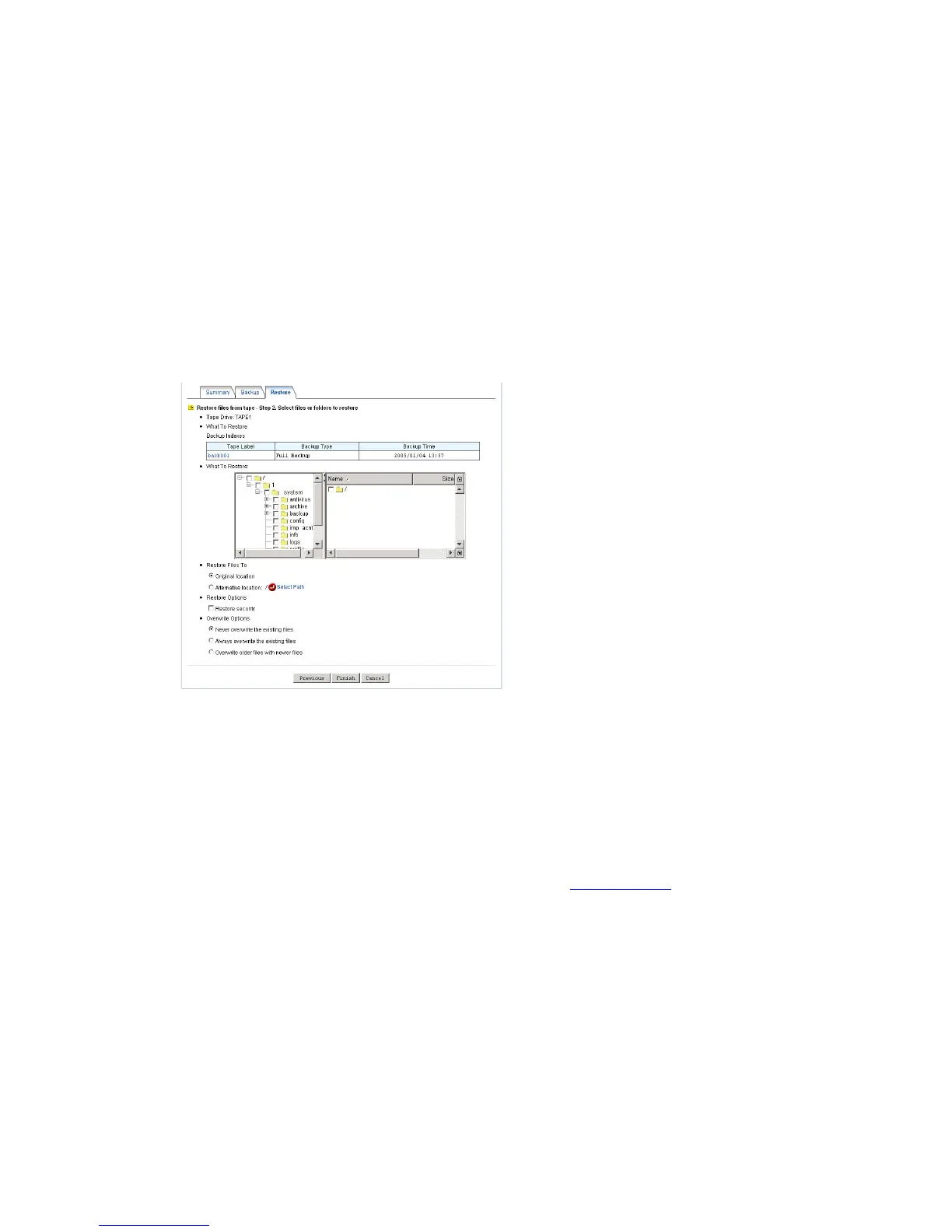
3. Choose whether to restore all the files in the backup set, or only certain files or folders. For the
latter, it requires Java virtual machine for the UI. Please go to http://java.sun.com for the latest Java
virtual machine.
4. Click the Next button.
5. To restore selected files or folders, please make selections on the Java UI in the What to Restore
item.
6. Choose the target location. It can restore data to either the original location or an alternative
location.
If the original location is selected, it will restore data to the location where they are originally backed
up. Please note that if the original volume is missing, it will not restore anything. The alternative



 To Next Page