Destination Input by POI
ES300_Navi_U (L/O 0208)
13
2003 ES300 Navigation from Aug. ’02 Prod. (OM33592U)
(a) Input the name directly
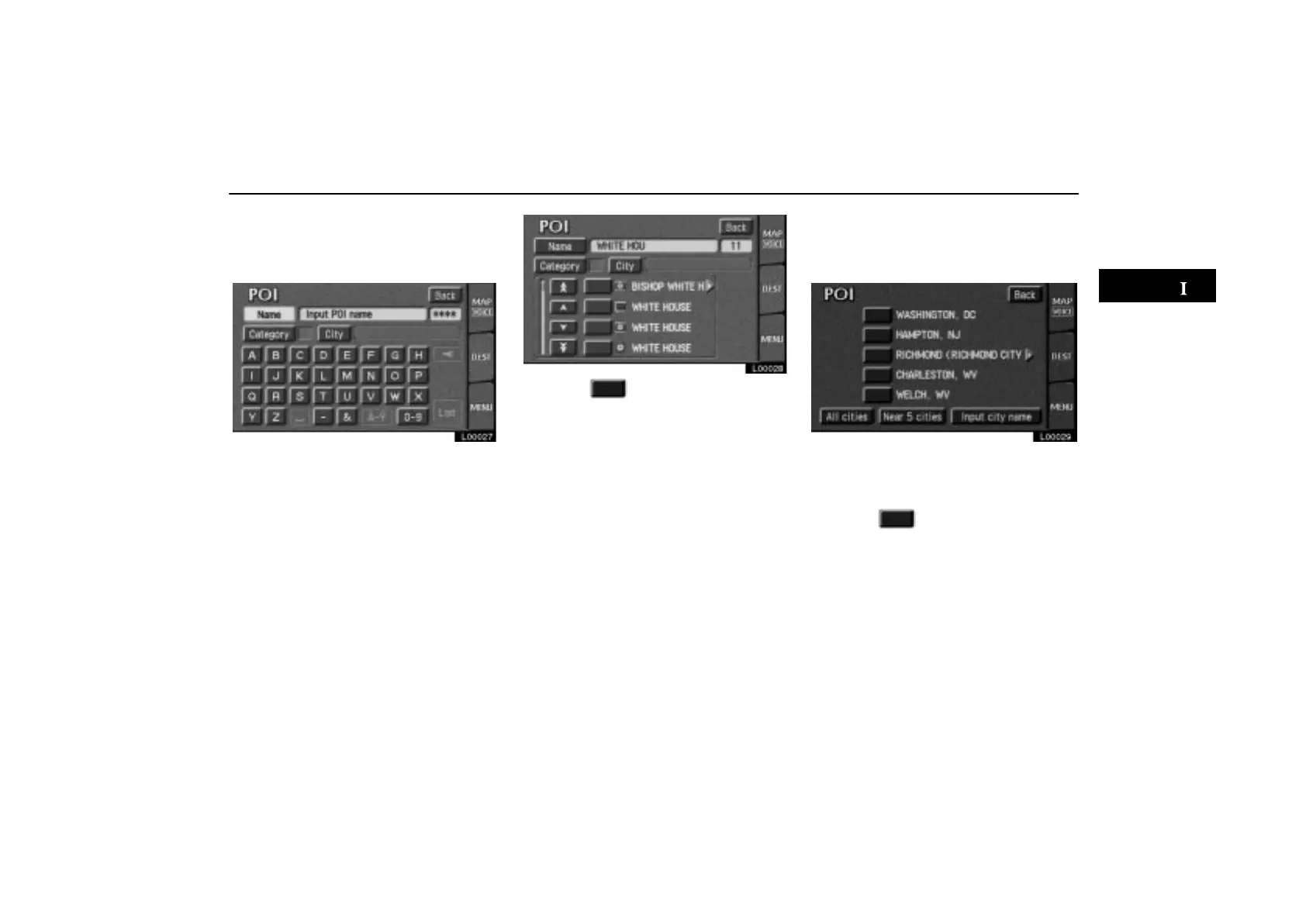
Touch the “POI” switch on the “Destina-
tion” screen.
L00027
The “POI” screen appears, and then you can
input the name of the point of interest.
Touch letters directly on the screen to input
a name. When you input numerals, touch
the
“0–9” switch to display the screen for
numeral input.
If the number of sites becomes 4 or less, or
if you touch the
“List” switch at the bottom
right of the screen, the screen changes and
displays a list of sites.
L00028
Touch the of your desired destina-
tion. The screen changes and displays
the map location of the selected destina-
tion and the route preference. (See “(a)
Entering destination” on page 26.)
If the same name exists in more than one
city, you can search it more easily with the
“City” and “Category” switches. (See
“(b) Selecting a city to search” and “(c) Se-
lecting from the categories”.)
(b) Selecting a city to search
Touch the “City” switch on the “POI”
screen.
L00029
Last 5 cities are displayed on the screen.
If you have not used the navigation yet, any
city is not displayed on the screen.
Touch the of the desired city name.
The current screen changes to the screen
which is for inputting a name of POI.
All cities: All cities are selected.
Near 5 cities: Near 5 cities are displayed.
Selecting a city in the list changes to the dis-
play to input the name of the POI.
Input city name: The screen for inputting
the city name appears.


 To Next Page