Dealer SettingDealer Setting
ES300_Navi_U (L/O 0208)
87
2003 ES300 Navigation from Aug. ’02 Prod. (OM33592U)
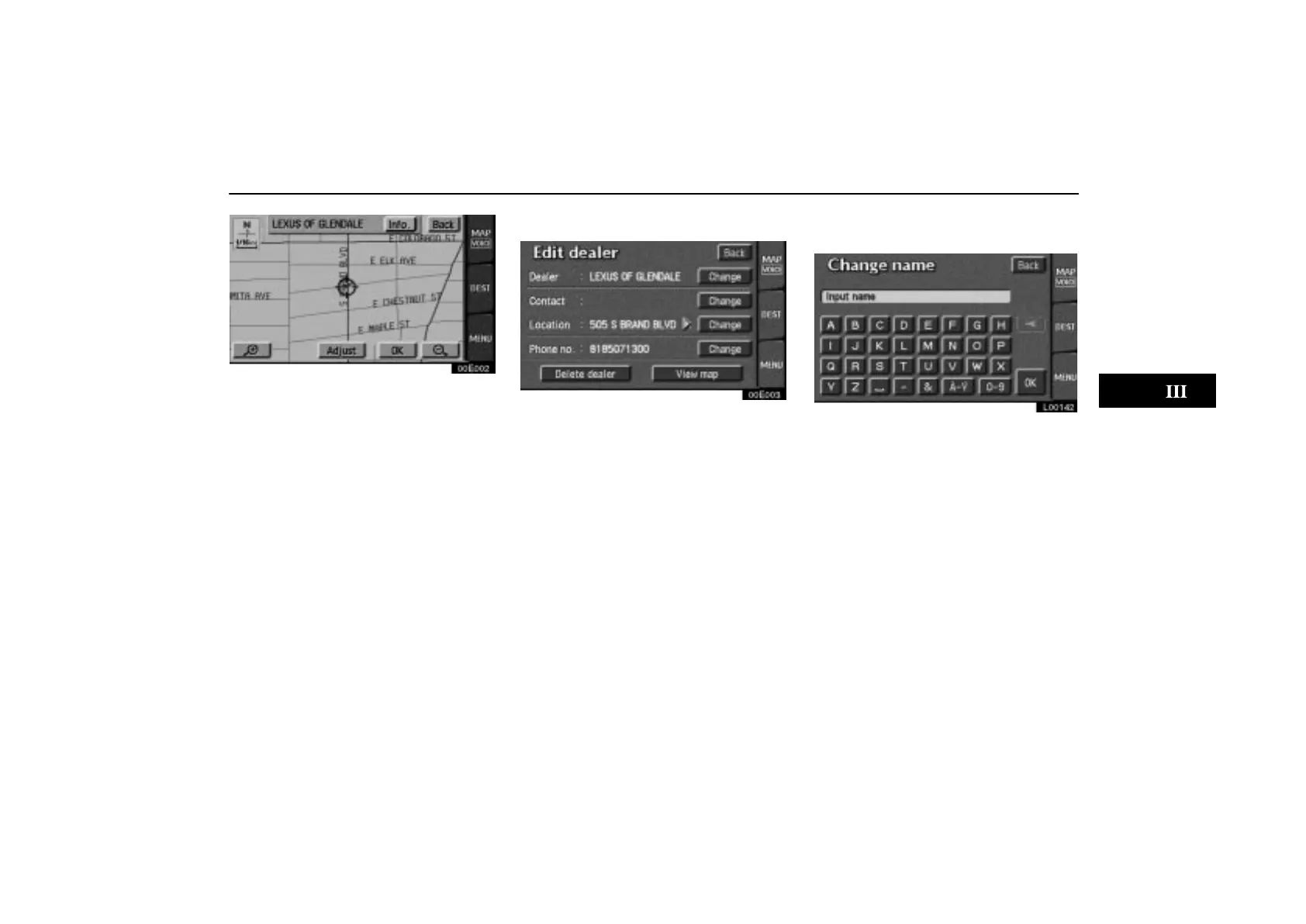
00E002
2. After you enter your dealer, the screen
changes and displays the map location of
the dealer. If it is OK, touch the
“Enter”
switch.
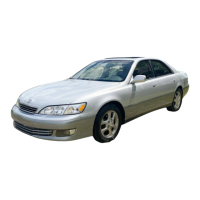
The current screen changes to the screen
where you can edit the data of your dealer.
(See “(b) Editing dealer”.)
Touch the
“View map” switch of “Edit
dealer” to see the location of the dealer and
route preferences. (See “(a) Entering des-
tination” on page 26.)
(b) Editing dealer
00E003
1. Touch the “Set dealer” switch and
touch the
“Change” switch of the item
to be edited.
EDITING THE NAME OF THE DEALER OR
CONTACT
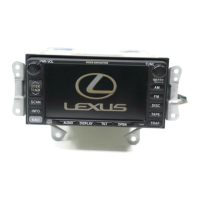
L00142
Touch alphabet or numeral keys directly
to input the name.
After you finish your entry, touch the
“OK”
switch. The previous screen will be dis-
played.


 To Next Page