960-0001-20 iGrowSeries 100 Installation and User Manual 51
4.7.2 Save Log Files
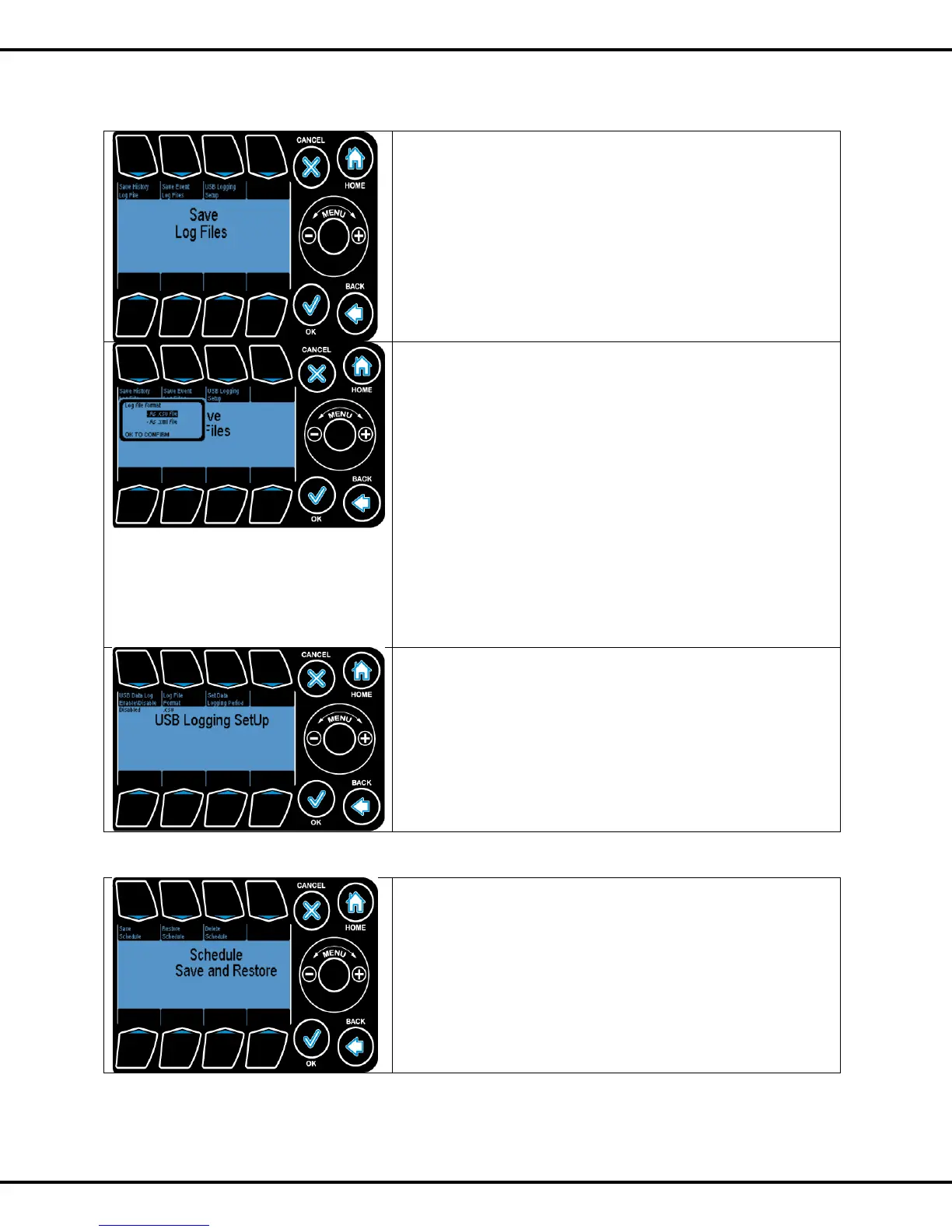
To save the log file select the Save Log Files option by
highlighting it using the Wheel or by pressing Button #2 and
press OK.
Currently supported Save Log File options include:
• Save History Log File
• Save Event Log Files
• USB Logging Setup
Buttons #1, #2 or #3 are used to go to the corresponding
options.
On selecting the Save History Log Files a popup indicating the
file formats pop-ups. Log files can be saved in either .xml or
.csv file formats.
Select a given format using Wheel and pressing OK
After selecting the required format the user is promoted to
choose the drive to store the file in.
User can select an option by scrolling and pressing OK
The system prompts the user to enter a file name.
Note: The process of writing from system memory to USB can
be time consuming.
USB Logging setup will let you set the time interval in which
you want to log files.
Press #1 to enable/ disable the option
Press #2 to change the file format.
Press #3 to change the logging period
4.7.3 Save/Restore Schedule
This is similar to save/restore configuration settings


 To Next Page