46 User Manual
3.5.2.1 Info on objects with Pictures
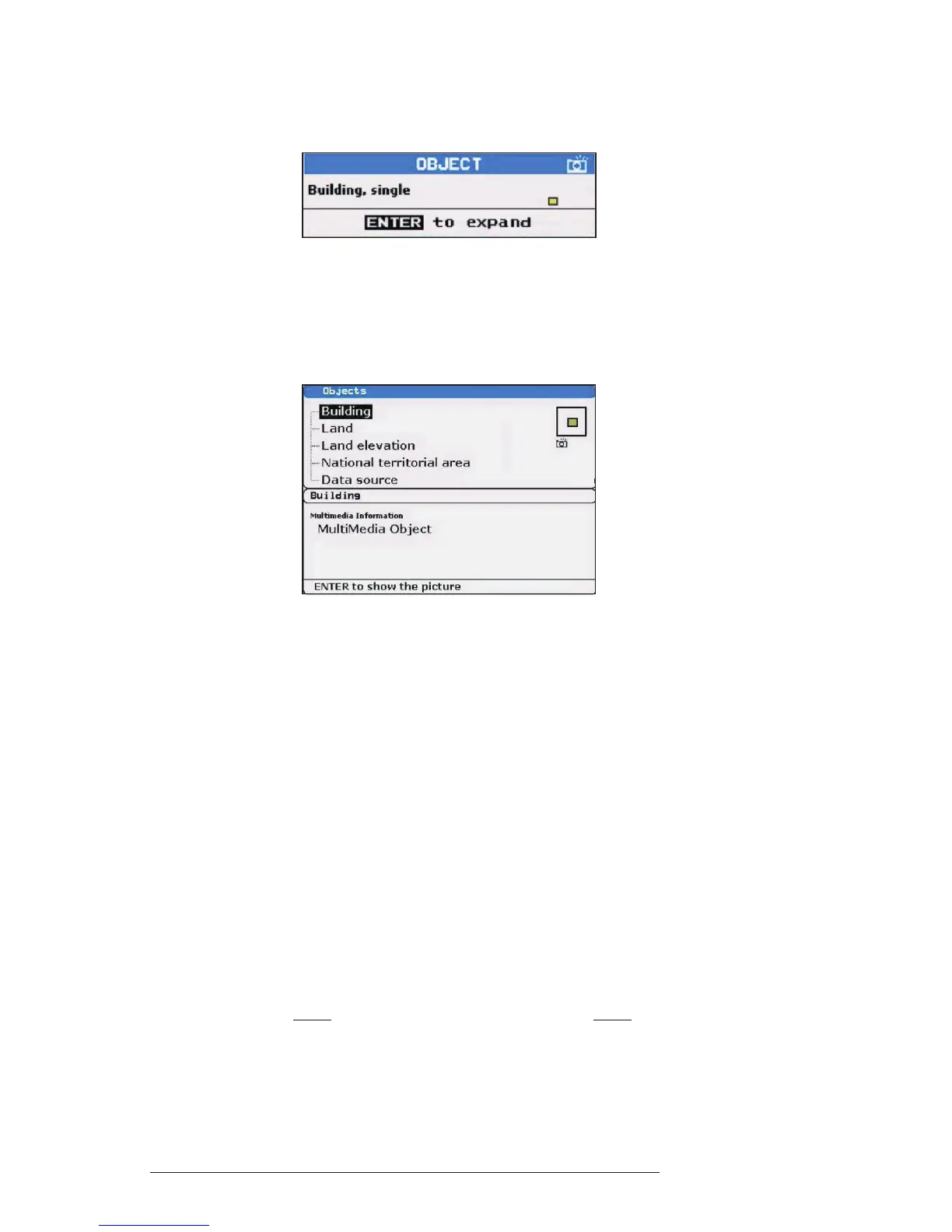
On the Quick Info, there will be the camera icon on the top bar of the window if at
least one of the objects found has one or more pictures associated.
Fig. 3.5.2.1 - Example of Quick Info on objects with picture
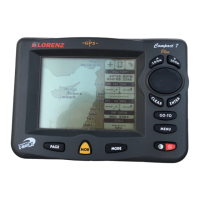
On the Full Info, there will be the small camera icon on a corner of the square
containing the object icon or a big photo icon centered on the square for the object
without icon.
Fig. 3.5.2.1a - Example of Full Info on objects with picture
To see the picture press 'ENTER' when the object with a picture is highlighted.
Change Picture Size
When the picture is shown, it is possible to fit it to screen by pressing 'ENTER'.
3.5.3 INFO TREE AND EXPANDED INFO PAGE
This page combines the Info Tree and the Expanded Info pages; this gives the
advantage of showing the details of the object selected on the Info Tree while the
cursor is moving through the Info Tree’s items.
The upper side of the page contains the Info Tree and the Lower side contains
the expanded information. While moving the cursor through the Info Tree, all the rel-
evant information of the selected object is shown on the lower part of the page.When
the selected object is a Tide Height, pressing 'ENTER' the Tide page is shown.
Pressing 'CLEAR' the page is closed. If the information shown exceeds the
page size, the user may scroll the page.



 To Next Page