57
User Manual
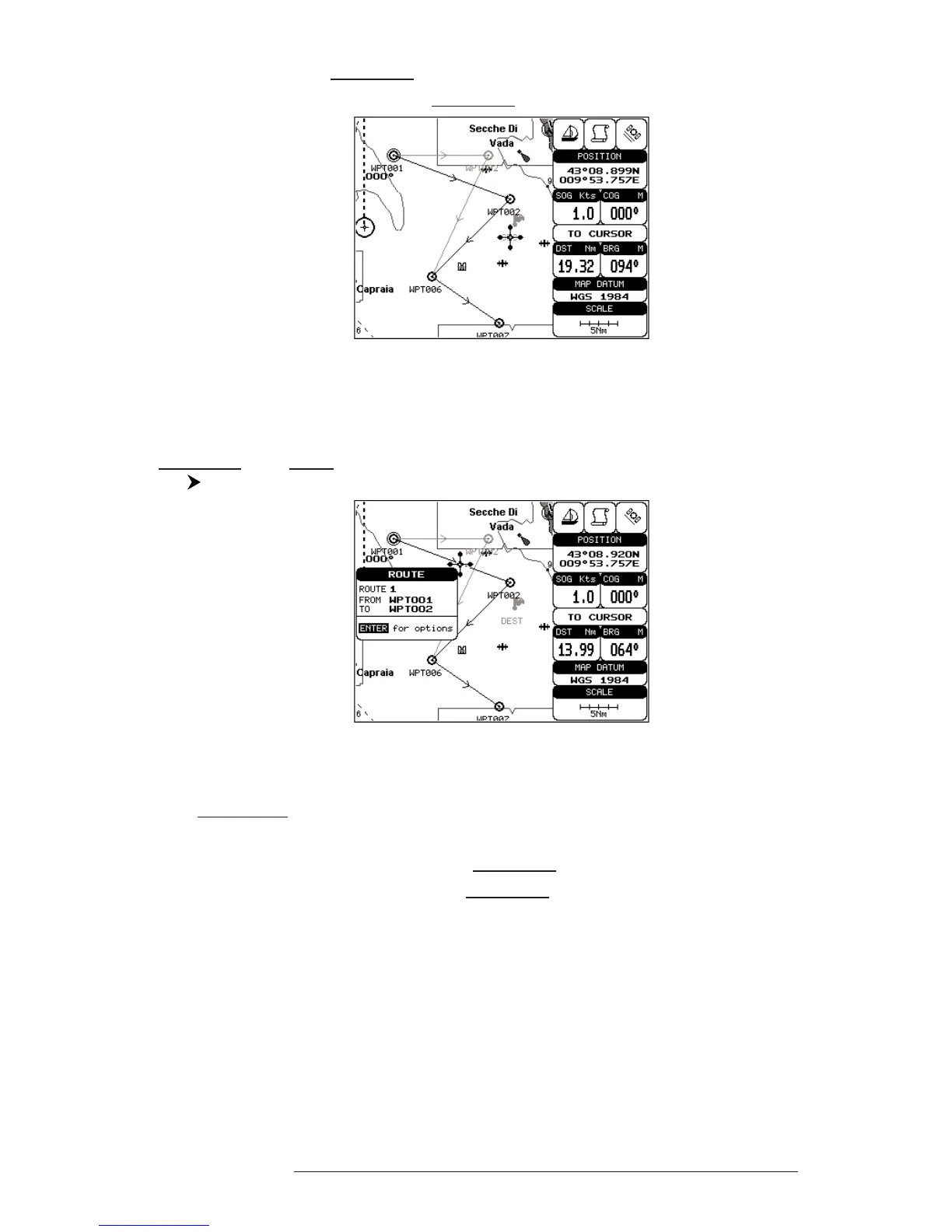
To place the Waypoint in the new position, choose the new place and press
'ENTER' ('CLEAR' otherwise), Waypoint appears in the new position:
Fig. 4.1.1.6a - Moving Waypoint function (II)
4.1.1.7 Inserting Waypoint
Every time you place the cursor on the segment connecting two existing
Waypoints of a route the following function is available.
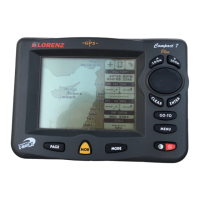
Place cursor on route leg
Fig. 4.1.1.7 - Placing Waypoint between two existing ones (I)
Press 'ENTER'. Select "INSERT" and press 'ENTER'. The line between the
two Waypoints is turned into a dotted line: move the cursor to the new position.
When the cursor is stationary for one second or two, the line will "rubber-band",
drawing a dotted line between the last Waypoint and the cursor, and another dotted
line between the cursor and the next Waypoint:



 To Next Page