66 User Manual
ber, directly on the ship's position. Move the cursor to exit from Navigate mode;
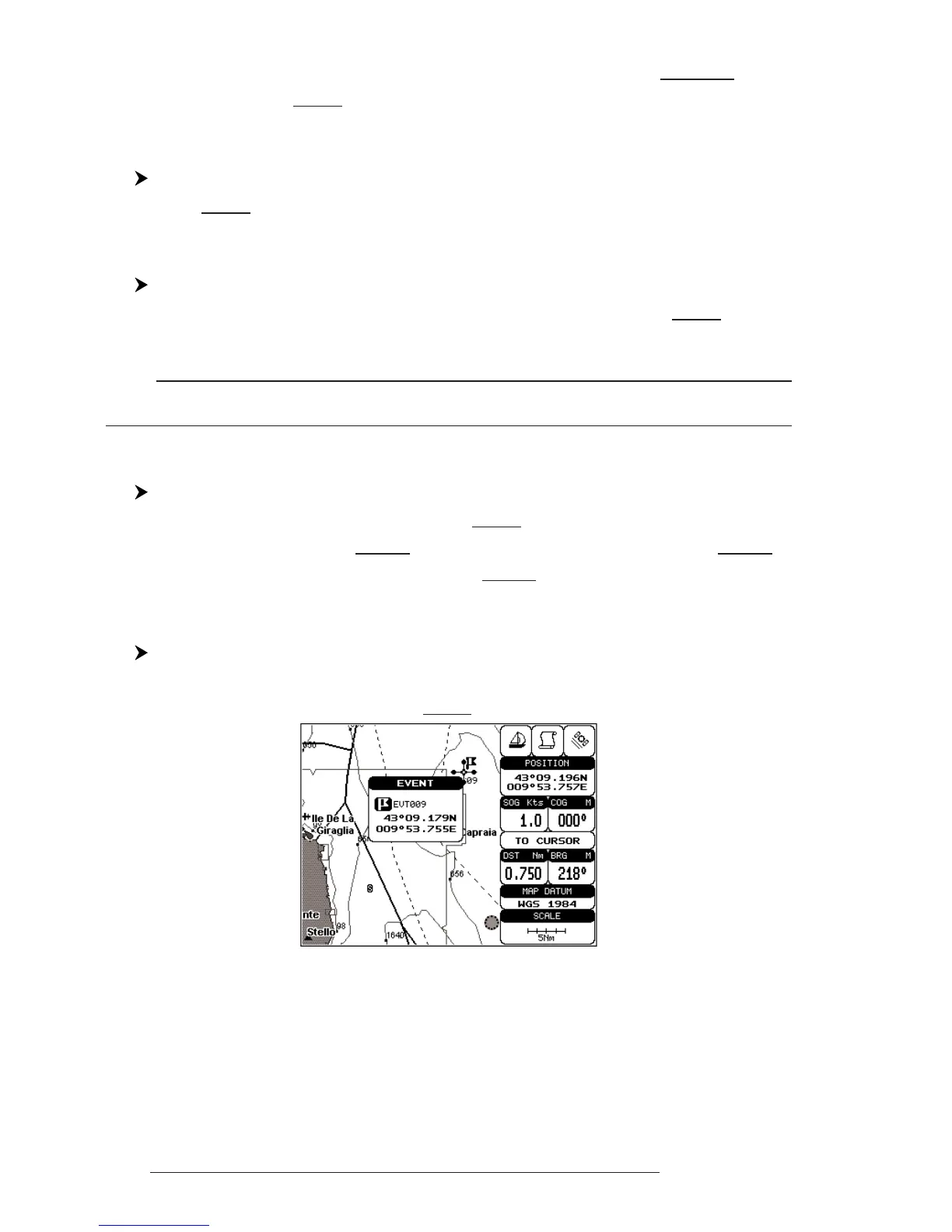
place the cursor on an Event to access the following functions.
4.2.2.1 Adding Event
Select Advanced Mode + 'MODE', then 'ENTER' + "EVENT" + 'ENTER'
An Event is placed directly on the ship's position.
4.2.2.2 Deleting Event
Place cursor on Event
Press 'ENTER'. Select "DELETE" and press 'ENTER': the Event remains
on the screen shaded until the next screen is redrawn.
Note
If you try to delete a Event that belongs to many routes, the chart plotter emits three beeps and
on the screen a Warning message appears. If you want to delete the Event, press 'ENTER'.
4.2.2.3 Goto
Place cursor on Event
Press 'GO-TO': a circle encloses the Event symbol. A straight line is shown
on the screen connecting the Target with the ship's position. When the Target is
placed, all navigation data are referred to this Target.
4.2.2.4 Editing Event
Place cursor on Event
Press 'ENTER'. Select "EDIT" and press 'ENTER'. A window appears to
modify Name, Symbol of the existing Event.
Fig. 4.2.2.4 - Edit Event
Use the cursor key to select the field. If you have selected Name field, press
'ENTER': use the cursor key to insert the character (8 characters max), then press
'ENTER'. If Symbol field is selected press 'ENTER': a window with 16 different
symbols appears. Use the cursor key to select the symbol and press 'ENTER'. Then
press 'CLEAR'.



 To Next Page