59
User Manual
'ENTER': use the cursor key to insert the character (8 characters max), then press
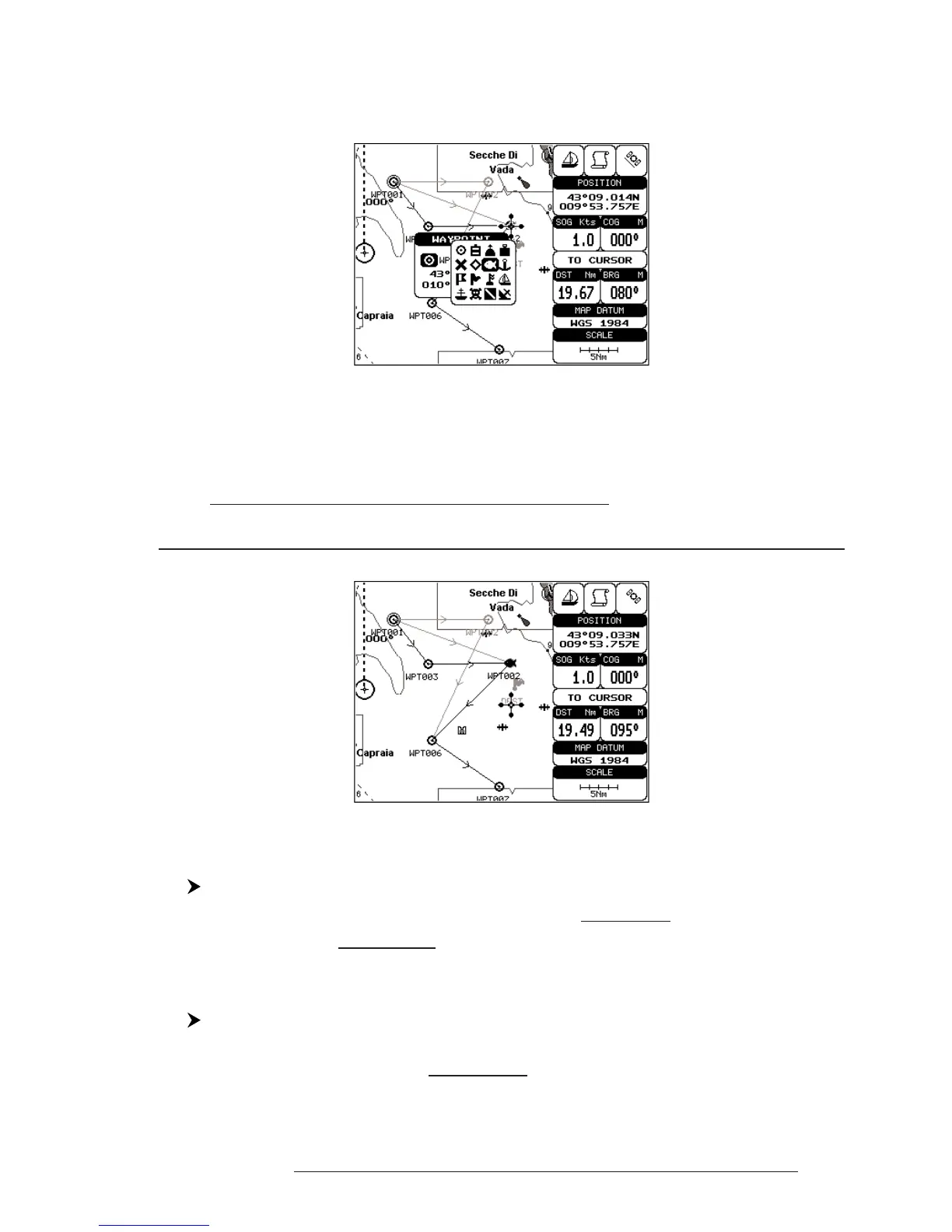
'ENTER'. If Symbol field is selected press 'ENTER': a window with 16 different
symbols appears:
Fig. 4.1.1.8a - Edit Waypoint (II): Waypoint symbols
Use the cursor key to select the symbol and press 'ENTER'. If select
Coordinates field, press 'ENTER' and then use the cursor key to insert the
value. Then press 'CLEAR'.
Note FOR COLOR CHARTPLOTTER
If Color field is selected press 'ENTER': a window with 8 different colors appears, use the cursor
key to select the desired color and press 'ENTER'.
Fig. 4.1.1.8b - Edit Waypoint (III)
4.1.1.9 Finding information about Waypoints: User Points List page
'MENU' + "ADVANCED SETTINGS" + 'ENTER' + "USER POINTS" + 'ENTER'
Move up/down the cursor key to select the User Point you wish. If the page
contains more than 8 User Points, the list continues in the next pages.
Finding User Points
'MENU' + "ADVANCED SETTINGS" + 'ENTER' + "USER POINTS" + 'ENTER' +
"FIND' + 'ENTER'
The chartplotter exits from the User Points List page and redraws the chart. The
selected point appears, with the cursor placed on it.



 To Next Page