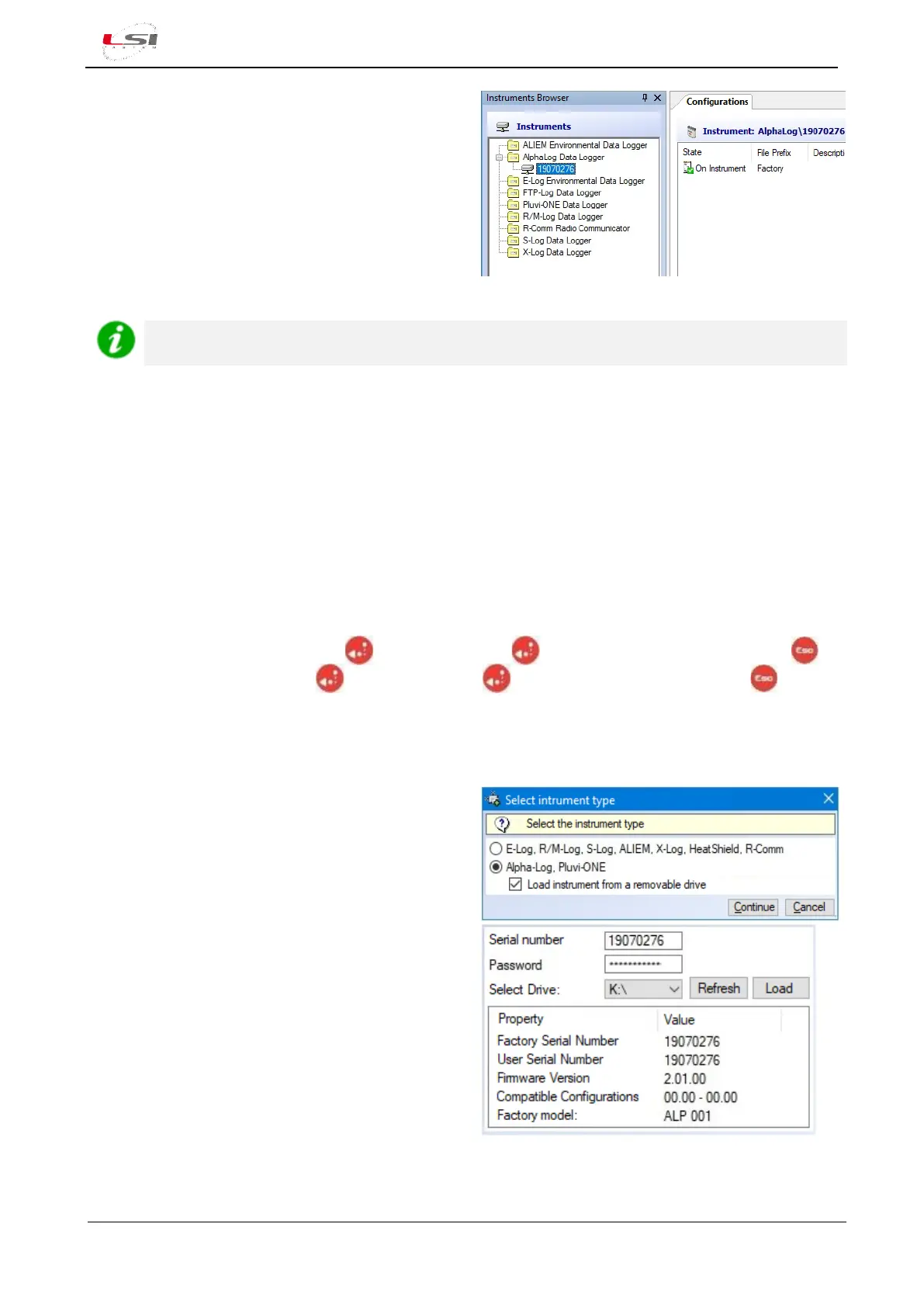
7. To download instrument configuration to PC,
choose [Yes], then [Continue]. After that, press
[Close], assign a name to the configuration (e.g.
“Factory”) and press [Ok].
3DOM will update the Instruments Browser and
Configurations with the serial number of the
instrument and its configuration.
The IP address display mask requires an update time of up to 1 minute. Wait this time to allow the
tool to update the mask with the actual IP address currently in use.
2.1.2.2 Alpha-Log entry via USB stick
For this operation you need a formatted FAT32 USB stick with at least 2 MB of space available. Proceed as
follows:
1. Turn on Alpha-Log with the On/Off switch (1).
2. Using the keyboard (8), enter the PEN DRIVE menu (§5.1.5). This function is accessible after about one
minute since the instrument’s ignition.
3. Insert the USB stick in one of Alpha-Log's USB ports (8).
By reference to §5.1.4.5.3:
4. Choose Upload config and press , then confirm with . Once the file copy is finished, press
5. Choose Unmount and press , then confirm with . At the end of the operation press , then
pull out the USB stick.
6. Insert the USB stick in one of the PC’s USB ports.
7. Start 3DOM.
8. Choose Instrument->New…
9. Choose Alpha-Log – Pluvi-ONE, enable the
checkbox Load instrument from a removable
drive and press [Continue].
10. Enter the Alpha-Log serial number and password
indicated on the label on the back of the
instrument; select the unit associated with the
stick and press [Load]. The program shows
information about the instrument memorized in
the flash drive.
11. Press [Continue] to accept the settings and
import the configuration.
12. In the Configuration status window press [Ok].
13. Name the configuration (e.g. "Factory") when
prompted and press [Ok].


 To Next Page