❖ Alpha-Log’s display is off
1. Make sure Alpha-Log is turned on (Alpha-Log won’t turn on point).
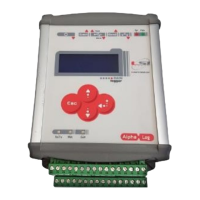
2. Alpha-Log might have entered low power mode. To turn the display on press Alpha-Log’s keyboard
button ESC (7) (§1.2).
3. Turn Alpha-Log off and on. If the display won’t turn on, there could be a hardware failure in Alpha-
Log.
❖ PC won’t communicate with Alpha-Log
1. Ensure Alpha-Log is turned on (Alpha-Log won’t turn on point).
2. Ensure advanced mode is on (§5.1.4.3).
3. Ensure the IP address indicated in 3DOM’s communication parameters is Alpha-Log’s one. To know
Alpha-Log’s IP address, see §5.1.4.5.1.
4. Check PC’s IP address: it must be in the range of Alpha-Log’s one. For example, if Alpha-Log has IP
address 192.168.0.1, the PC one shall be between 192.168.0.2÷192.168.0.254. Ensure both have set
the same subnet. For more information on the PC’s IP address change, consult the network
administrator or the documentation provided with the PC.
5. If the communication takes place via Ethernet port:
a. If communication is direct, ensure the LAN cable is connected to PC and Alpha-Log’s Ethernet
port, whilst if the connection takes place in a network, ensure both LAN cable ends are
connected to a network socket. Ensure the two LEDs on Alpha-Log’s Ethernet port (also the
PC one), one green and one yellow, are lit. If they aren’t, Alpha-Log won’t “feel” the network
signal. The cable might be fault or the socket it is connected to might not be connected to
the network. In the first case, replace the cable; in the second case, consult the network
administrator.
6. If the connection takes place via a Wi-Fi USB pen drive:
a. Check the suitability of the used Wi-Fi USB pen drive. Alpha-Log supports keys compatible with
Linux kernels 2.6.35.3 or previous.
b. Ensure the Wi-Fi connection parameters (§4.1.3– Wi-Fi) are correct. To request the
parameters, consult the network administrator.
7. If the previous points didn’t resolve the problem, there might be a hardware failure in Alpha-Log.
Configuration’s loading or downloading can also take place via USB pen drive (§4.1.11.2).
❖ Measurement in Error status
1. If the measure is acquired (analogic/digital sensor connected to Alpha-Log’s the terminal block (10)
or I
2
C input (2)):
a. Ensure Alpha-Log had enough time to acquire the measure. In this regard, see the measure’s
Update time rate parameter of the Sampling tab (§2.2.4).
b. Ensure the measure is properly configured (linearization, scale, ecc.) and the associated input
type is the appropriate one for the sensor in use. See the measure’s parameters of the Type
and Update time rate tabs (§2.2.4).
c. Ensure the sensor that generate the measure is connected to Alpha-Log according to the
provided documentation. Alpha-Log’s input shall be the one indicated in the measure
configuration (§2.2.4).


 To Next Page