215620 174 Revision A
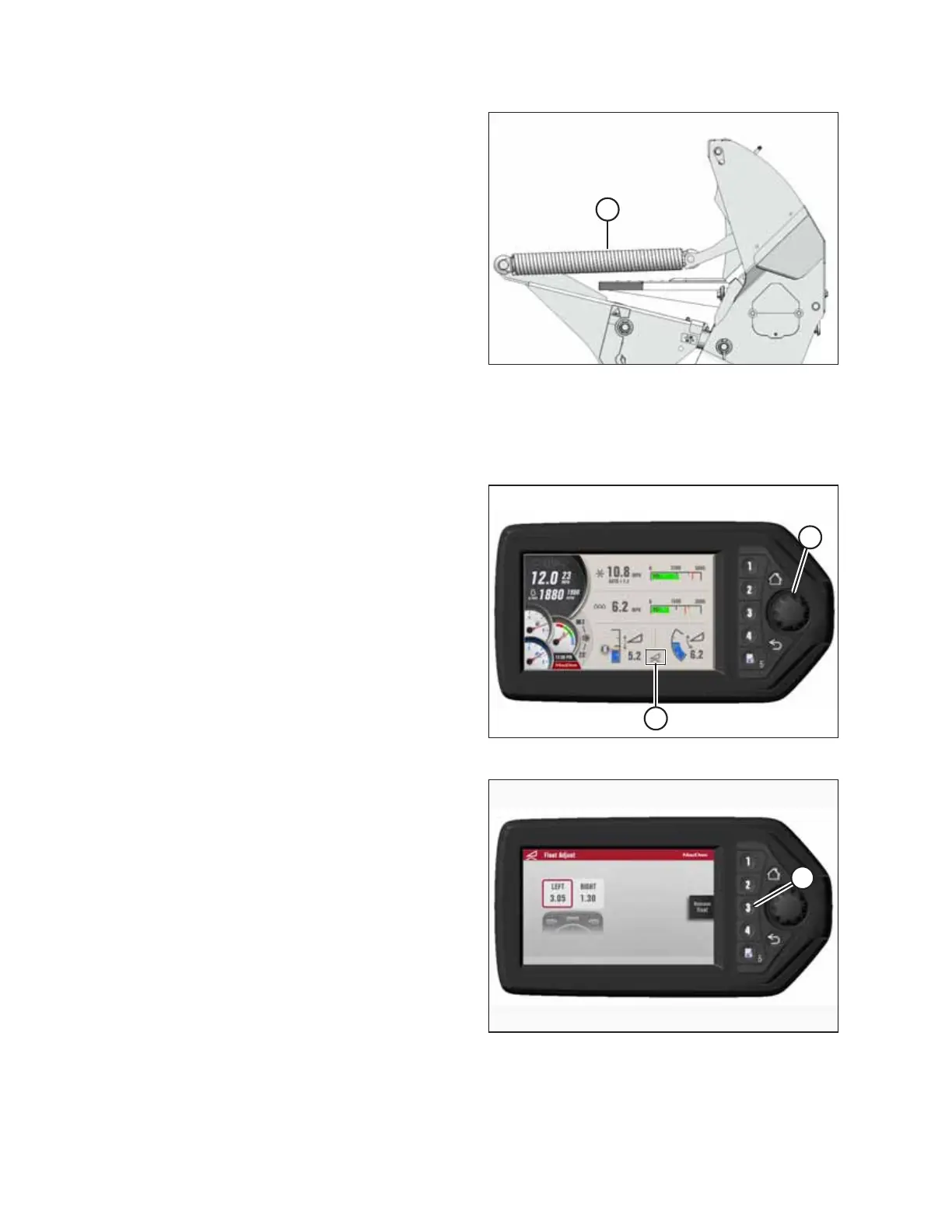
Figure 5.114: Header Float Springs
5. If you are lowering the header lift legs WITH a header or
weight box attached to the windrower, proceed to Step 9,
page 175.
If you are lowering the header lift legs WITHOUT a header
or weight box attached to the windrower, fully release the
tension in header float springs (A):
• If prompted by the Harvest Performance Tracker (HPT)
to remove the float, then remove the float and proceed
to Step 9, page 175.
• If not prompted by the HPT to remove the float, then
proceed to Step 6, page 174 to remove the float
manually.
IMPORTANT:
When lowering the header lift legs without a header or
weight box attached to the windrower, ensure that the
tension on the float springs is fully released. This will
prevent damage to the header lift linkages.
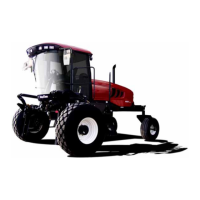
Figure 5.115: HPT Display
6. Press rotary scroll knob (A) on the Harvest Performance
Tracker (HPT) to highlight the QuickMenu options.
7. Rotate scroll knob (A) to highlight HEADER FLOAT
symbol (B), and press the scroll knob to select it. The Float
Adjust page appears.
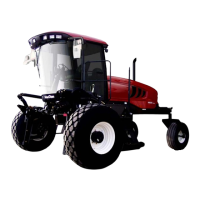
Figure 5.116: HPT Display
8. Press soft key 3 (A) to remove the header float.
NOTE:
If the header float is active, the icon at soft key 3 displays
Remove Float; if the header float has been removed, the
icon displays Resume Float.
ATTACHING A HEADER TO THE WINDROWER


 To Next Page