Adjusting bitmap color and tone 101
Applying the Color Fill Live Filter
You can use the Color Fill Live Filter to change the color of objects quickly, either by replacing
the pixels entirely with a given color or by blending a color into an existing object. When you
blend colors, the color is added on top of the object. Blending a color into an existing object is
much like using Hue/Saturation; however, blending lets you apply a specific color from a
color swatch panel quickly.
To add a Color Fill Live Filter to a selected object:
1. In the Property inspector, click the Add Live Filters button, and then select Adjust Color
> Color Fill from the Filters pop-up menu.
2. Select a blending mode.
The default mode is Normal. For information about each blending mode, see “About
blending modes” on page 230.
3. Select a fill color from the color box pop-up menu.
4. Select a percentage of opacity for the fill color and press Enter.
Adjusting hue and saturation
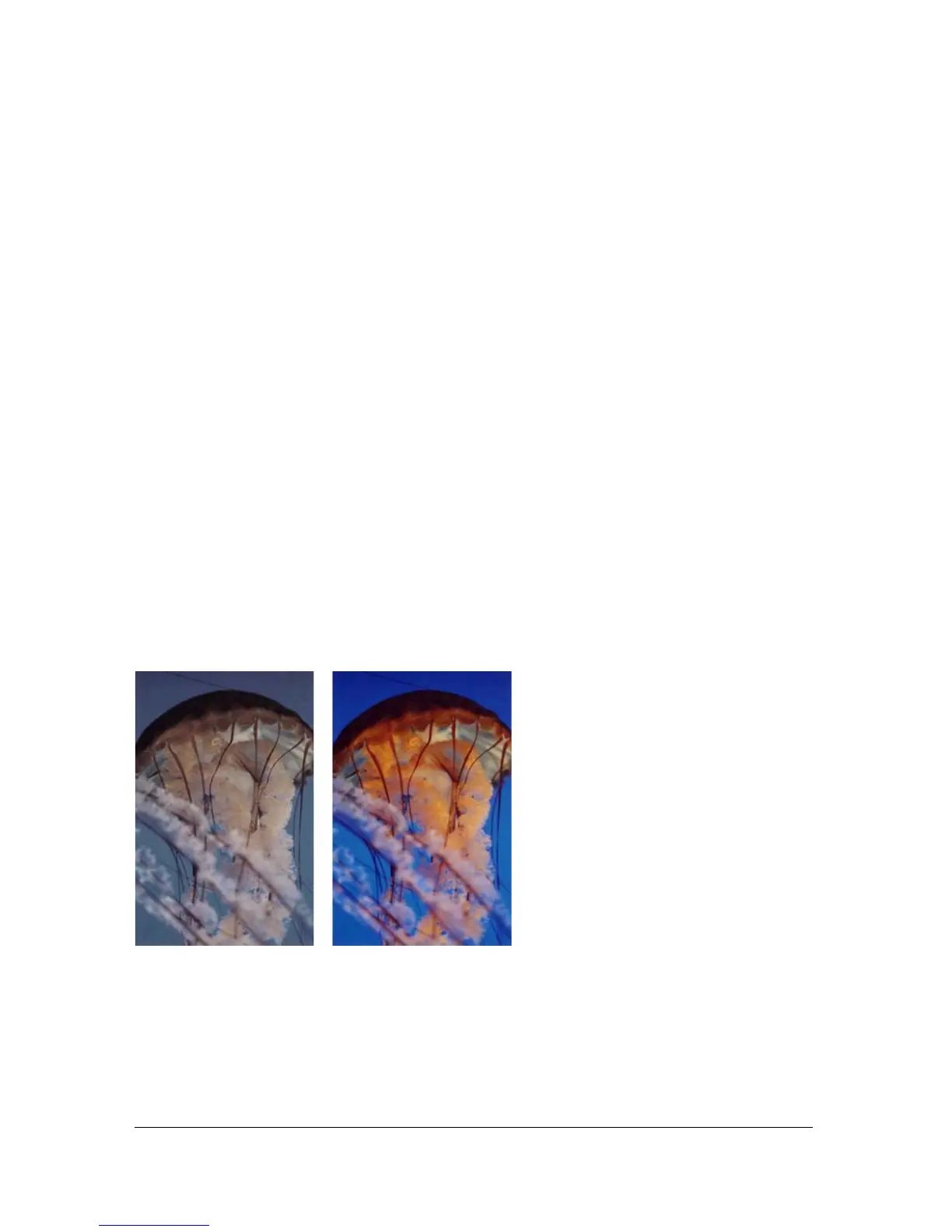
You can use the Hue/Saturation feature to adjust the shade of a color, its hue; the intensity of
a color, its saturation; or the lightness of a color in an image.
Original; after adjusting the saturation



 To Next Page