214 Chapter 9: Layers, Masking, and Blending
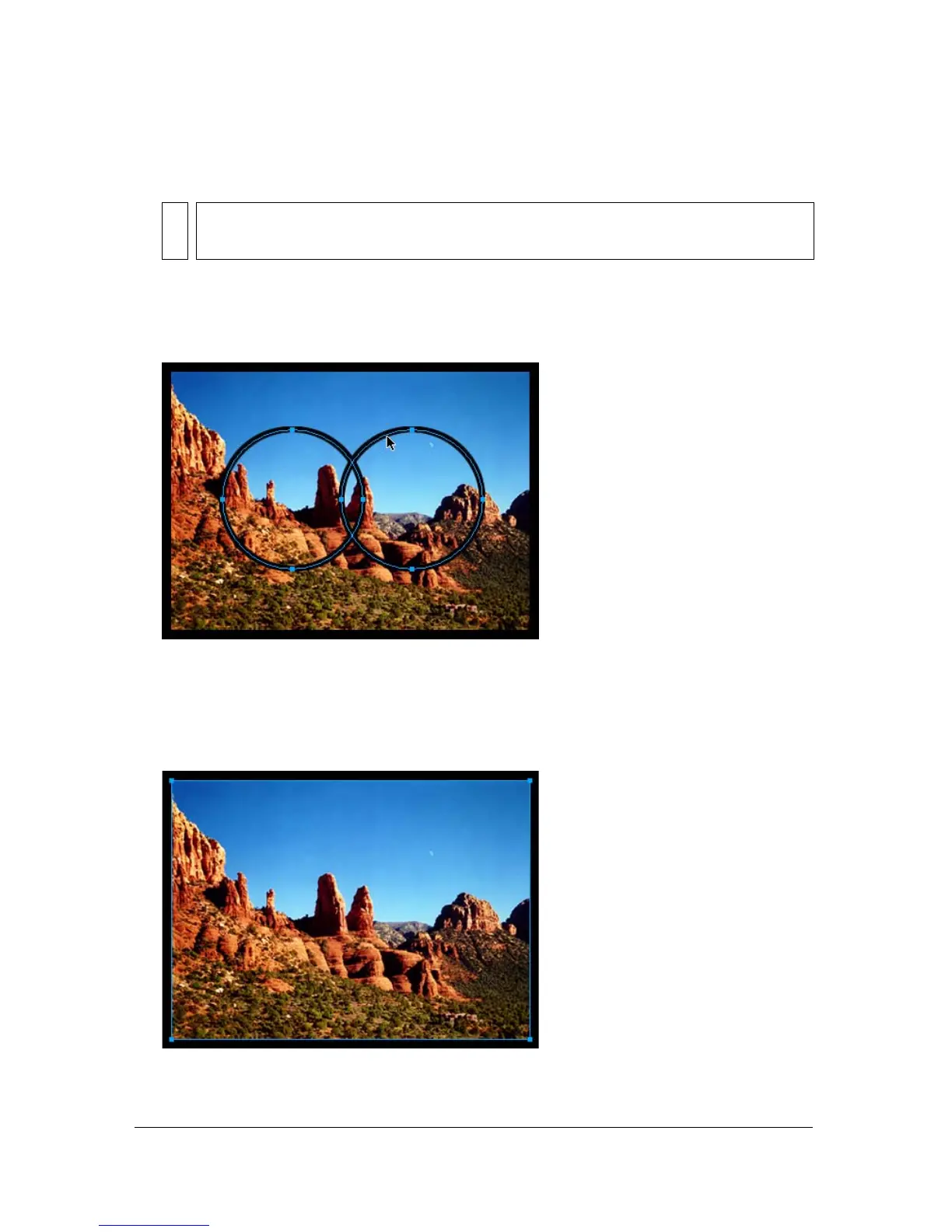
To create a mask with the Paste as Mask command:
1. Select the object you want to use as the mask. Shift-click to select multiple objects.
2. Position the selection so that it overlaps the object or group of objects to be masked.
The object or objects you want to use as the mask can be either in front of or behind the
objects or group to be masked.
3. Select Edit > Cut to cut the object or objects you want to use as the mask.
4. Select the object or group you want to mask.
If you are masking multiple objects, the objects must be grouped. For more information
about grouping objects, see “Grouping objects” on page 74.
NOTE
If you use multiple objects as the mask, Fireworks always creates a vector mask,
even if both objects are bitmaps.



 To Next Page