Batch processing 431
Changing optimization settings with a batch process
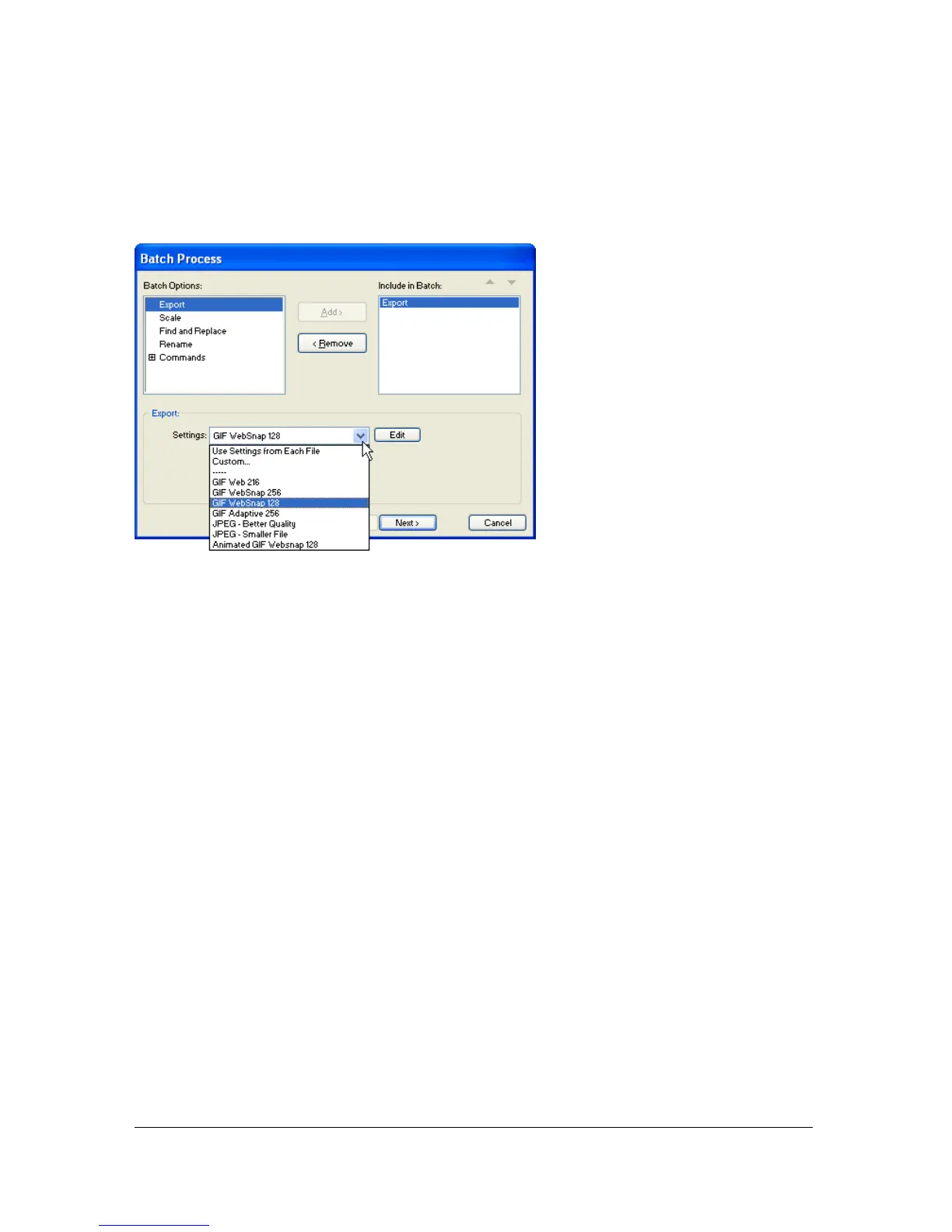
You can change file optimization settings using the Export option in the Batch Process dialog
box.
To set export settings for a batch process:
1. Select Export from the Batch Options list and click Add.
2. From the Settings pop-up menu, select from the following options and click OK:
■ Select Use Settings from Each File to keep each file’s previous export settings during
the batch process. For example, when you batch-process a folder of GIFs and JPEGs,
the resulting files remain GIFs and JPEGs, and Fireworks uses the original palette and
compression settings when exporting each file.
■ Select Custom or click Edit to change settings in the Export Preview dialog box.
■ Select a preset export setting such as GIF Web216 or JPEG – Better Quality. All files
are converted to this setting.
3. Click Next to continue the batch process.
For information on completing the batch process, see “Batch processing” on page 426.
Scaling graphics with a batch process
You can alter the height and width of images being exported using the Scale option in the
Batch Process dialog box.



 To Next Page