Masking images 215
5. Do one of the following to paste the mask:
■ Select Edit > Paste as Mask.
■ Select Modify > Mask > Paste as Mask.
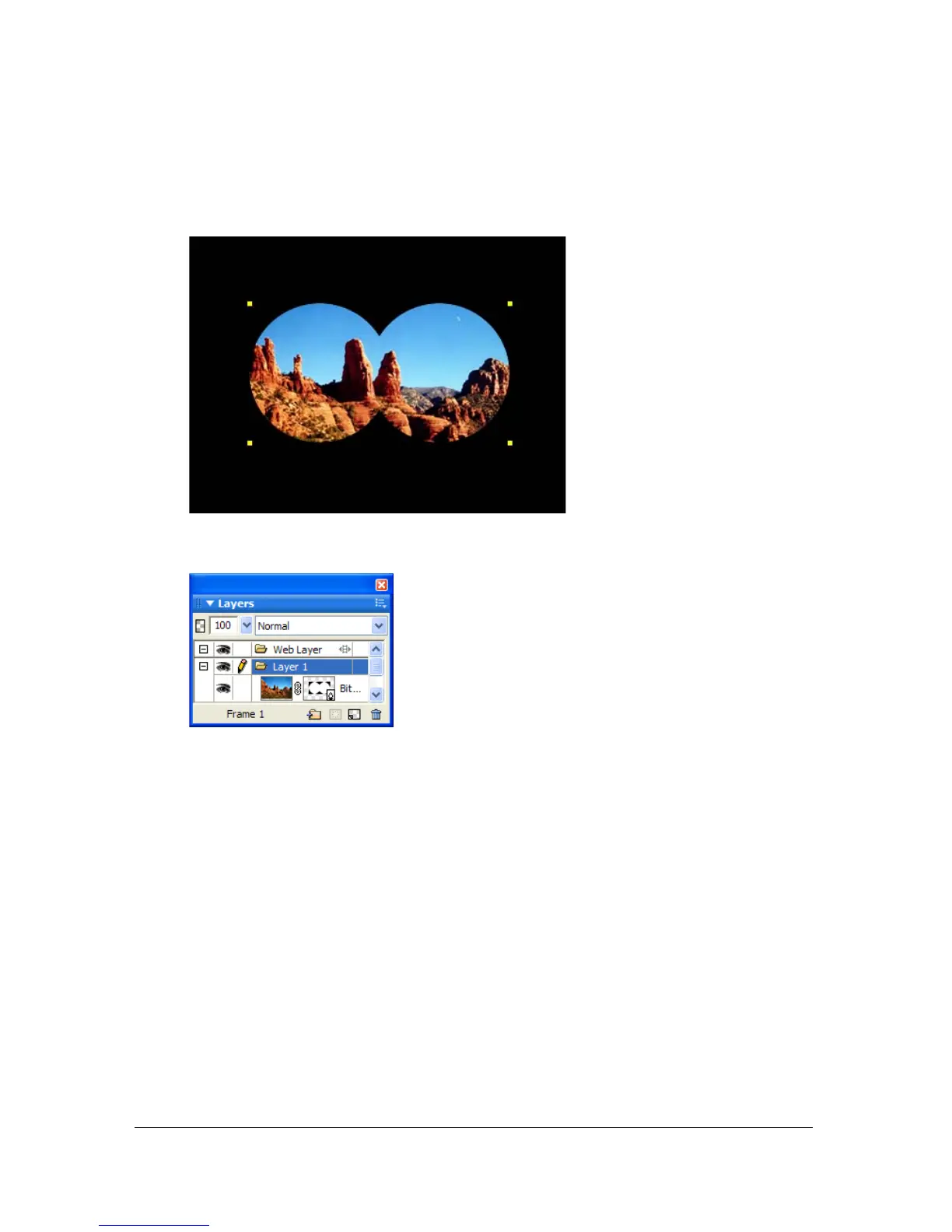
A mask applied to an image with a black canvas
The mask in the Layers panel
Masking objects using the Paste Inside command
If you are a Macromedia FreeHand user, you may be familiar with the Paste Inside method of
creating masks. Paste Inside creates either a vector mask or a bitmap mask, depending on the
type of mask object you use. The Paste Inside command creates a mask by filling a closed path
or bitmap object with other objects: vector graphics, text, or bitmap images. The path itself is
sometimes referred to as a clipping path, and the items it contains are called contents or paste
insides. Contents extending beyond the clipping path are hidden.
The Paste Inside command in Fireworks produces a similar effect to the Paste as Mask
command, with a couple of differences:
■ With Paste Inside, the object you cut and paste is the object to be masked. Compare this
with Paste as Mask, where the object you cut and paste is the mask object.



 To Next Page