196 Chapter 8: Using Live Filters
To enable or disable all Live Filters applied to an object:
■ Click the Add Live Filters button in the Property inspector, then select Options > All On
or Options > All Off from the pop-up menu.
For information on permanently removing Live Filters, see “Removing Live Filters”
on page 200.
Applying beveled edges
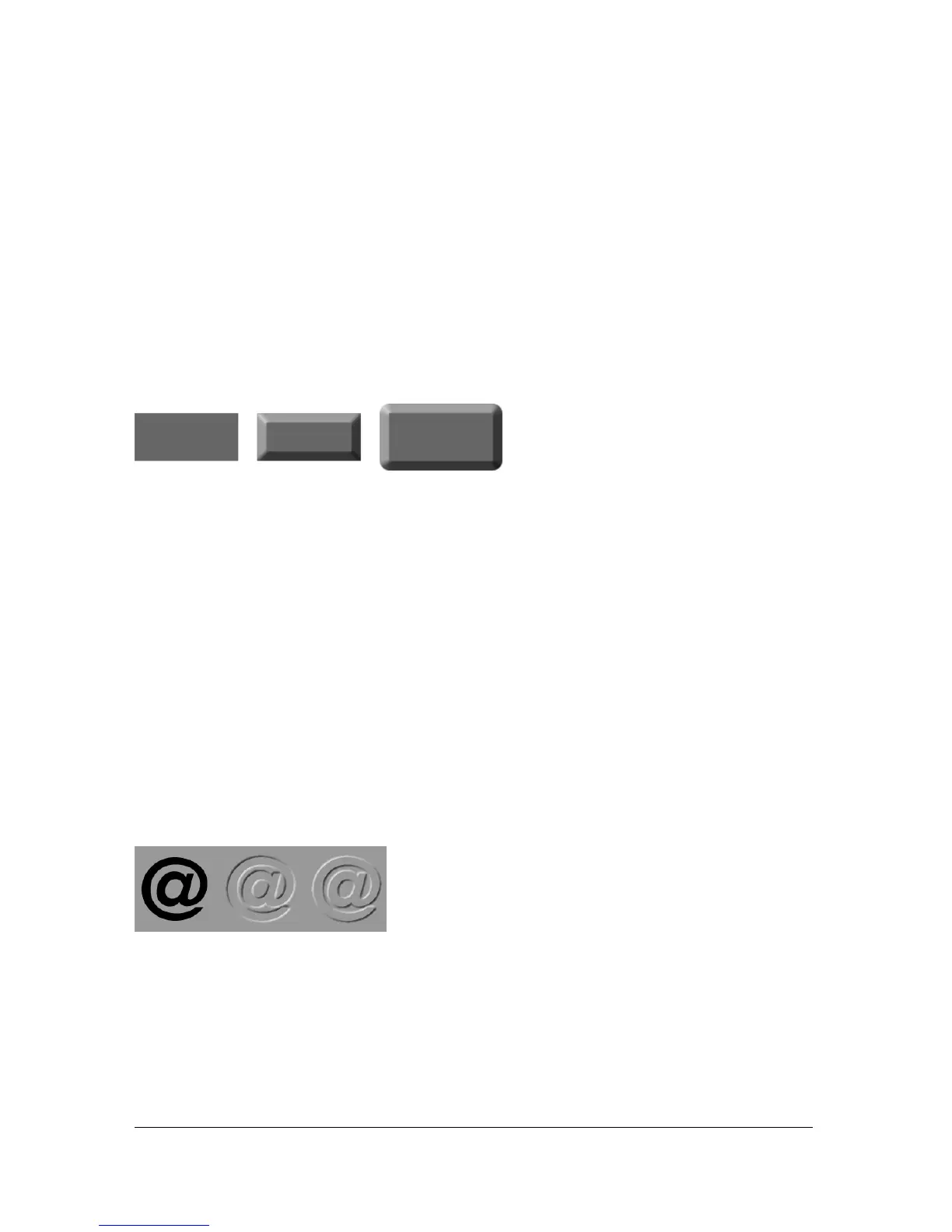
Applying a beveled edge to an object gives it a raised look. You can create an inner bevel or an
outer bevel.
A rectangle, with Inner Bevel, and with Outer Bevel
To apply a beveled edge to a selected object:
1. Click the Add Live Filters button in the Property inspector, then select a bevel option from
the pop-up menu:
■ Bevel and Emboss > Inner Bevel.
■ Bevel and Emboss > Outer Bevel.
2. Edit the filter settings in the pop-up window.
3. Click outside the window or press Enter to close it.
Applying embossing
You can use the Emboss Live Filter to make an image, object, or text appear inset into or
raised from the canvas.
An object, with Inset Emboss, and with Raised Emboss



 To Next Page