186 Chapter 7: Applying Color, Strokes, and Fills
Editing a gradient fill
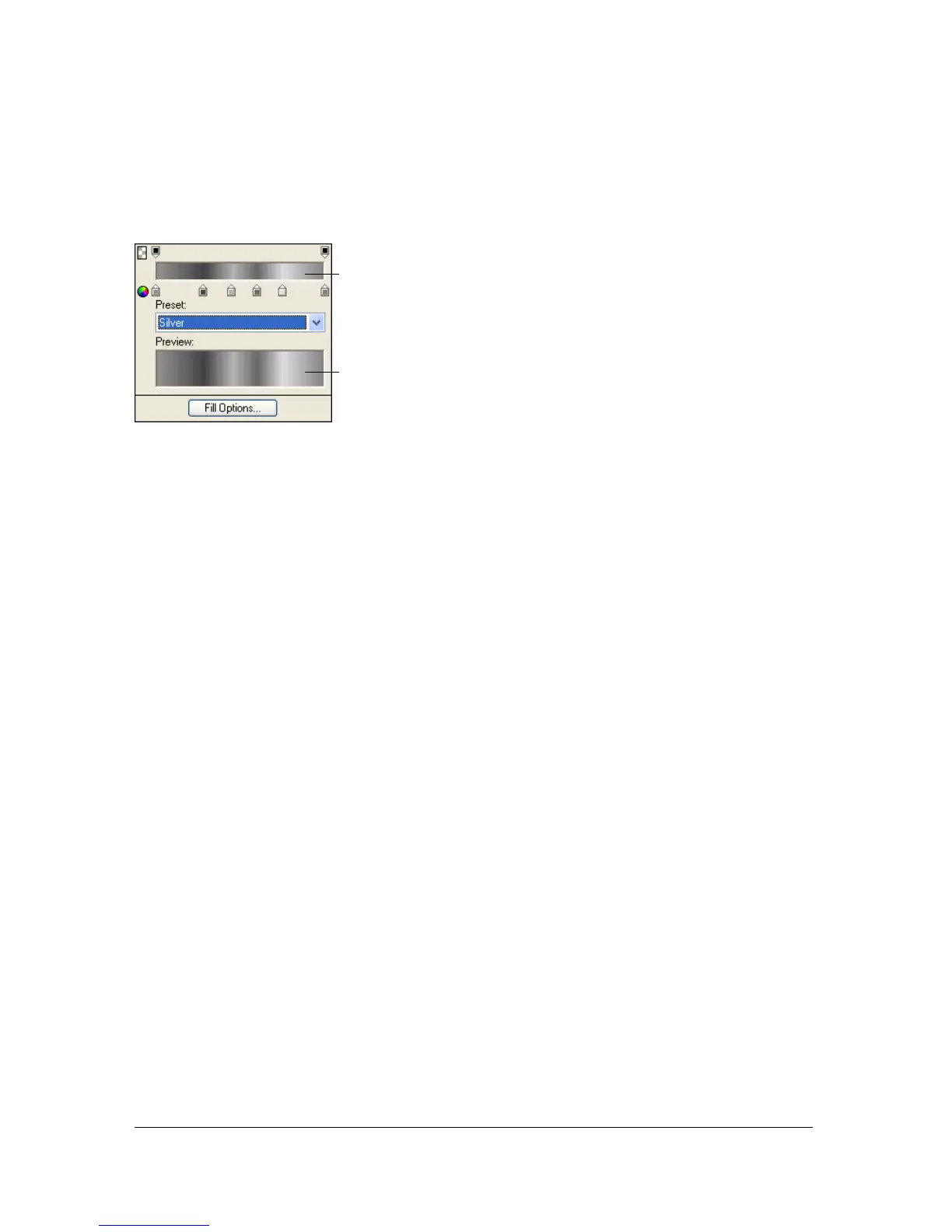
You can edit the current gradient fill by clicking any Fill Color box and then using the Edit
Gradient pop-up window.
Edit Gradient pop-up window
To open the Edit Gradient pop-up window:
1. Select an object that has a gradient fill or select a gradient fill from the Fill Options pop-
up menu in the Property inspector.
2. Click the Fill Color box in the Property inspector or Tools panel to open the pop-up
window.
The Edit Gradient pop-up window opens with the current gradient in the color ramp
and preview.
To add a new color or opacity swatch to the gradient, do one of the following:
■ To add a color swatch, click the area below the gradient color ramp.
■ To add an opacity swatch, click the area above the gradient color ramp.
To remove a color or opacity swatch from the gradient:
■ Drag the swatch away from the Edit Gradient pop-up window.
To set or change the color of a color swatch:
1. Click the color swatch.
2. Select a color from the pop-up window.
Color ramp
Preview



 To Next Page