Applying gradient and pattern fills 185
Adding a custom pattern
You can set a bitmap file as a new pattern fill. You can use files with these formats as patterns:
PNG, GIF, JPEG, BMP, TIFF, and PICT (Macintosh only). When a pattern fill is a 32-bit
transparent image, the transparency affects the fill when used in Fireworks. If an image is not
32-bit, it becomes opaque.
When you add a new pattern, its name appears in the Pattern Name pop-up menu of the Fill
Options pop-up window.
To create a new pattern from an external file:
1. With vector object properties displayed in the Property inspector, select Pattern from the
Fill Options pop-up menu.
2. Click the Fill Color box and select Other from the Pattern Name pop-up menu.
3. Navigate to the bitmap file you want to use as the new pattern, and click Open.
The new pattern is added to the Pattern Name list in alphabetical order.
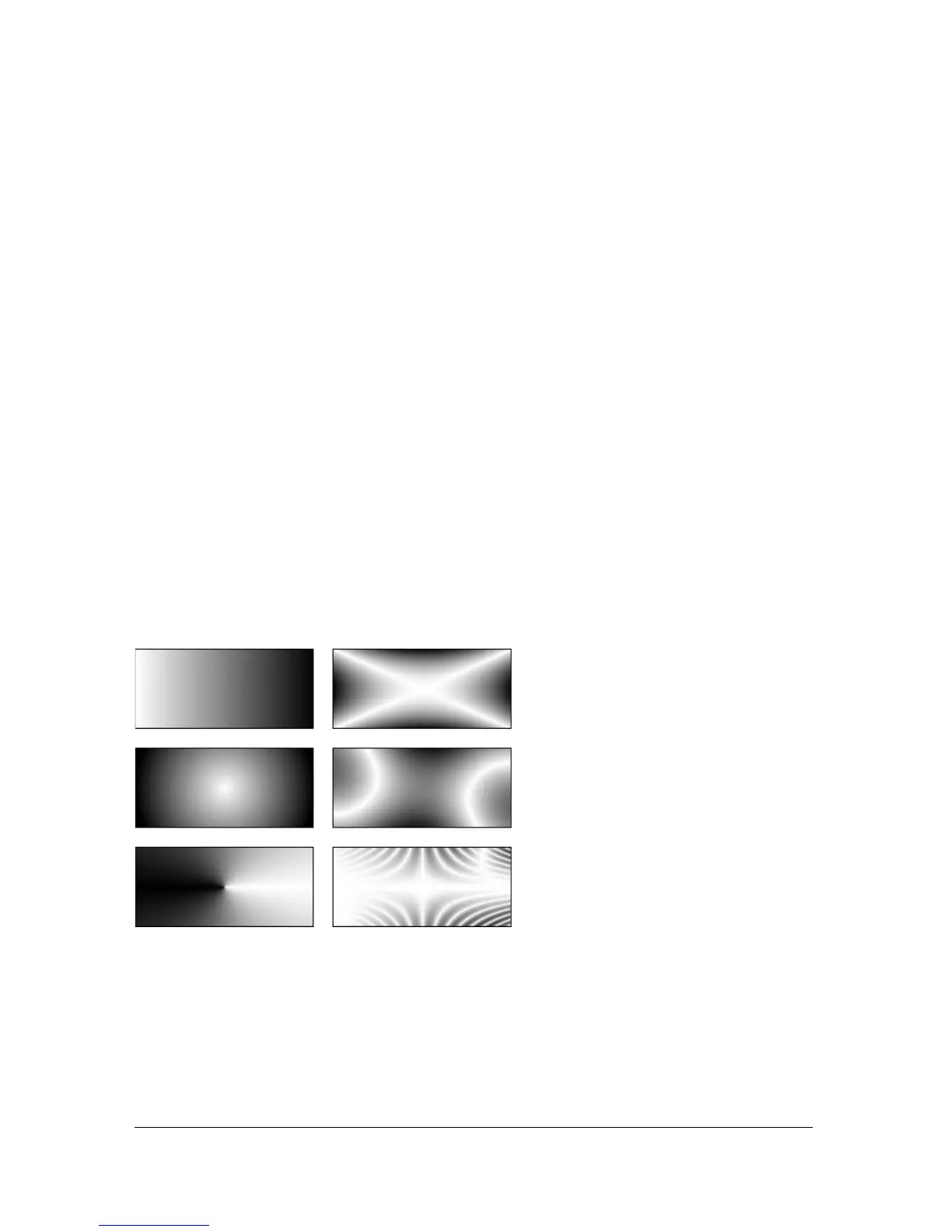
Applying a gradient fill
Fill categories other than None, Solid, Pattern, and Web Dither are gradient fills. These fills
blend colors to create various effects.
Objects with various gradient fills
To apply a gradient fill to a selected object:
■ Select a gradient from the Fill Options pop-up menu in the Property inspector. The fill
appears in the selected object and becomes the active fill.



 To Next Page