Applying gradient and pattern fills 189
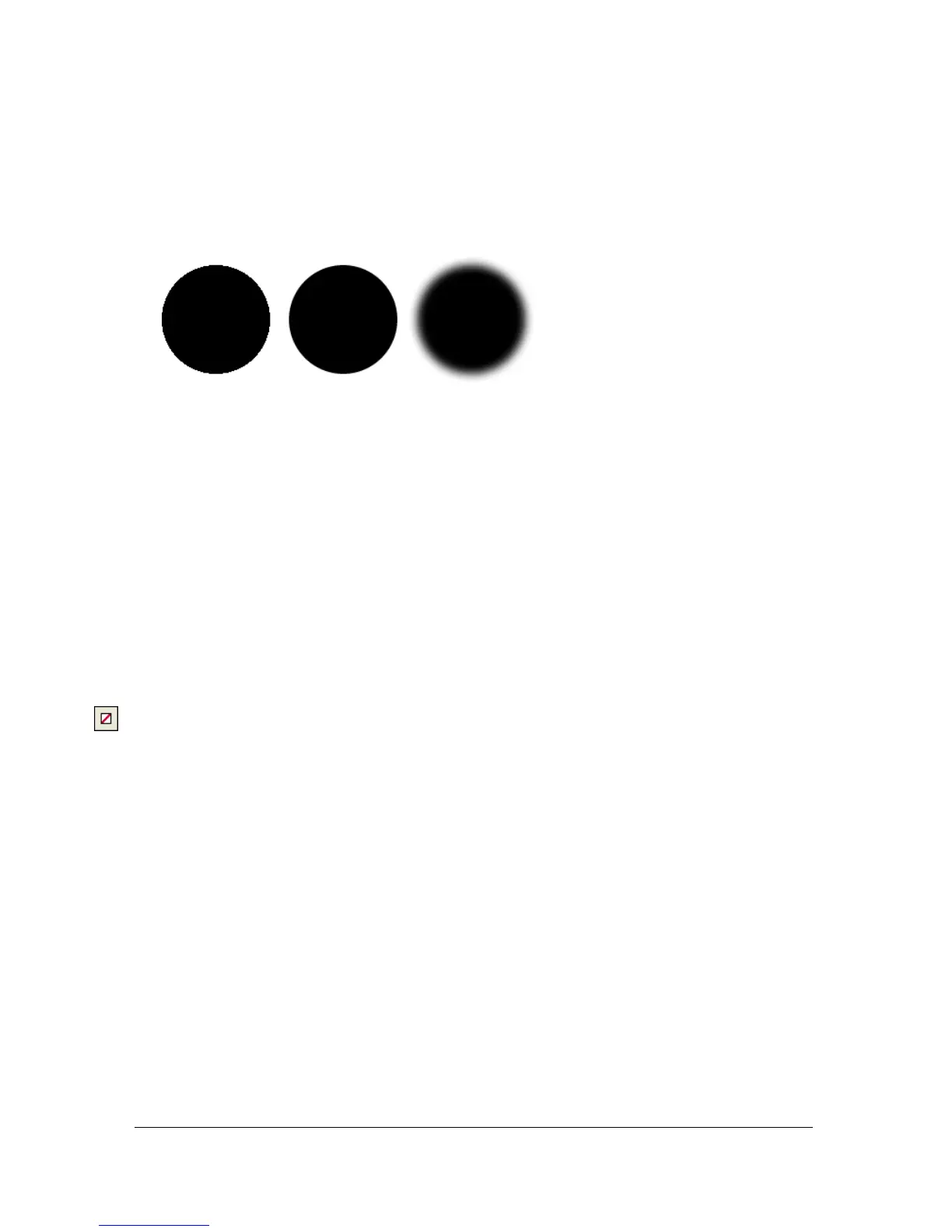
3. For a feathered edge, also select the number of pixels on each side of the edge that are to
be feathered.
The default is 10. You can select from 0 to 100. The higher the level, the more
feathering occurs.
About saving a custom gradient fill
To save the current gradient settings as a custom gradient for use across many documents, you
must create a style. For more information, see “Creating and deleting styles” on page 237.
Removing a fill
You can easily remove fill attributes from selected objects.
To remove the fill from a selected object, do one of the following:
■ Select None from the Fill Options pop-up menu in the Property inspector or from the Fill
Options pop-up menu in the Fill Options pop-up window.
■ Click any Fill Color box and click the Transparent button. This option removes only solid
fills.



 To Next Page