330 Chapter 14: Optimizing and Exporting
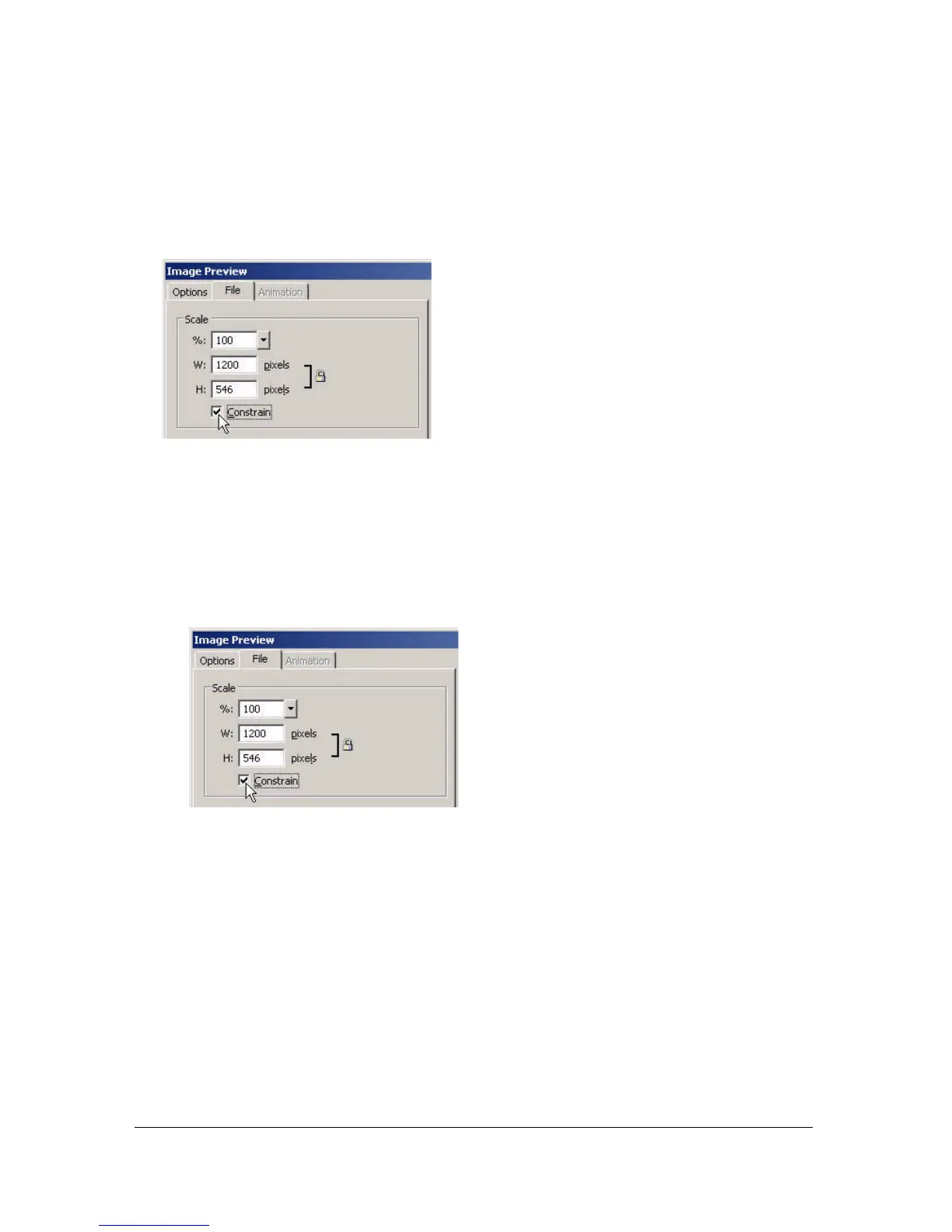
To set exported image dimensions using Image Preview:
1. Click the File tab.
2. Specify a scale percentage or enter the desired width and height in pixels. Select Constrain
to scale the width and height proportionally.
To define only a portion of an image for export using Image Preview:
1. Click the File tab.
2. Select the Export Area option and do one of the following to specify the export area:
■ Drag the dotted border that appears around the preview until it encloses the desired
export area. (Drag inside the preview to move hidden areas into view.)
■ Enter pixel coordinates for the boundaries of the export area.
To set animation settings using Image Preview:
1. Click the Animation tab.
2. Use the following techniques to preview animation frames:
■ To display a single frame, select the desired frame in the list on the left side of the
dialog box, or use the frame controls in the lower right area of the dialog box.
■ To play the animation, click the Play/Stop control in the lower right area of the dialog
box.



 To Next Page