The Fireworks work environment 45
Resampling up, or adding pixels to make the image larger, may result in quality loss because
the pixels being added do not always correspond to the original image.
Downsampling, or removing pixels to make the image smaller, always causes quality loss
because pixels are discarded to resize the image. Data loss in the image is another side effect
of downsampling.
Rotating the canvas
Rotating the canvas is helpful when an image is imported upside down or sideways. You can
rotate the canvas 180°, 90° clockwise, or 90° counterclockwise.
When you rotate the canvas, all objects in the document rotate.
To rotate the canvas, do one of the following:
■ Select Modify > Canvas > Rotate 180°.
■ Select Modify > Canvas > Rotate 90° CW.
■ Select Modify > Canvas > Rotate 90° CCW.
Trimming or fitting the canvas
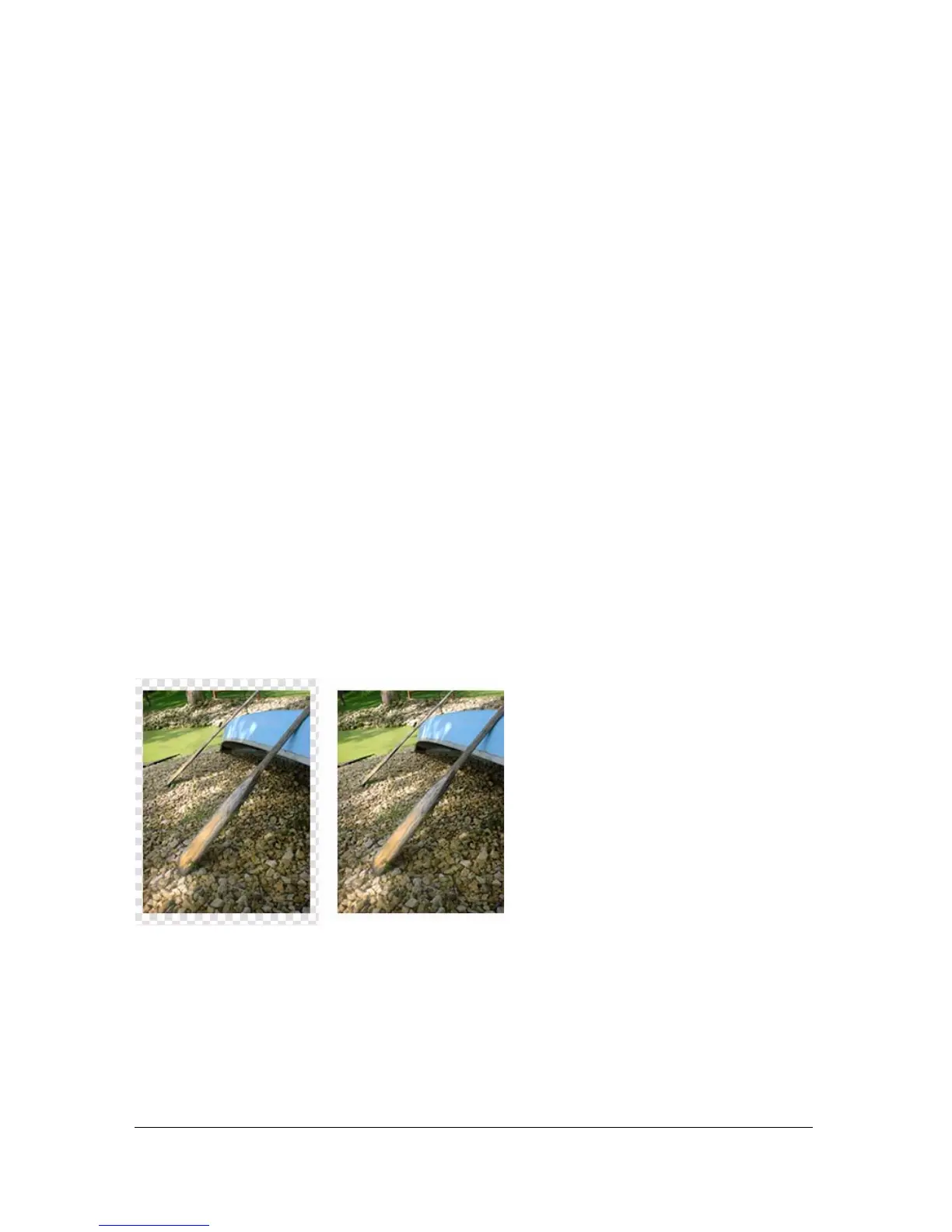
If your document contains extra space around the contents of the canvas, you can trim the
canvas. You can also modify the canvas by expanding it to fit objects that extend beyond its
boundary.
Original; trimmed canvas
To trim or fit the canvas to the document contents:
■ Select Select > Deselect to view the document properties in the Property inspector.
■ Click Fit Canvas in the Property inspector.
The canvas expands or contracts to the size of the contents of the canvas.



 To Next Page