Editing paths 139
Removing portions of a path object
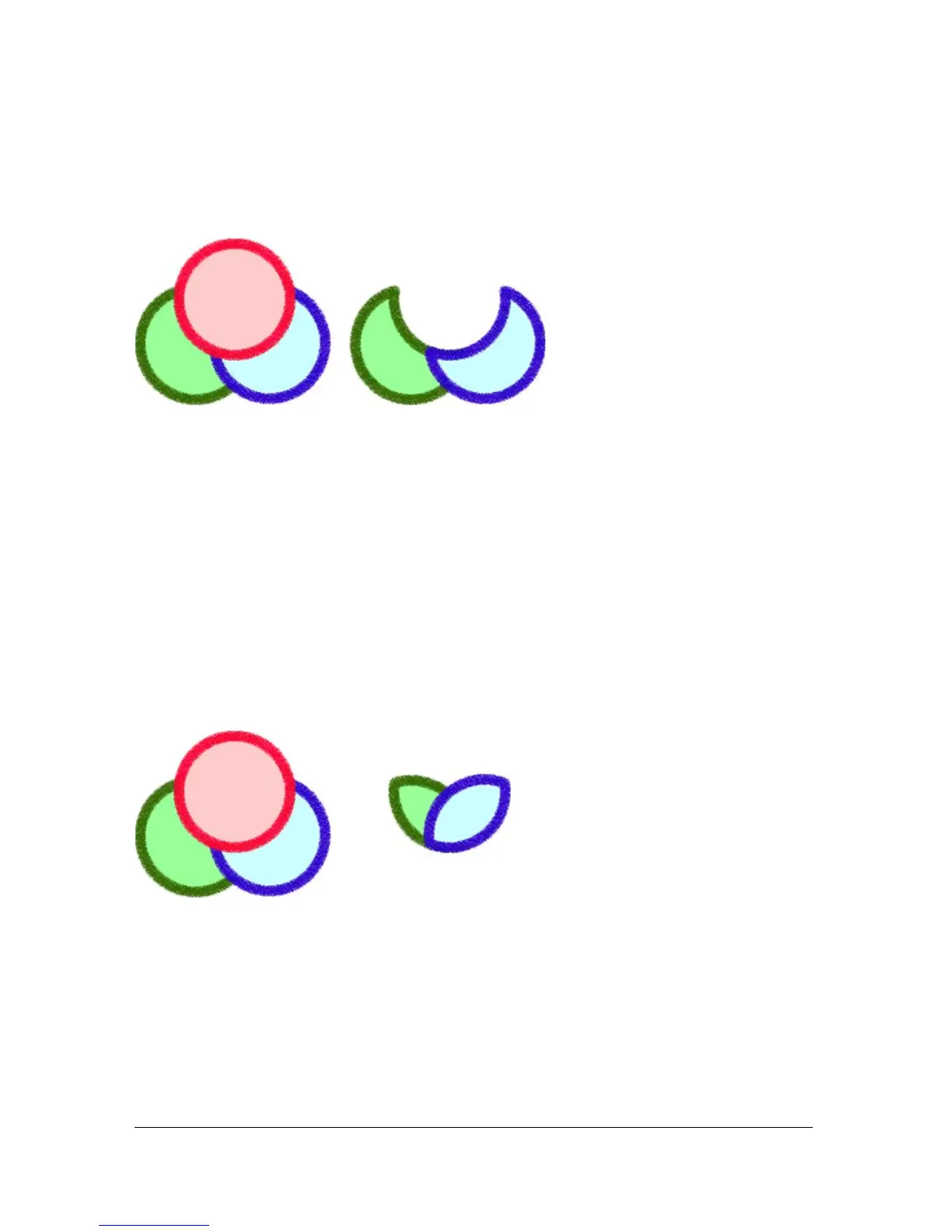
You can remove portions of a selected path object as defined by the overlapping portions of
another selected path object arranged in front of it.
To remove portions of a path object:
1. Select the path object that defines the area to be removed.
2. Select Modify > Arrange > Bring to Front.
3. Hold down Shift and add to the selection the path object from which the portions are to
be removed.
4. Select Modify > Combine Paths > Punch.
Stroke and fill attributes remain unchanged.
Cropping a path
You can crop a path using the shape of another path. The front or topmost path defines the
shape of the cropped area.
To crop a selected path:
1. Select the path object that defines the area to be cropped.
2. Select Modify > Arrange > Bring to Front.
3. Hold down Shift and add to the selection the path object to be cropped.
4. Select Modify > Combine Paths > Crop.
The resulting path object retains the stroke and fill attributes of the object that is placed
farthest back.



 To Next Page