Selecting pixels 63
To contract the border of a marquee:
1. After drawing the marquee, select Select > Contract Marquee.
2. Enter the number of pixels by which you want to contract the border of the marquee, and
click OK.
Selecting an area around an existing marquee
You can create an additional marquee to frame an existing marquee at a specified width. This
lets you create special graphics effects, such as feathering the edges of a pixel selection.
To select an area around an existing marquee:
1. After drawing a marquee, select Select > Border Marquee.
2. Enter the width of the marquee that you want to place around the existing marquee, and
click OK.
Smoothing the border of a marquee
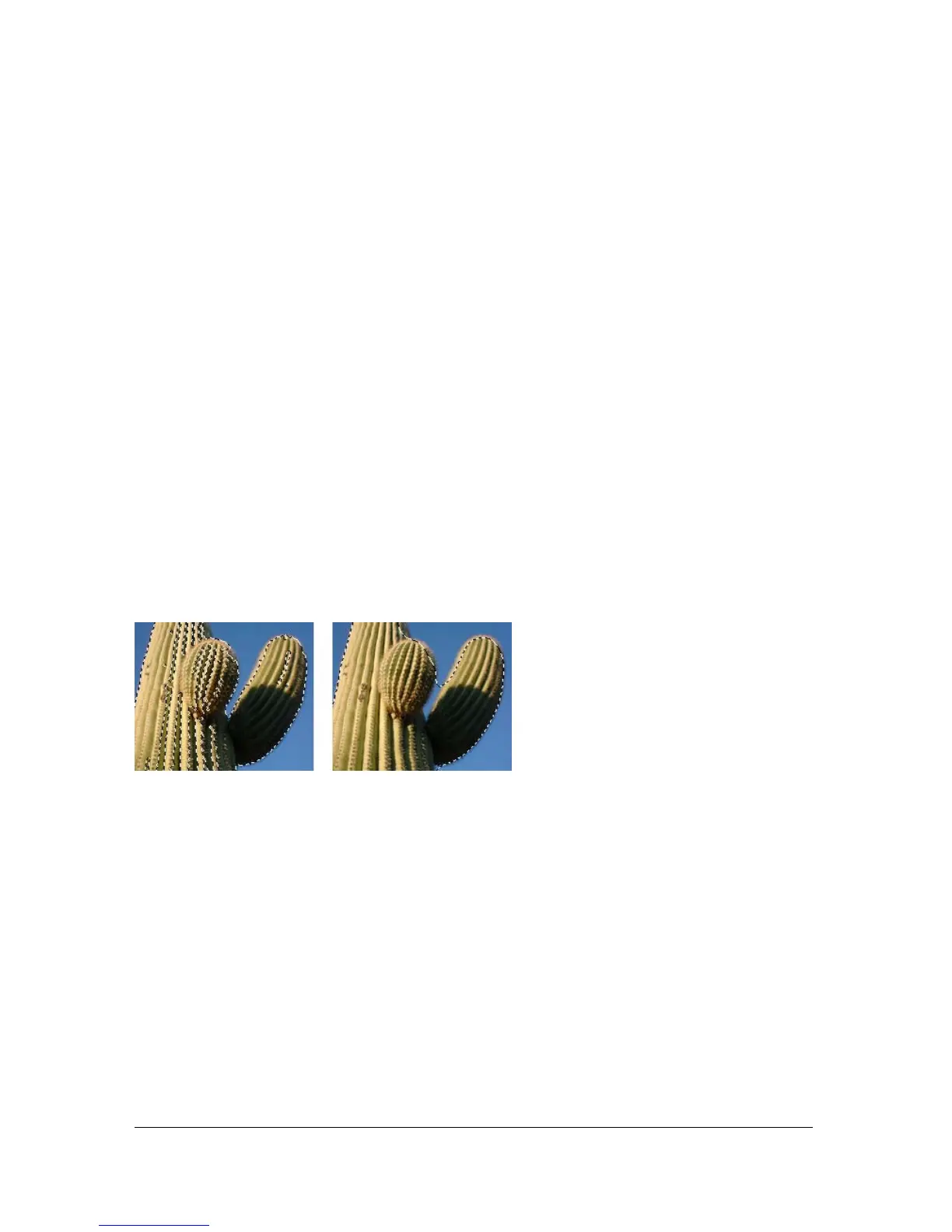
You can eliminate excess pixels along the edges of a pixel selection. This is useful if excess
pixels appear along the border of a pixel selection or marquee after you use the Magic Wand
tool.
A pixel selection before and after smoothing
To smooth the border of a marquee:
1. Select Select > Smooth Marquee.
2. Enter a sample radius to specify the desired degree of smoothing, and click OK.
Converting a marquee to a path
Using Fireworks, you can convert a bitmap selection to a vector object by drawing a marquee
around the part of the bitmap that you want to convert. This process is useful if you want to
start creating an animation by tracing a selection from a bitmap, for example.



 To Next Page