Previewing an animation 319
Previewing an animation
You can preview an animation while you are working on it to check its progress. You can also
preview an animation after optimization to see how it will look in a web browser.
To preview an animation in the workspace:
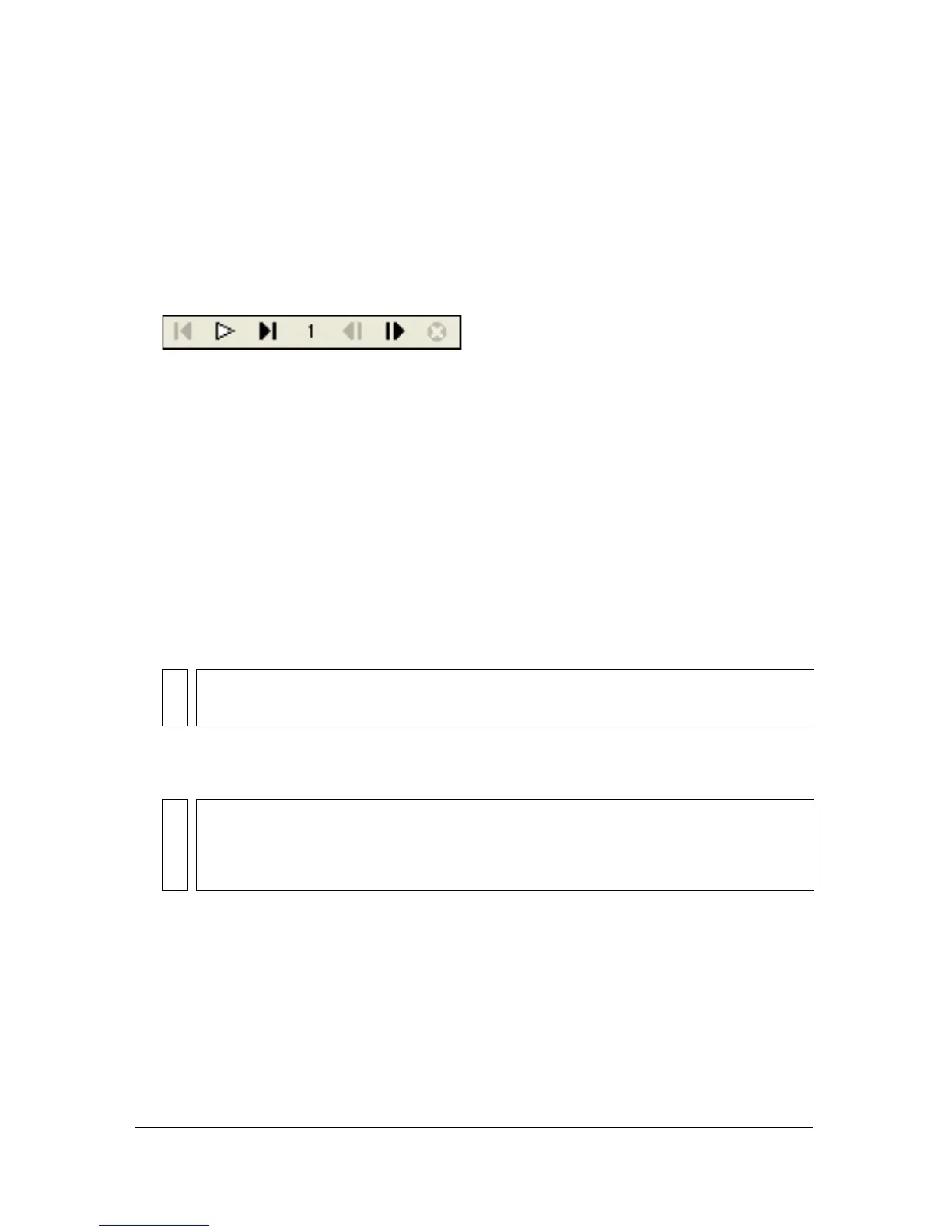
■ Use the frame controls that appear at the bottom of the Document window.
Frame controls
Keep the following in mind when previewing animations:
■ To set how long each frame appears in the Document window, enter frame delay settings
in the Frames panel.
■ Frames excluded from the export do not appear in the preview.
■ Previewing the animation in the Original view displays the full-resolution source graphic,
not the optimized preview used for the exported file.
To preview an animation in Preview view:
1. Click the Preview button at the upper left of the Document window.
2. Use the frame controls.
To preview an animation in a web browser:
■ Select File > Preview in Browser, and select a browser from the submenu.
NOTE
Previewing animations in 2-Up or 4-Up view is not recommended.
NOTE
Animated GIF must be selected as the Export file format in the Optimize panel, or no
motion will be visible when you preview the document in your browser. This is
required even if you plan to import your animation into Flash as a SWF or Fireworks
PNG file.



 To Next Page