106 Chapter 4: Working with Bitmaps
To blur an image using Zoom Blur:
1. Select the image.
2. Do one of the following to open the Zoom Blur dialog box:
■ In the Property inspector, click the Add Live Filters button, and select Blur > Zoom
Blur from the Filters pop-up menu.
■ Select Filters > Blur > Zoom Blur.
3. Drag the Amount slider to set the strength of the blur effect.
Values range from 1 to 100. An increase in amount results in a stronger blur effect.
4. Drag the Quality slider to set the smoothness of the blur effect.
Values range from 1 to 100. An increase in quality results in a blur effect with fewer
repetitions of the original image.
5. Click OK.
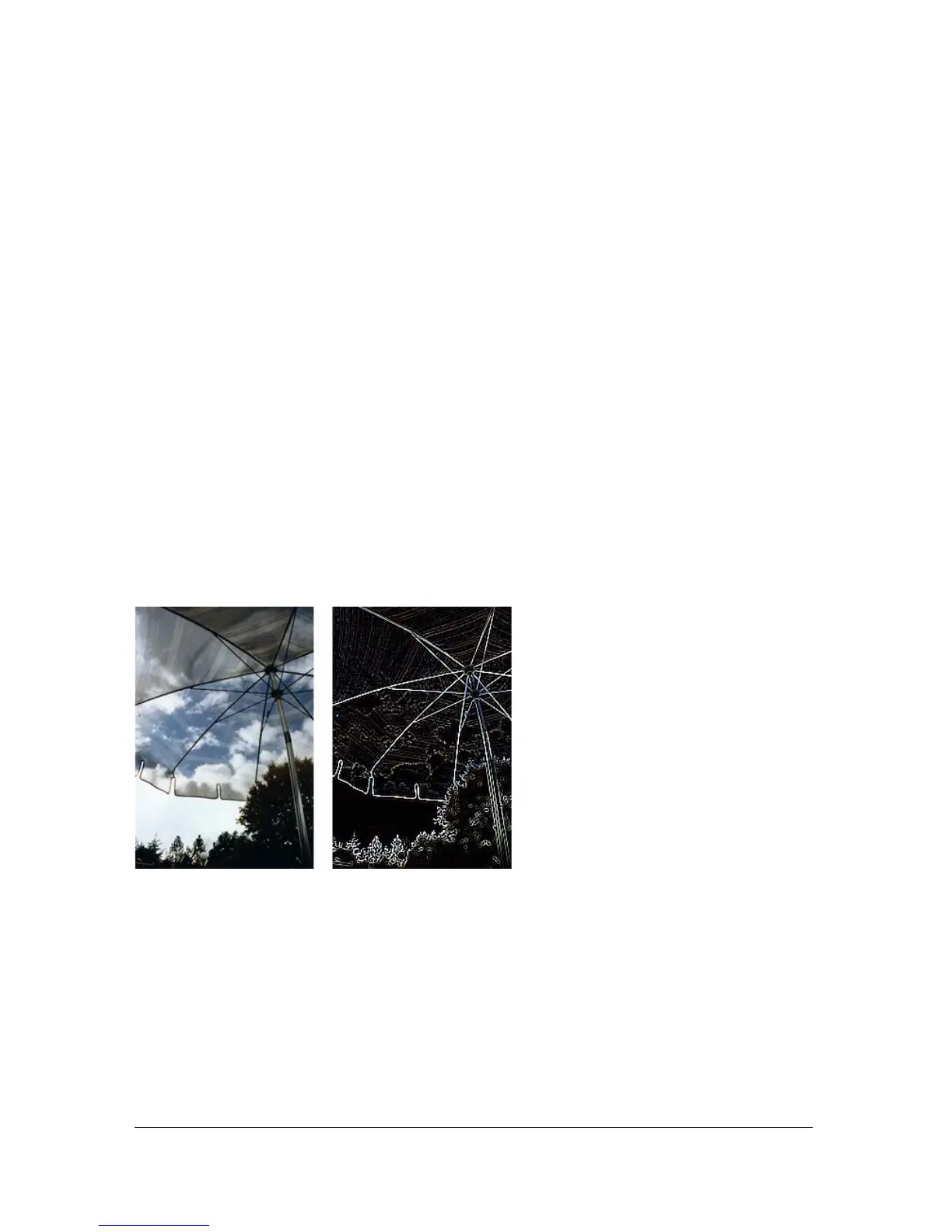
Using the Find Edges filter to create a sketch look
The Find Edges filter changes your bitmaps to look like line drawings by identifying the color
transitions in the images and changing them to lines.
Original; after applying Find Edges
To apply the Find Edges filter to a selected area, do one of the following:
■ In the Property inspector, click the Add Live Filters button, and then select Other > Find
Edges from the Filters pop-up menu.



 To Next Page