312 Chapter 13: Creating Animation
To change a selected symbol’s graphic attributes:
1. Do one of the following to open the Symbol Editor:
■ Double-click the symbol object.
■ Select Modify > Symbol > Edit Symbol.
■ Click the Edit button in the Animate dialog box.
2. Modify the animation symbol and change any text, strokes, fills, and effects as appropriate.
3. Close the Symbol Editor.
Editing symbol motion paths
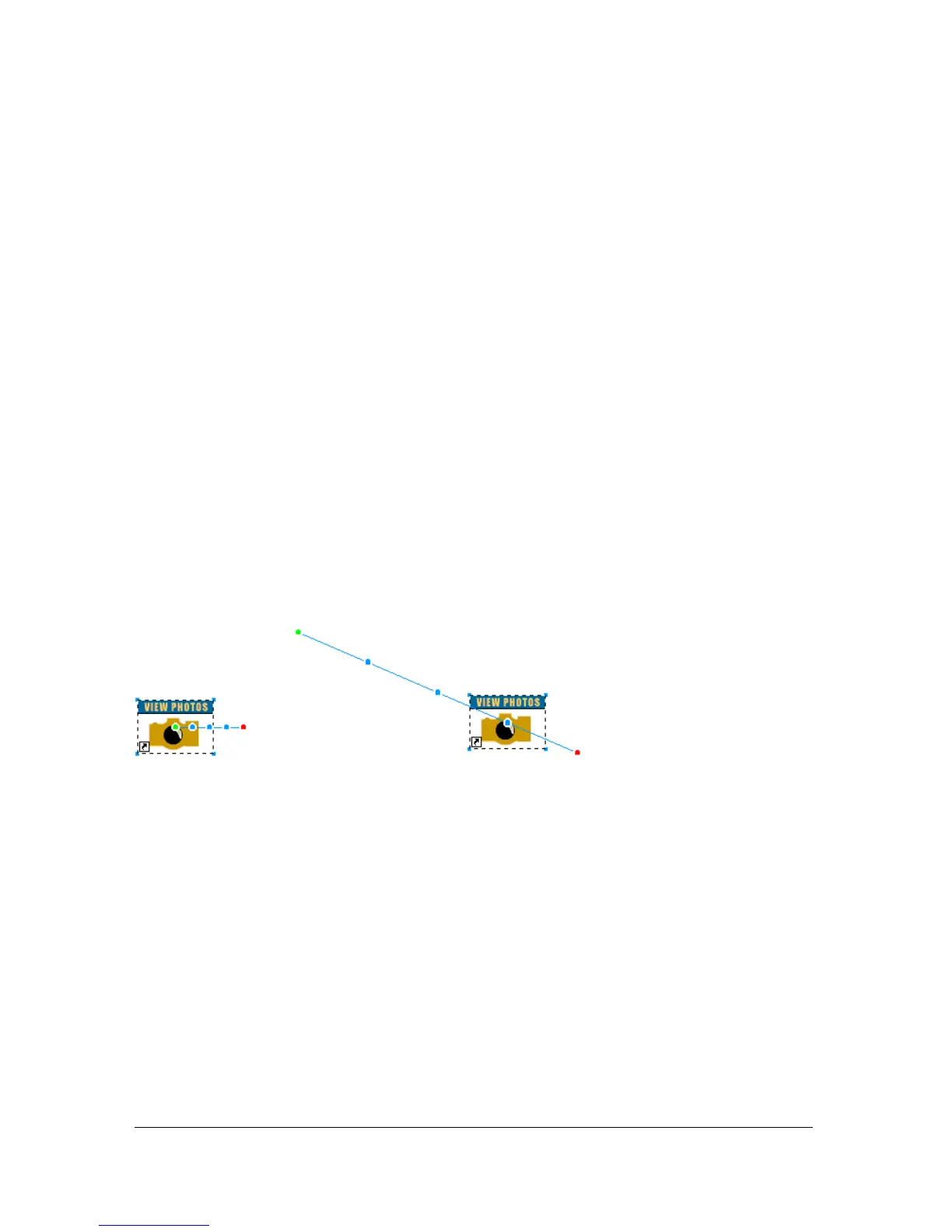
When you select an animation symbol, it has a unique bounding box and a motion path
attached that indicates the direction in which the symbol moves.
The green dot on the motion path indicates the starting point, and the red dot shows the end
point. The blue points on the path represent frames. For example, a symbol with five frames
would have one green dot, three blue dots, and one red dot on its path. The position of the
object on the path indicates the current frame. So, if the object appears at the third dot, Frame
3 is the current frame.
You can change the direction of the motion by changing the angle of the path.
To change movement or direction:
■ Drag one of the symbol’s animation start or end handles to a new location. The green
point indicates the starting point; the red indicates the ending point.
Shift-drag to constrain the direction of movement to 45° increments.



 To Next Page