$
To create an overlay:
.
Click on one or more .psd files in the Measurement file window and
right-click. In the menu this displays, select Add to Overlay-New Over
-
lay. Alternatively, use the button or File-New -Overlay.
.
The overlay window opens showing the data for any .psd files selected.
.
To add data from another .psd, drag the file from the Measurement file
window and drop it on the Overlay window.
'
Note
.
PSD data can also be dragged and dropped into an open Overlay
window from the Windows File Manager.
$
To change the overlay display settings:
.
To change the window setup (axes, scaling, etc.), right-click on it and select
Properties.
$
To modify the overlay display:
.
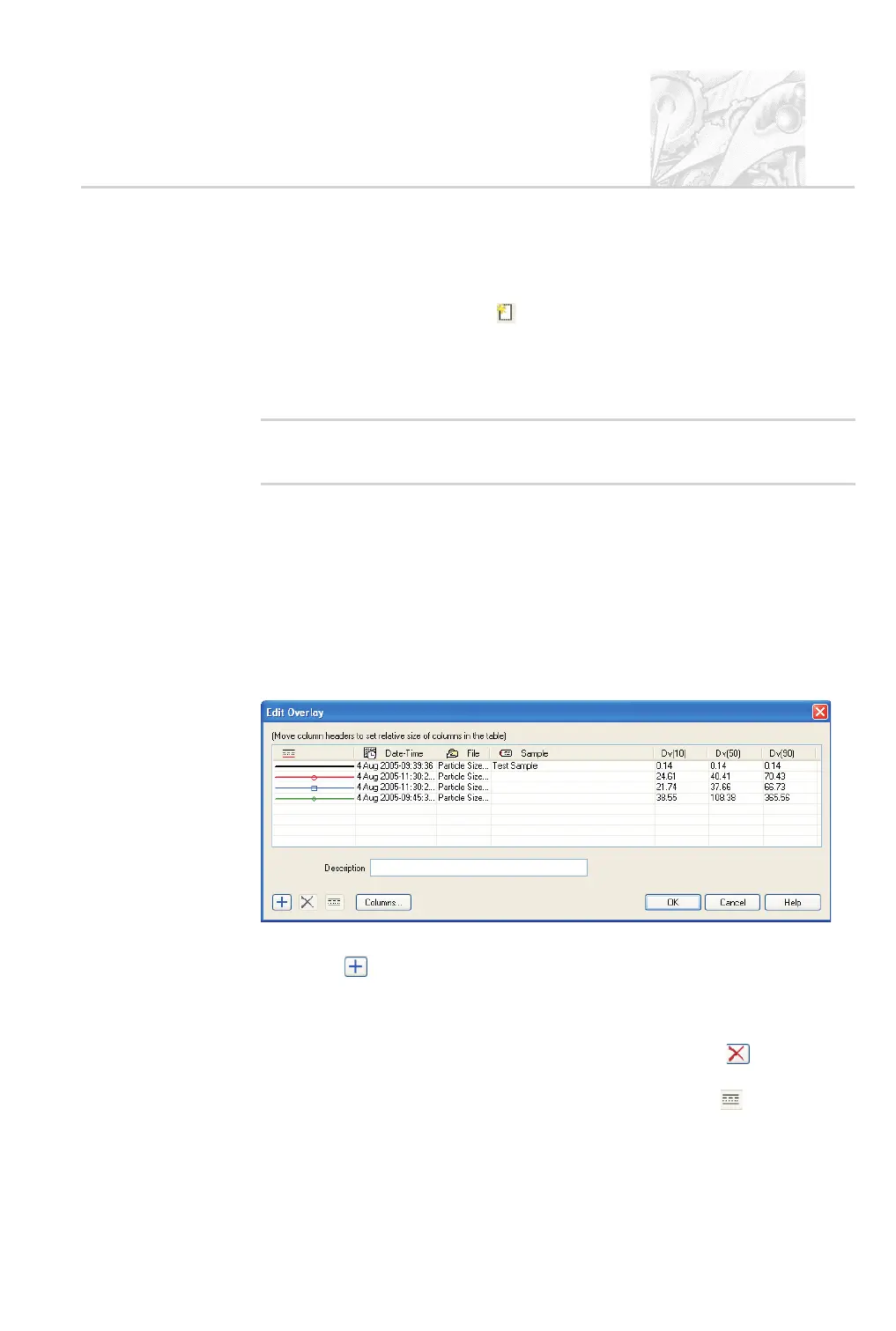
Click on the Overlay window and select Edit-Modify to display the fol-
lowing dialogue, which gives information on each PSD plotted:
.
To add a title to the overlay, type it into the Description box.
.
The button is an alternative way to add .psd files to the overlay. Click
the button then select the .smea file and click Open.AnAdd Distribu
-
tions dialogue opens listing the contents of the .smea file. Select all the
.psd files required then click OK.
.
To remove a PSD from the display, select it and click the button.
.
New data elements are automatically assigned a unique line style and col
-
our. To change these for any PSD, select it and click the button.
CHAPTER 6
Spraytec Page 6.17



 To Next Page