.
Select the Administrator name in the first row and then
User-Properties. Confirm the blank password for the Administrator ac
-
count (that is, do not type anything in) and click OK.
.
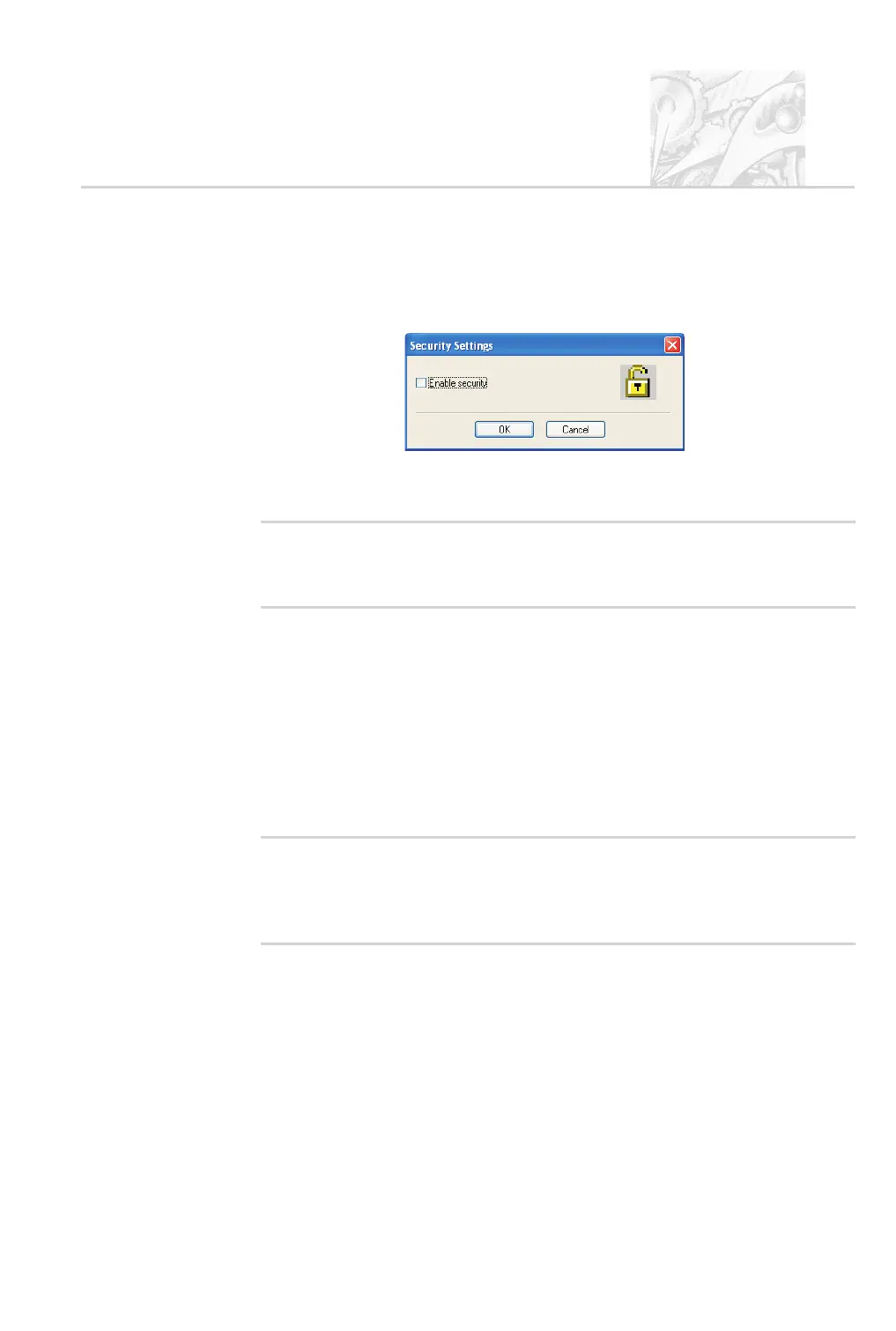
Click Options-Security settings... and in the Security Settings dialogue
shown below select the Enable security check box and click OK.
.
Security is now enabled on the system. This forces subsequent users to log
in to access the software.
'
Note
.
If the 21 CFR part 11 feature key is installed a different dialogue is
displayed. Once 21 CFR part 11 security is enabled, it cannot be
disabled.
Security guidelines
Once security is enabled each user must log in when the software starts. Once the
user is logged in, only functions matching their relevant permissions will be
accessible; all other functions will be greyed out.
To change from one user to another without closing down the software, the first
user must select Security-Logout and then the second user must select
Security-Login and enter the appropriate username/password.
'
Note
.
It is preferable to assign at least two users to the Administrators group.
The user’s user name and password should be stored in a secure
location. This is to safeguard against accidental lockout or deletion of
permissions that may prevent the security settings being available.
Remember that after any changes to the security system – adding users, changing
permissions, etc. – the new changes must be saved (by selecting User-Save). A
dialogue will appear on exit reminding the user to save changes.
CHAPTER 9
Spraytec Page 9.3



 To Next Page