Around the Windows The Utilities Menu
Sprinter User's Manual 6-11
The Utilities Menu
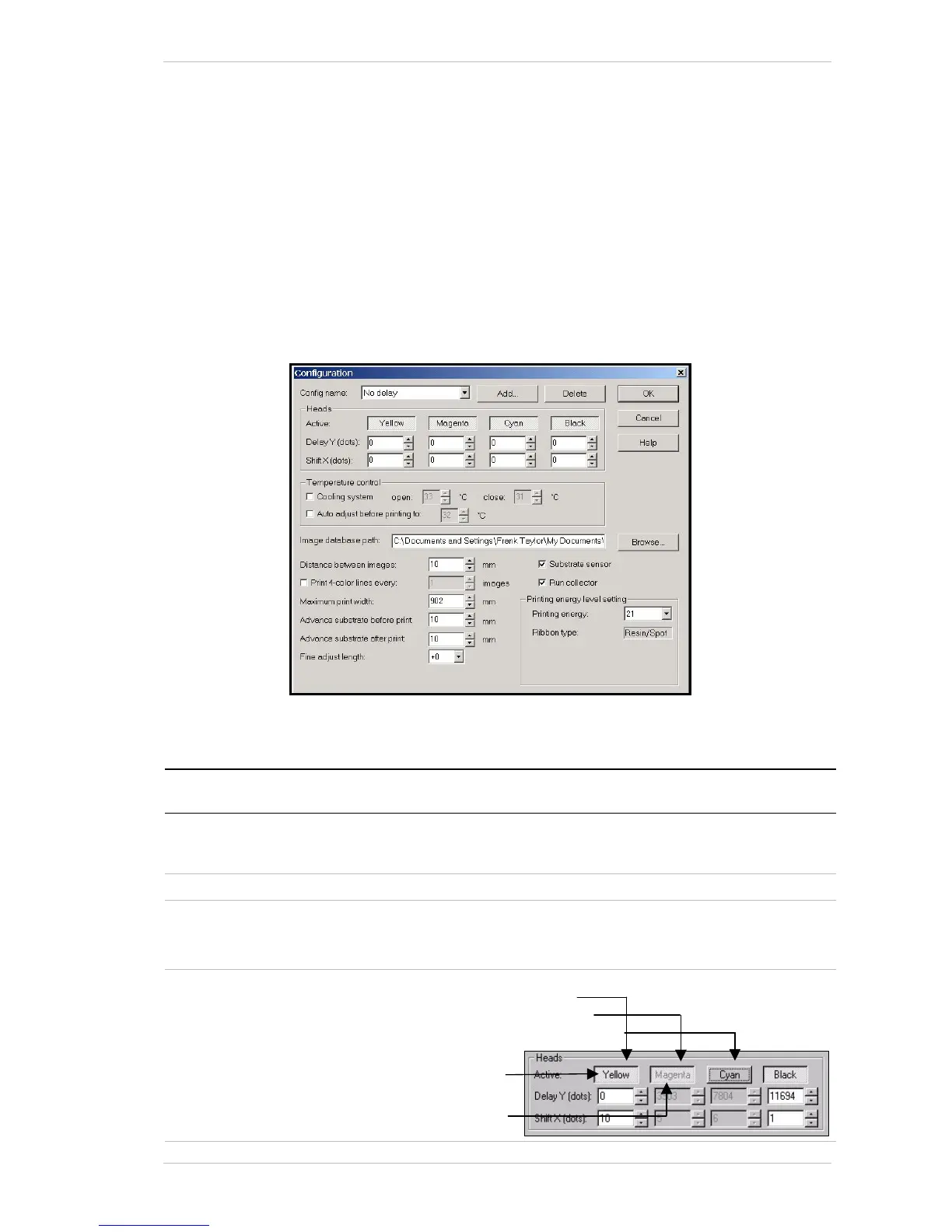
The Configuration Dialog Box
You access the CONFIGURATION dialog box from the UTILITIES menu or by
clicking the C
ONFIG icon in the tool bar.
You can carry out a comprehensive configuration of your SprinterB Printer
from the C
ONFIGURATION dialog box.
The various settings for the P
RINT HEADS are made in this box, as well as
those for specifying the S
UBSTRATE type, and INK type.
Various print measurement settings are made in this dialog box as well.
Figure 6-8: The Configuration Dialog Box
You make the following selections from the CONFIGURATION dialog box:
Group Box Screen
Component
Description
General Configuration When you select one of the approved substrates from this
drop-down list, all the relative default settings are automatically
displayed.
Add Click this button to add a substrate to the Configuration list.
Delete Click this button to delete a substrate from the Configuration
list.
An approved manufacturer’s substrate cannot be deleted.
Heads Active Click a color for one of the following settings:
Piston Up and printing
Piston Up and not printing
Piston Down and not printing
Color name in Black
Color name in Grey



 To Next Page