Preparing Your Printer for Printing The Printing Procedure
Sprinter User's Manual 8-33
Deleting Printed Files
When a file has been printed, the word ‘DONE’ appears in the QUEUE
column of the Print menu.
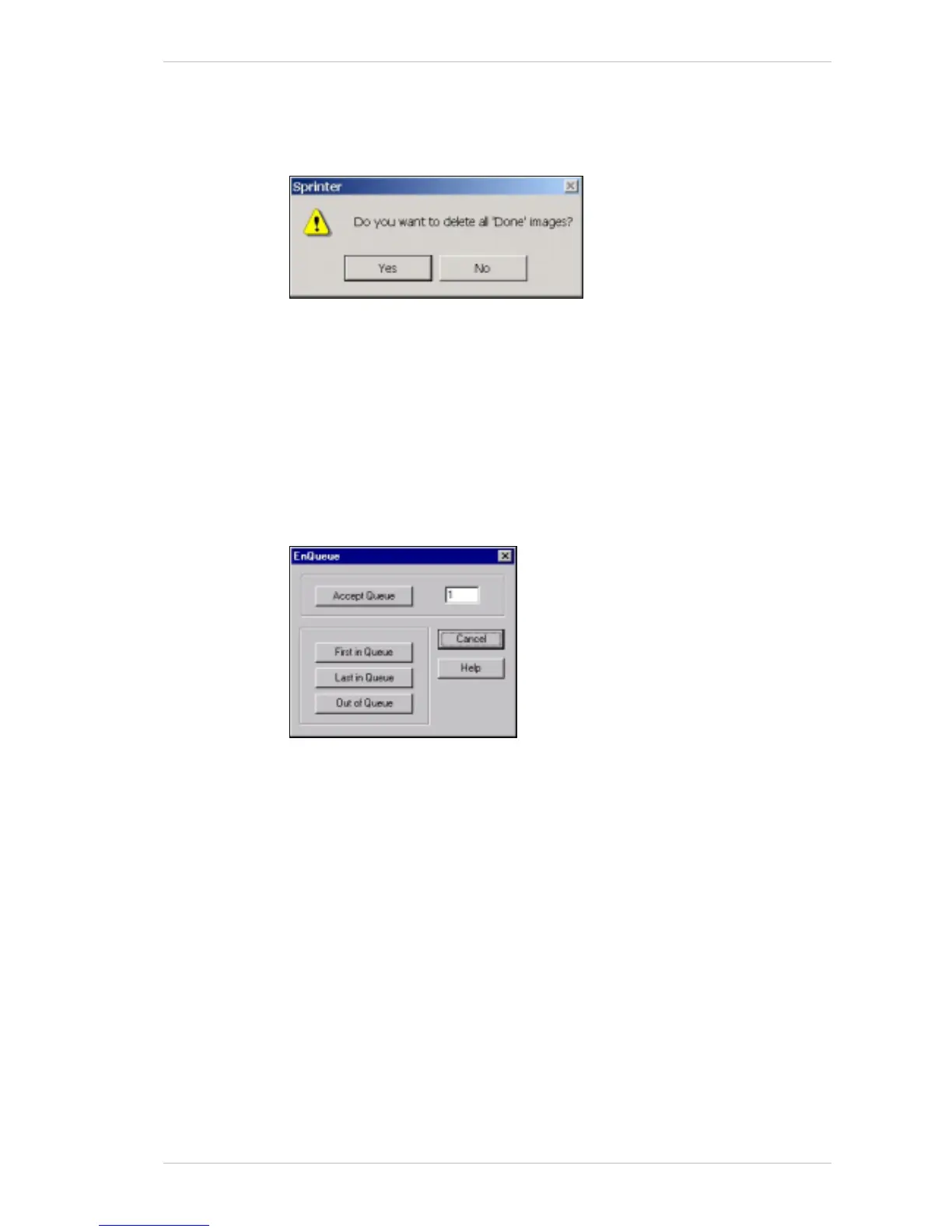
Figure 8-25: The Delete 'Done' Prompt
! To delete printed files:
1. From the I
MAGE menu of the MAIN SCREEN, select DELETE ‘DONE’.
The D
ELETE ‘DONE PROMPT appears (Figure 8-25).
2. Click Y
ES to confirm the delete command.
Queueing the Files for Printing
To determine the order in which the selected files are printed, you should
use the Q
UEUE command.
Figure 8-26: The Enqueue Dialog Box
! To queue a file for printing:
1. From the M
AIN SCREEN, click QUEUE, or right click the mouse.
The E
NQUEUE dialog box appears (Error! Reference source not
found.).
2. Carry out the following steps as required:
To put the selected file first in the queue, click F
IRST IN QUEUE.
The selected file appears first in the queue of the P
RINT menu.
To put a selected file next in the queue, click L
AST IN QUEUE.
The selected file appears after the first file in the queue of the P
RINT
menu.
To place a selected file anywhere in the queue except last, click A
CCEPT
QUEUE, specify in the text field the required number in the QUEUE and
then click A
CCEPT QUEUE.
To remove a file from the queue, select the file and click O
UT OF QUEUE.



 To Next Page