The Printing Procedure Preparing Your Printer for Printing
8-32 Sprinter User's Manual
Deleting a Selected File from the Import File Dialog Box
! To delete a file:
1. From the F
ILES TO IMPORT BOX in the IMPORT FILE dialog box, select the
image you wish to delete.
2. Click D
ELETE.
Renaming a File
This procedure can be carried out either from the MAIN SCREEN or from the
I
MPORT FILE dialog box.
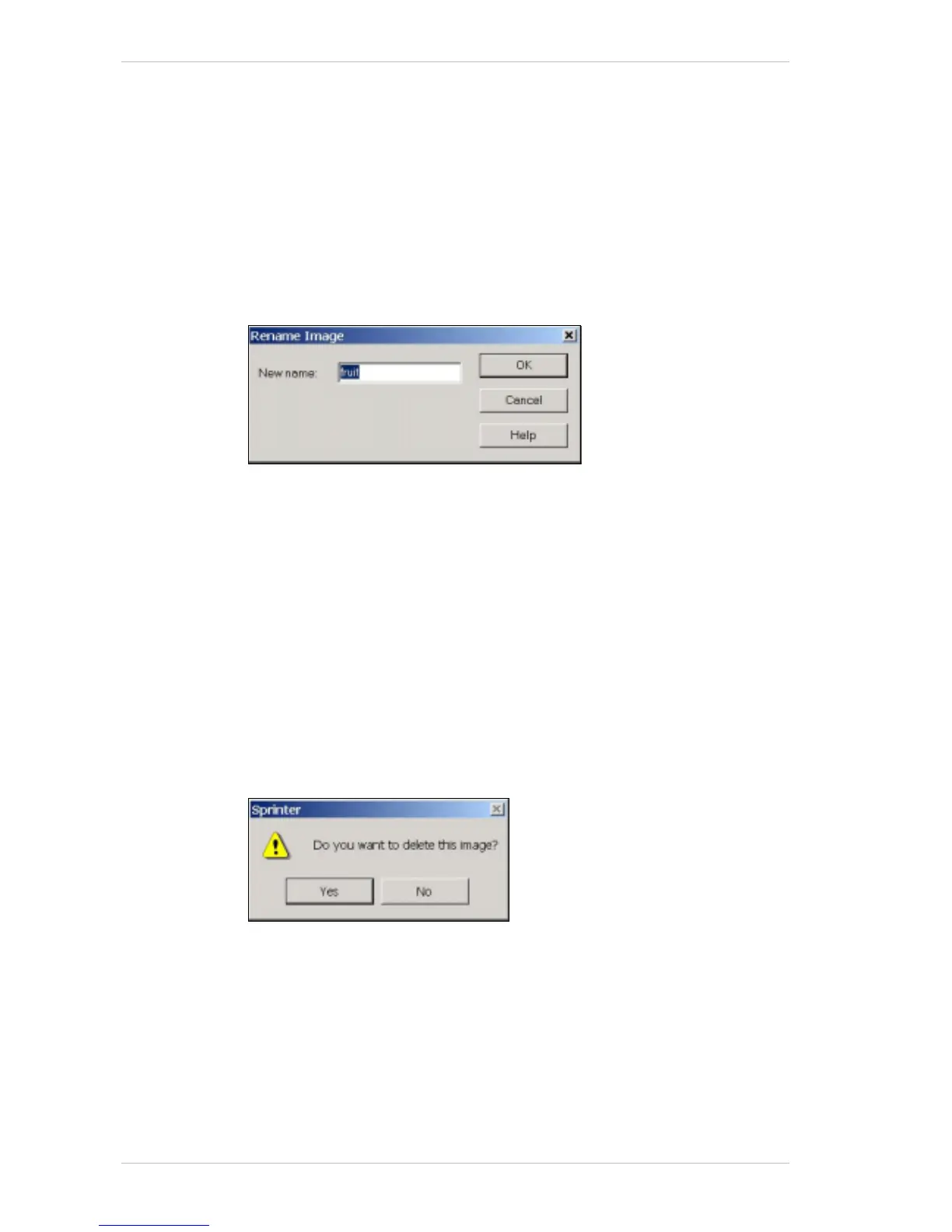
Figure 8-23: The Rename Image dialog box
! To rename a file from the Main Screen:
1. Select the required file from the P
RINTING MENU of the MAIN SCREEN.
2. From the I
MAGE menu of the MAIN SCREEN, select RENAME.
3. The R
ENAME IMAGE dialog box appears (Figure 8-23).
4. In the N
EW NAME field, enter the new name of the file and click OK.
! To rename a file from the Import File dialog box:
1. Right-click the required file from the upper window of the I
MPORT FILE
dialog box and select R
ENAME from the menu that appears.
2. Rename the file and click outside the file name.
Deleting a File from the Printing Menu
Figure 8-24: The Delete Prompt
! To delete a file:
1. Select the required file from the P
RINTING menu of the MAIN SCREEN.
2. From the I
MAGE menu of the MAIN SCREEN, select DELETE.
The D
ELETE PROMPT appears (Figure 8-24).
3. Click Y
ES to confirm the delete command.



 To Next Page