Page | 20
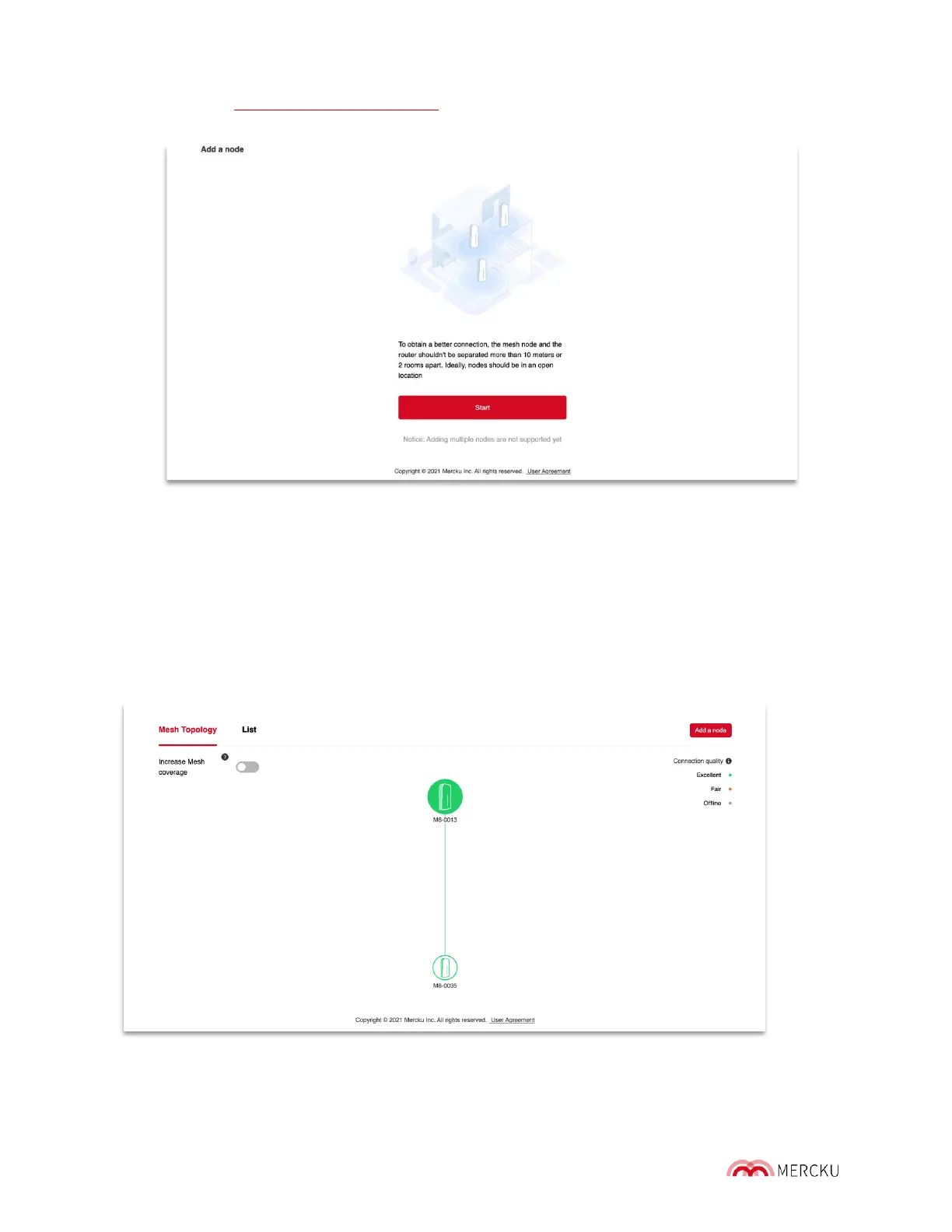
a. Visit http://mywifi.mercku.tech and log in using your Router Admin Password.
b. On the homepage, click on Add a node > Start
c. Plug in the power to the M6 node - the indicator light on the front will show red
light at first, then turn orange.
d. Press the Connect button on the M6 node until the indicator light blinks in blue,
follow the instructions in the App, and wait for about to 1 minute for the M6
node to be added.
e. When the nodes are meshing, an animation of this activity will show up, please
wait for 1 minute until the "Successfully added" message appears.
f. Go to back to the homepage and click on Wi-Fi point to see the new node
added to the network.


 To Next Page