Version 1.9 Page 102 of 170
4.3.1.13 USING MARKERS
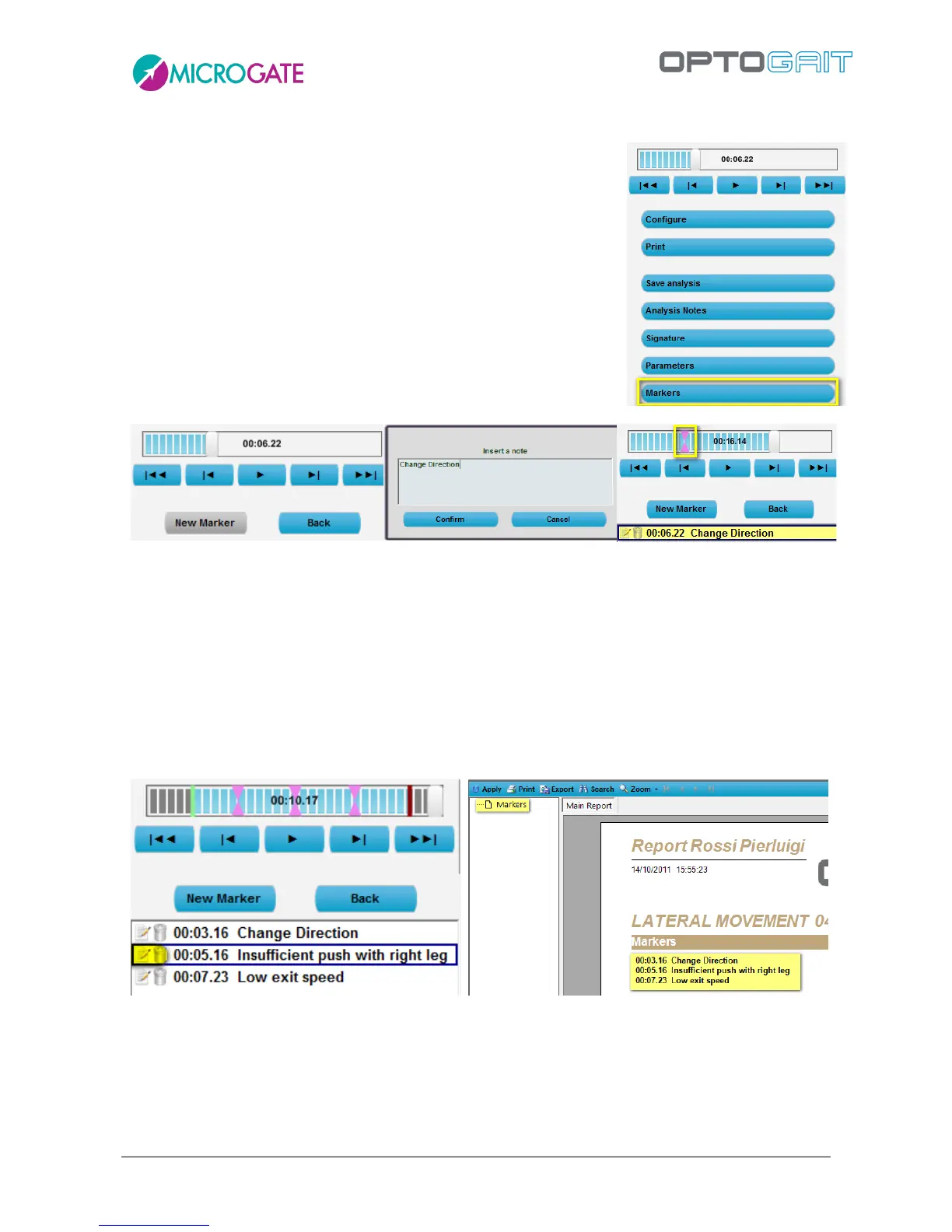
In a test analysis, other markers besides Set Start and Set Stop can be
added in certain spots of the video associating them to a note or a
comment. The marker list (which can be created, edited and deleted
freely) is also printed in the report showing minutes and comments.
Press the <Markers> button from the menu to the left of the screen.
Set the video to the required frame (using the arrow or CTRL+arrow
keys) and press the button <New Marker>; in the pop-up, add a note
or a comment for the instant marked by the marker.
In the list below a new record with minutes and the added note is
created.
N markers can be created and managed from the list containing them; in particular you can:
Double-click on one of them to skip to the marker time frame;
Click on the first icon (Edit) to edit the note;
Click on the second icon (Delete) to delete the marker (must be confirmed).
The list is printed in an appropriate Report section.



 To Next Page