Version 1.9 Page 38 of 170
4.1.1.2 IMPORTING AND EXPORTING PATIENTS’ PERSONAL DATA EXCEL
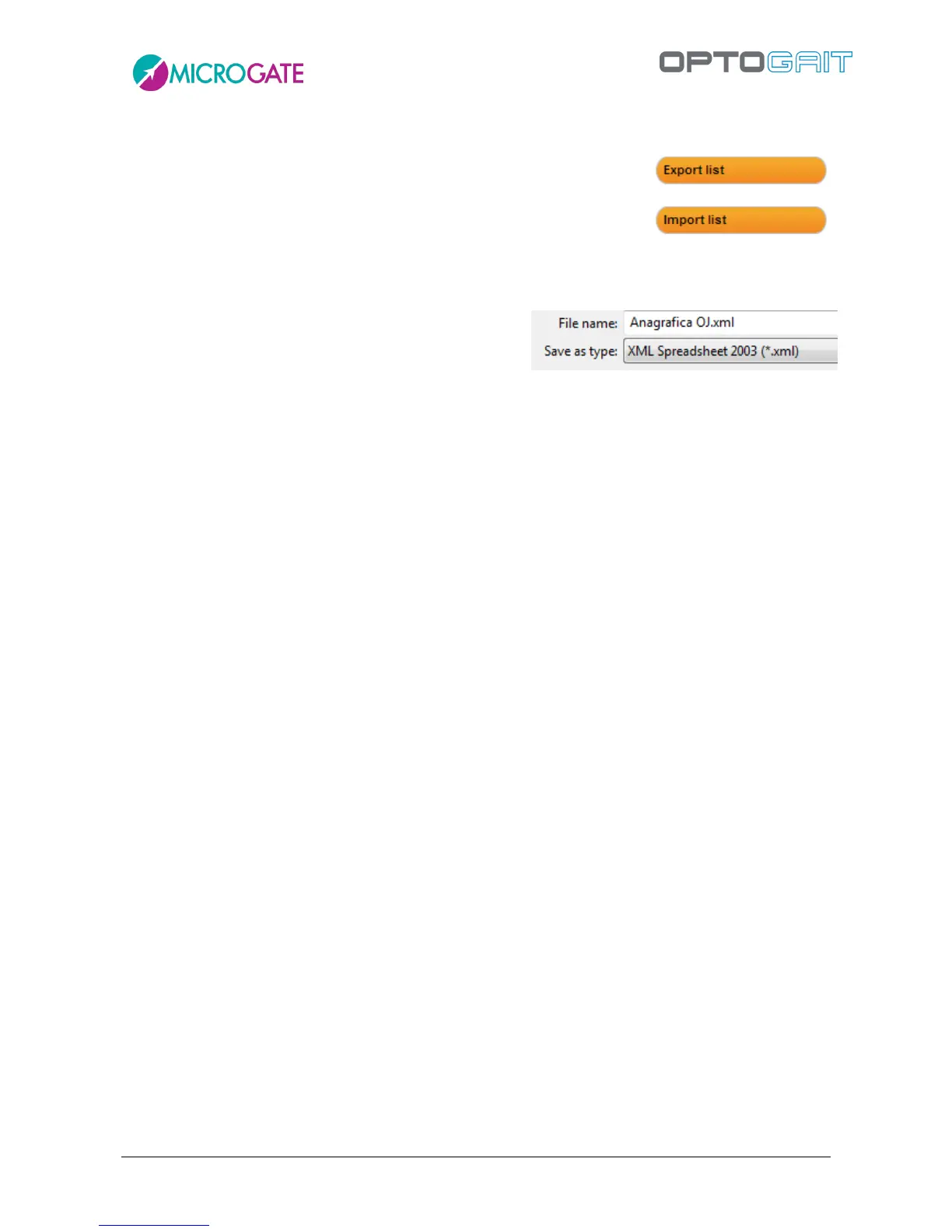
Once compiled in OptoGait, the Patients’ Personal Data can be exported
into an Excel-compatible format (XML Spreadsheet 2003). Press <Export
List> and specify the name and location of the XML file. If you have
Microsoft Excel installed on your computer, double-click on the file icon
to launch the program and view the columns with all relevant patients'
data.
If you already have a patients' list created with another
software, it can be imported with OptoGait Next
preparing a normal Excel file with the same format as
the export file (number, location, column headers and format 'XML Spreadsheet 2003'). It is
recommended to export an empty personal database to create a file template and then to fill it with
the desired information. Attention must be paid to the birth date format (DD/MM/YYYY) and the
'Gender' field (M or F). The pre-configured fields 'Sort' and 'Discipline' can only be one of those
available from the drop-down menu. Possible errors during the import are listed in a log window at
the end of the import (if the error is not blocking, the patient is added anyway, but with any possible
wrong fields empty).



 To Next Page