Version 1.9 Page 25 of 170
3 OPTOGAIT DRIVER AND HARDWARE INSTALLATION
3.1 DRIVER INSTALLATION
For correct functioning of the program, the respective drivers for the OptoGait hardware and the
webcam must be installed.
The OptoGait software installation file already contains the required drivers.
With regard to the Vista operating system it has been found that if the installation program is not
run as ‘Administrator’, the drivers are not installed. In this case, install the two drivers separately.
These are available on the Microgate USB key supplied with the hardware or on the site
www.optogait.com in the 'Support' section.
To verify that the drivers have been installed, connect the two devices (OptoGait hardware and
webcam). If installation has not taken place, the operating system will signal an error. If this occurs,
disconnect the hardware, reinstall the drivers and reconnect the hardware.
3.2 OPTOGAIT HARDWARE INSTALLATION
Attention must be paid when installing the OptoGait bars, particularly when inserting the caps for
connecting the bars.
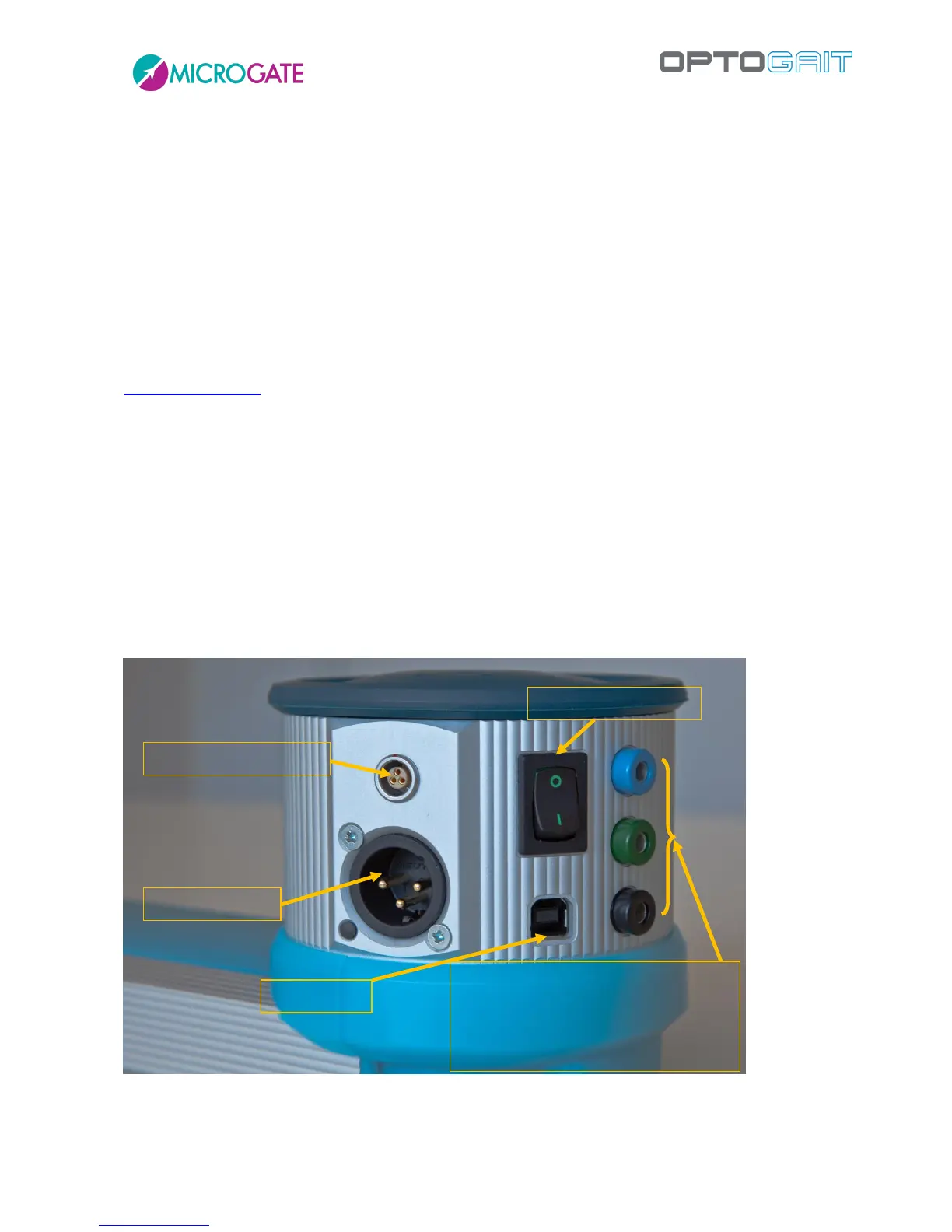
A distinction must be made between the Tx and Rx bars and additionally between bars with interface
(silver drum at start of bar) and without interface. Only the interfaces have an OFF switch.
Figure 9 - Interface "drum"



 To Next Page