Version 1.9 Page 118 of 170
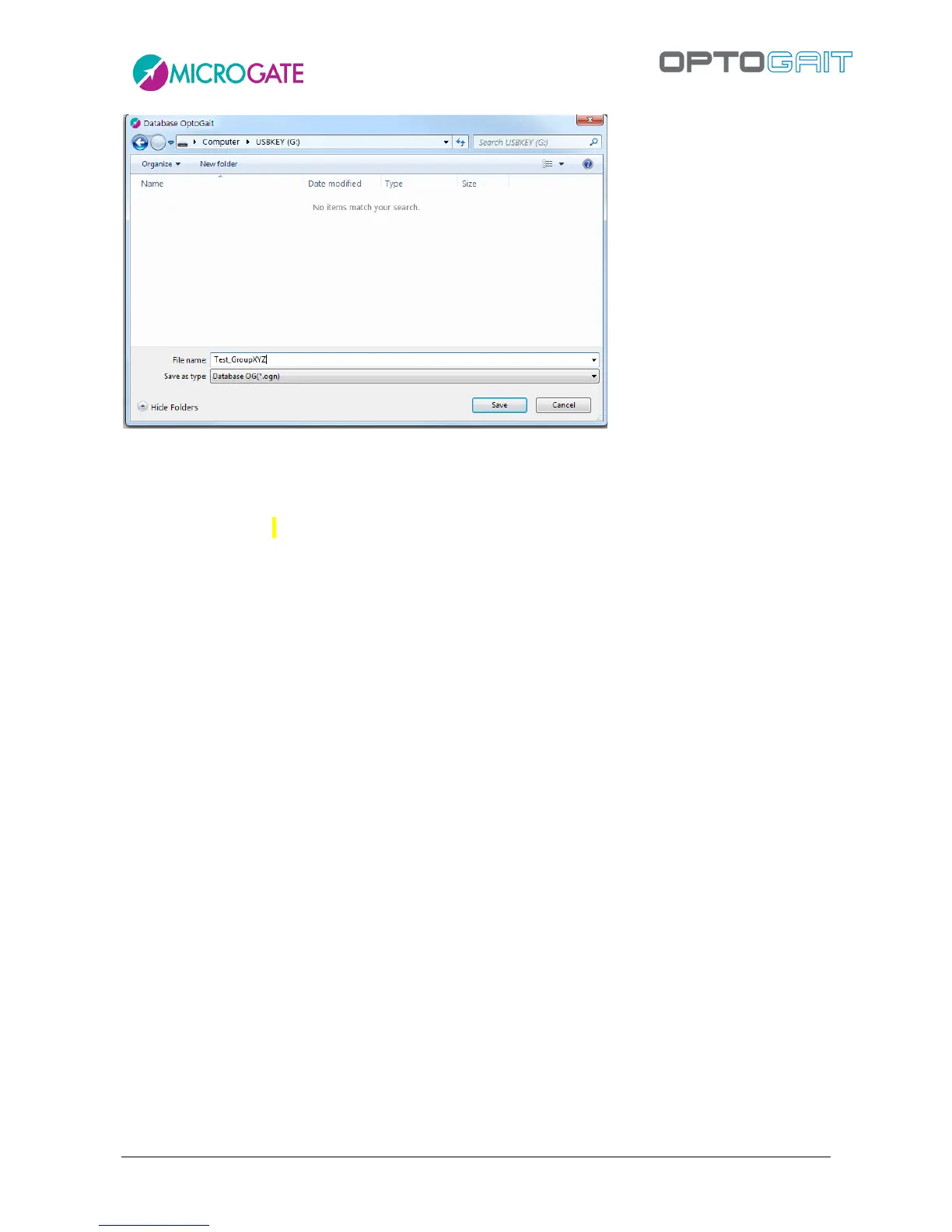
Figure 103 - Saving the OGN file
4.4.3.6 IMPORT
Imports an .OGN file previously exported to another PC or to the same PC, in case of data deletion
or removal (restore). ). This command can also be used to merge two databases into one database.
This operation is carried out in THREE steps:
You will be asked if you want to import into a new database (Import) or the current one
(Merge)
The first dialog box asks you to locate the file with the extension .OGN to import
The second dialog box (only if you clicked YES in the first message window) asks in which
folder to extract the .OGN file and as a consequence to store the database file (.sdf) and its
subdirectories Video and Images. It is recommended to use the suggested default
destination directory, which is the local Documents folder.
Example: You want to import an .OGN export file saved on a USB stick extracting its files to the
folder ‘C:\My OptoGait Test’:
Press <Import>, browse to the drive of the USB stick (in the following example J: ) and select the file
Test_TeamXYZ.OGN double clicking on it:



 To Next Page